

ChatGPT Images 2.0 Alternative for Sketch-to-Photo (2026)
On this page
Share
On April 21, 2026, OpenAI launched ChatGPT Images 2.0 — the first image model that reasons through a prompt before rendering it. Two days later, it climbed to #2 on Product Hunt with 303 upvotes. The headline feature: a "thinking" mode that analyzes the request, plans composition, and validates the output before it ships.
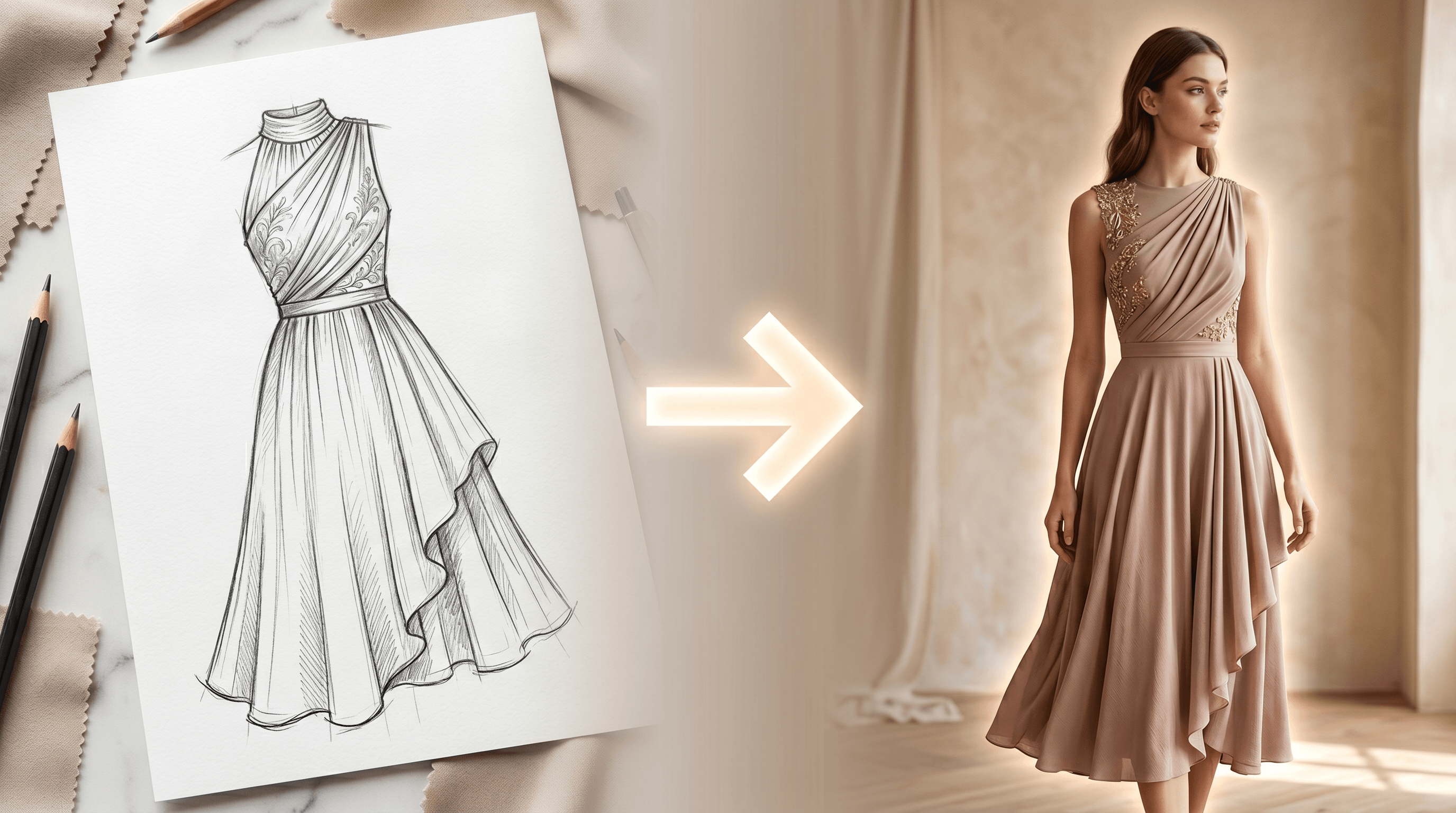
It's a strong general-purpose model. But "general-purpose" is also its limit. If you specifically need to turn a hand-drawn sketch into a photorealistic image — a fashion concept into a product shot, an architectural doodle into a render, a tattoo line drawing into a finished arm — a vertical tool like Sketch To is still doing something ChatGPT Images 2.0 isn't designed for.
This guide compares both tools head-to-head, explains where the thinking model wins, and shows when a vertical sketch-to-image AI is the better pick.
Last updated: April 2026
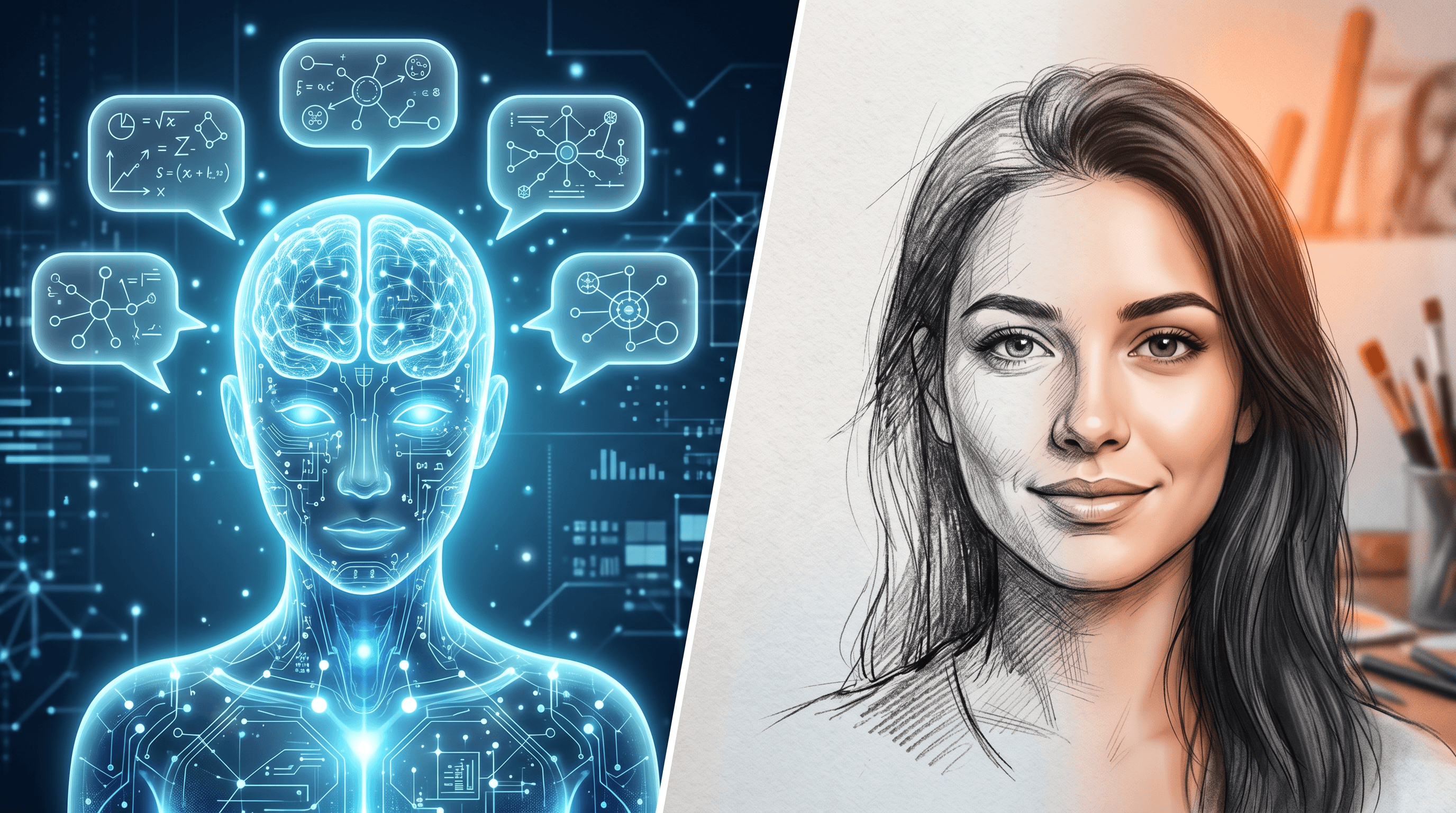
Table of Contents
- Quick Verdict
- What Is ChatGPT Images 2.0?
- What Is Sketch To?
- Feature Comparison Table
- When to Use ChatGPT Images 2.0 vs Sketch To
- How to Turn a Sketch Into a Realistic Photo
- FAQ
Quick Verdict
For general image generation across marketing assets, posters, and concept art, ChatGPT Images 2.0 is the stronger default — especially the "Images with thinking" mode for complex multi-element scenes. For converting hand-drawn sketches into photorealistic photos as a repeatable workflow, Sketch To still produces cleaner, more consistent results because its model is trained for that one job.
What Is ChatGPT Images 2.0?
ChatGPT Images 2.0 is OpenAI's new image generation model, released April 21, 2026. The flagship change is a "thinking layer" that lets the model reason about a prompt — analyzing intent, planning structure, and validating the output — before delivering the final image. According to OpenAI, it improves text rendering, multilingual support, and complex visual prompt handling.
Key Features
- Images with thinking mode: the model reasons through the request, can search the web for current information, and checks its own output before delivering. Available on Plus, Pro, Business, and Enterprise plans.
- Improved text rendering: cleaner inline text on posters, signage, and UI mockups — a known weak point of earlier DALL-E and 4o-image models.
- Multilingual support: better handling of non-English prompts and characters.
- Flexible aspect ratios: from wide banners to vertical posters in one model.
- Batch generation with consistent styling: produce multiple assets sharing a visual identity.
- Free tier: ChatGPT Images 2.0 base mode is available to all ChatGPT users at no cost; thinking mode is paid-only.
Best For
- Marketing visuals, social posts, blog illustrations
- Multi-element scenes that benefit from upfront reasoning (comics, layered marketing graphics)
- Posters and signage where text rendering matters
- Users already inside the ChatGPT ecosystem who want one tool for everything
Limitations
- Thinking mode takes longer per generation (extra latency for the reasoning pass)
- Not specialized for sketch-to-photo conversion — quality varies on rough hand-drawn line input
- Brand and character consistency across 8–10 assets remains a known pain point (one of the top concerns raised in the Product Hunt comments)
- Thinking mode is gated behind a paid plan
- No dedicated upscaler, background remover, or uncrop in the same workflow
- Cannot reverse-process — taking an existing photo and converting it back to a stylized sketch isn't a first-class feature
What Is Sketch To?
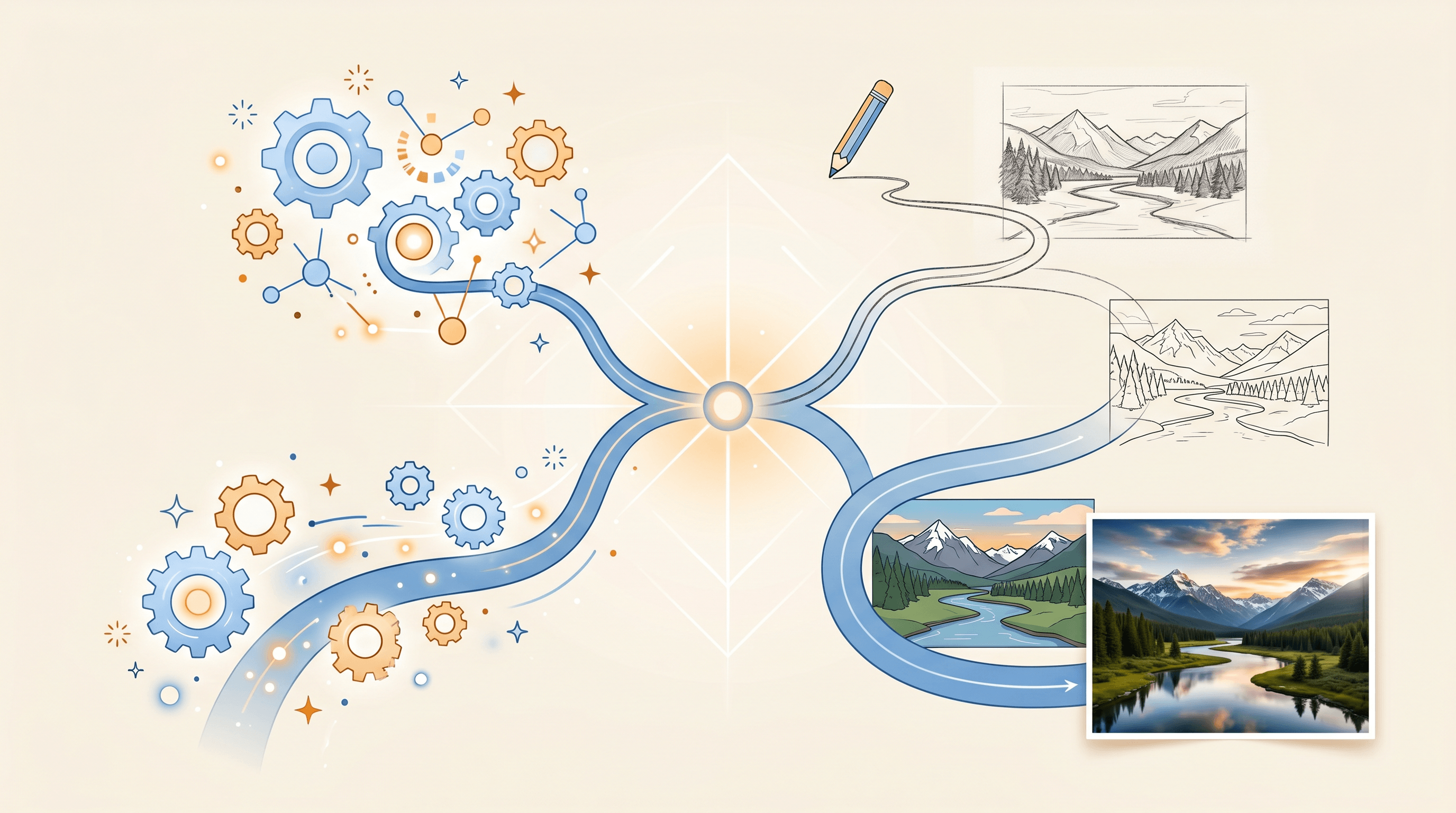
Sketch To is a vertical AI platform focused on one workflow: bidirectional conversion between sketches and photos. It does two things most general image models don't do well: turn rough sketches into photorealistic images, and turn photos back into clean sketches. Its Professional model is trained specifically for high-detail sketch-to-image rendering, with a Standard model for faster everyday use.
Key Features
- Sketch to Image AI: convert hand-drawn sketches into photorealistic images — the core capability.
- Image to Sketch: reverse direction — convert any photo into a clean pencil sketch.
- Two AI models: Standard (≈3 second processing, good for everyday use) and Professional (≈10 second processing, world-class realism for commercial work).
- Background Remover, Image Upscaler, Uncrop: post-processing tools in the same workflow.
- Free trial credits for new users to test the Professional model.
Pricing
- Basic: $8/mo (960 credits/year, ~480 images)
- Pro: $16/mo (6,000 credits/year, ~3,000 images)
- New users get free trial credits
Best For
- Designers, illustrators, and architects sketching on paper or tablet who need photorealistic previews
- Fashion designers turning dress sketches into product photos
- Tattoo artists and product designers iterating from line art
- Anyone whose primary input is a sketch, not a text prompt
Limitations
- No general text-to-image generation — sketch input is the workflow
- Fewer style filters than full editors like Fotor or Canva
- Web-only, no native desktop or mobile app
- No free ongoing tier — only trial credits for new users
- No "thinking" reasoning layer like ChatGPT Images 2.0
Feature Comparison Table
| Feature | ChatGPT Images 2.0 | Sketch To |
|---|---|---|
| Primary input | Text prompt (+ optional image) | Sketch image (hand-drawn or digital) |
| Thinking / reasoning layer | ✅ Yes (Plus/Pro/Business/Enterprise) | ❌ No |
| Sketch → photorealistic photo | Possible, not specialized | ✅ Specialized (Professional model) |
| Photo → sketch | Possible via prompting | ✅ Built-in |
| Text rendering in image | ✅ Improved over 4o-image | Not the focus |
| Multilingual prompts | ✅ Strong | Limited (visual workflow) |
| Aspect ratio flexibility | ✅ Wide banner to vertical poster | Matches input or standard sizes |
| Background remover | ❌ Not in same workflow | ✅ Built-in |
| Upscaler | ❌ Not in same workflow | ✅ Built-in |
| Uncrop / outpaint | Limited | ✅ Built-in |
| Free tier | ✅ Base mode free for all ChatGPT users | Free trial credits only |
| Paid entry price | ChatGPT Plus $20/mo (for thinking mode) | $8/mo (Basic) |
| Processing speed | Fast in base mode, slower in thinking mode | Standard ~3s / Professional ~10s |
| Where it lives | Inside ChatGPT | Standalone web app |
Pricing and feature info verified as of April 2026.
When to Use ChatGPT Images 2.0 vs Sketch To
Use this decision tree to pick the right tool:
- Are you starting from a hand-drawn or digital sketch? → Sketch To. The Professional model is purpose-built for that one transformation, and it handles fine line detail more reliably than a general model.
- Do you need to generate something from a written prompt with multiple elements (text, layout, scene composition)? → ChatGPT Images 2.0 with thinking mode. The reasoning pass is meant for exactly this kind of multi-step visual planning.
- Do you need text inside the image (poster, signage, UI mockup)? → ChatGPT Images 2.0. Text rendering is a documented improvement in 2.0.
- Do you need to reverse-convert (photo → clean sketch)? → Sketch To. ChatGPT can prompt for a stylized sketch, but Sketch To has a dedicated Image to Sketch tool for clean line output.
- Do you need post-processing (background removal, upscaling, uncrop) in the same place? → Sketch To. ChatGPT Images 2.0 doesn't bundle these.
- Are you generating 8–10 brand-consistent assets? → Try both. Product Hunt commenters have flagged consistency as a weak spot for ChatGPT Images 2.0, so a quick test on your specific brand is worth the time.
- Are you on a tight budget and only need occasional generations? → ChatGPT Images 2.0 base mode is free; Sketch To has new-user trial credits.
Most common pairing: many designers we've talked to use ChatGPT Images 2.0 for marketing visuals and Sketch To when they need to translate a paper sketch into a finished photorealistic asset. They're complementary, not strictly competing.
How to Turn a Sketch Into a Realistic Photo (Step-by-Step)
If the sketch-to-photo workflow is what brought you to this comparison in the first place, here's the fastest path. We'll use Sketch To because the Professional model is built for this exact job — it produces photo-quality output in roughly 10 seconds.
- Prepare your sketch. A clean sketch on white paper works best. Phone camera photos are fine — just make sure lighting is even and lines are clearly visible. Crop tight to the subject before uploading.
- Open Sketch To and pick the Sketch to Image AI tool. Drag your sketch into the upload area or click to browse.
- Select the Professional model for commercial-quality output. The Standard model is faster (~3 seconds) but the Professional model produces more realistic textures and better edge fidelity.
- Add a short text prompt describing what the sketch represents — for example, "red satin evening dress on a model, studio lighting, fashion magazine photo." This guides the model on materials, lighting, and context.
- Generate. Wait around 10 seconds. The output is photorealistic and matches the proportions and pose of your original sketch.
- Refine if needed. Use the built-in Image Upscaler to push to print resolution, Background Remover to isolate the subject, or Uncrop to expand the canvas. All three live in the same workflow, so you don't bounce between tools.
- Download as PNG or JPG.
Tip: if your sketch has light-pencil shading you don't want preserved, run it through a quick contrast bump in any photo editor first. Sketch To respects shading detail, so cleaning the input gives a cleaner output.
FAQ
Is ChatGPT Images 2.0 free?
Yes — the base mode of ChatGPT Images 2.0 is available to all ChatGPT users at no cost. The "Images with thinking" mode, which adds the reasoning layer for complex prompts, is exclusive to ChatGPT Plus, Pro, Business, and Enterprise plans (Plus starts at $20/mo).
What is the best ChatGPT Images 2.0 alternative for sketch-to-photo?
For turning sketches into photorealistic photos specifically, Sketch To is the closest specialized alternative. Its Professional model is trained for that exact transformation. ChatGPT Images 2.0 can attempt the same conversion via prompting, but a vertical model designed for sketch input typically produces more consistent line fidelity and texture detail.
Can ChatGPT Images 2.0 turn a sketch into a realistic photo?
Yes, you can upload a sketch and prompt it to generate a photorealistic version, especially in thinking mode. The result is usable for casual work but tends to take more creative liberty with line detail and proportions than a tool trained specifically on sketch-to-image data. For repeatable, production-quality output, a vertical tool is more reliable.
Is ChatGPT Images 2.0 better than the previous 4o image model?
Based on early testing reported across reviewers, yes — particularly for text rendering, multilingual prompts, and complex multi-element scenes. The thinking mode is the headline upgrade. OpenAI is also retiring DALL-E 2 and DALL-E 3 on May 12, 2026, consolidating image generation into the 2.0 model.
What is the "thinking" mode in ChatGPT Images 2.0?
It's a reasoning step that runs before image generation. The model analyzes the prompt, plans the visual structure, can search the web for current reference information, and validates its output before delivering. It takes longer than the base mode but produces more reliable results on prompts with multiple elements or specific factual constraints.
Should I use both ChatGPT Images 2.0 and Sketch To?
For many design workflows, yes. Use ChatGPT Images 2.0 for general marketing visuals, posters with text, and concept art generated from prompts. Use Sketch To when your input is an actual sketch and your output needs to look like a photo — fashion design, product mockups, architectural concepts, tattoo design previews. They cover different parts of the workflow.
Ready to Turn Your Sketches Into Photos?
ChatGPT Images 2.0 is a strong general-purpose model with a smart thinking layer. But if your work starts on paper or a drawing tablet, a vertical tool gives you sharper results. Try Sketch To free → — upload your first sketch, pick the Professional model, and see the photorealistic output in about 10 seconds. No design skills required.
Transform Your Images with AI
Turn sketches into stunning images, remove backgrounds, swap faces, and more — all powered by AI.
Try Sketch To FreeShare
Sketch To
Tech writer covering AI tools, image processing, and creative workflows.
Related Articles

Local AI Image Generator vs Online Sketch Tools
A local AI image generator gives you privacy and offline use; online sketch to image AI tools win on speed and polish. Full 2026 comparison.

Reve 2.0 Alternative: Sketch-to-Image Layout Control
Looking for a Reve 2.0 alternative? Compare 6 layout-based AI image generators and see when sketch-to-image beats 4K layout control.

MAI Image 2.5 Alternatives for Sketch Scene Control
Compare 7 MAI Image 2.5 alternatives for scene control. See when sketch-to-image beats text prompts for layout, perspective, and composition.