

MAI Image 2.5 Alternatives for Sketch Scene Control
On this page
Share
You typed "a blue sofa on the left, a floor lamp behind it, a window on the right" into MAI Image 2.5, and the model put the lamp in front, shrank the sofa, and floated the window somewhere in the middle. Text scene control is powerful, but words are a lossy way to describe space. A sketch is not.
MAI Image 2.5 launched in June 2026 and made "precise scene control" its headline feature, ranking #2 for image editing on the LMArena leaderboard. Its scene control is text-driven: you describe the layout, lighting, and object positions in natural language, and the model interprets them. That works beautifully for restyling and localized edits, but it leaves composition up to the model's interpretation.
This guide compares seven MAI Image 2.5 alternatives that approach scene control differently, with a focus on sketch-to-image scene control, where you draw the layout instead of describing it. You will see exactly when a sketch is the more deterministic way to lock down composition, perspective, and subject position, and which tool fits your workflow.
Last updated: June 9, 2026
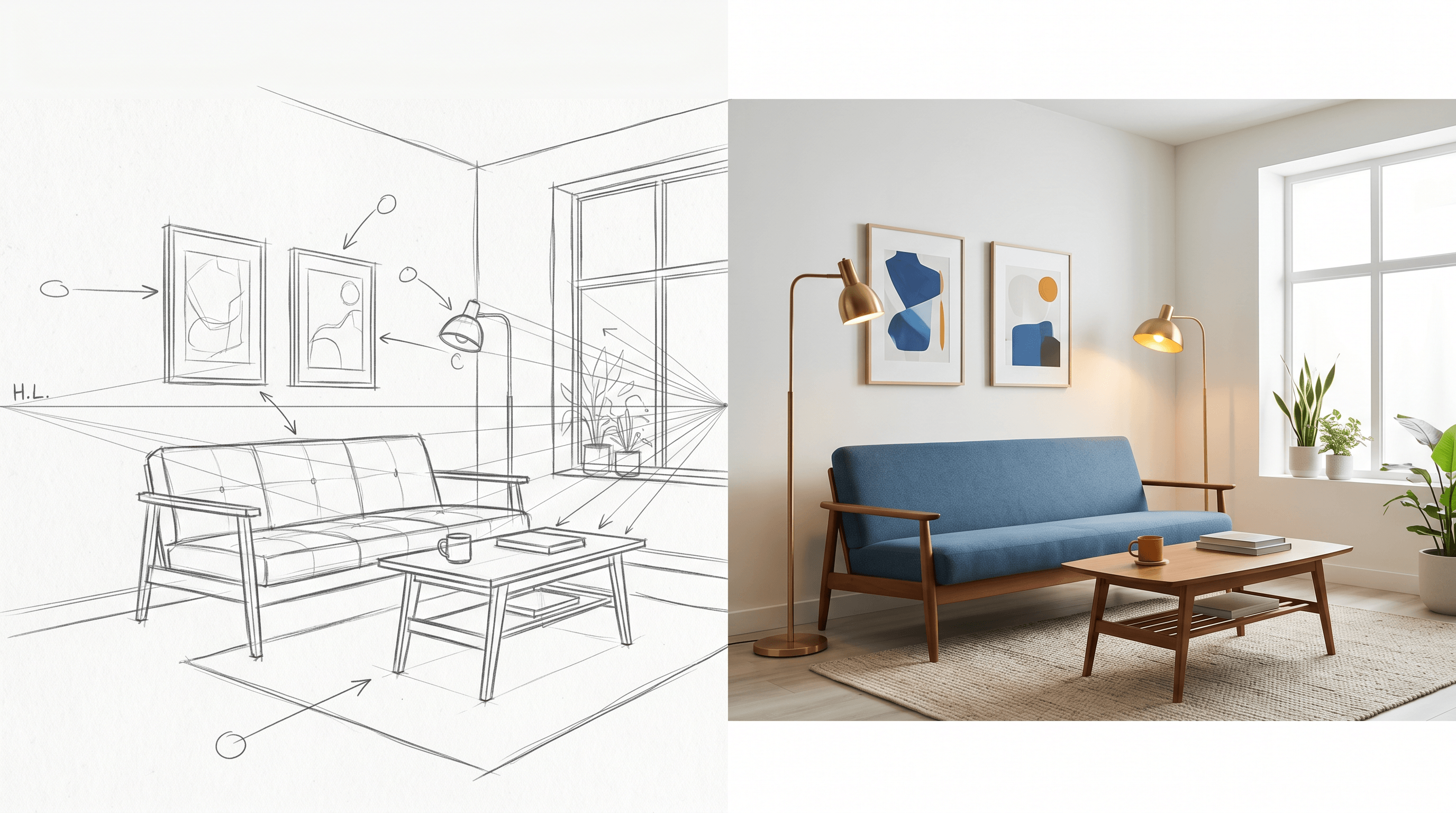
Table of Contents
- What Is Scene Control in AI Image Generation?
- 7 MAI Image 2.5 Alternatives for Scene Control
- Feature Comparison Table
- Text Scene Control vs Sketch Composition Control
- How to Choose the Right Tool
- How to Control Composition with a Sketch, Step by Step
- FAQ
What Is Scene Control in AI Image Generation? {#what-is-scene-control}
Scene control means directing where objects sit, how subjects are posed, and how the camera frames the shot, not just what appears in the image. There are two ways to do it: text scene control, where you describe the layout in words (the MAI Image 2.5 approach), and sketch composition control, where you draw the layout and the AI renders it (the sketch-to-image approach).
The split matters because words and pixels carry different information. A text prompt is fast to write but ambiguous about space: "behind," "to the left," and "in the foreground" mean different things to a model on every run. A sketch encodes exact position, scale, perspective, and proportion in one pass. According to ControlNet research, spatial conditioning from a drawing gives pixel-level compositional control that text prompts alone cannot achieve.
In 2026 the sketch-to-image category split into real-time canvas tools (Krea), all-in-one suites (Freepik), model-library sandboxes (Openart), and specialized sketch-to-image workflows (Sketch To). The seven tools below cover the full range of MAI Image 2.5 alternatives for scene control.
7 MAI Image 2.5 Alternatives for Scene Control {#alternatives}
The best MAI Image 2.5 alternative depends on whether you want to describe a scene or draw it. Below, each tool lists how it handles scene control, plus where it shines and where it falls short. We tested each for layout, perspective, and subject-position accuracy.
1. MAI Image 2.5 (the baseline)
Microsoft AI's MAI Image 2.5 is a text-driven generation and editing model that understands scene structure, lighting, scale, and spatial relationships. It restructures shots by adding, removing, or repositioning objects from natural-language instructions, preserves character identity across edits, and handles typography and localized edits without degrading untouched areas. It ranked #2 for image editing on LMArena at launch.
- Best for: Editing existing photos, identity consistency for branded characters, text and layout generation, restyling.
- Not ideal for: Locking exact composition from scratch. Because control is text-based, layout and perspective depend on how the model reads your words.
2. Sketch To
Sketch To is a specialized sketch-to-image tool: you upload a drawing and the AI renders a photorealistic image that follows your lines. Because the composition comes from your sketch rather than a prompt, layout, perspective, and subject position are deterministic, you decide them, not the model. Its Professional Model returns photo-realistic results in about 10 seconds, and new users get free trial credits.
- Best for: Turning rough layout sketches into finished images with exact composition, product mockups, storyboards, scene blocking.
- Not ideal for: Heavy text-only generation where you have no reference drawing.
3. Krea AI Realtime Canvas
Krea AI is the market leader in real-time AI image generation, with 30M+ users across 191 countries. Its Realtime Canvas updates in under 50ms as you draw, and an AI Strength slider lets you set how strictly the output follows your lines (low strength, 0.3 to 0.5, sticks closely to your sketch). You dictate composition with your hand instead of fighting the prompt.
- Best for: Live, exploratory drawing where you want instant feedback while blocking a scene.
- Not ideal for: One-shot rendering from a finished sketch; the real-time canvas favors iteration over a single clean output.
4. ControlNet for Stable Diffusion
ControlNet adds spatial conditioning to Stable Diffusion, letting you guide generation with sketches, depth maps, edge detection, and pose skeletons. It gives the most granular, pixel-level compositional control of any tool here and works with SDXL and SD 3.5 through ComfyUI or A1111. The trade-off is setup: it needs a capable GPU and a learning curve.
- Best for: Power users who want exact, layered control (sketch + depth + pose together) and do not mind technical setup.
- Not ideal for: Beginners or anyone who wants results without installing a local pipeline.
5. Adobe Firefly
Adobe Firefly offers a Structure Reference feature: you supply a reference image (or sketch) and Firefly borrows its composition while you change the subject and style. It is trained only on licensed and public-domain content, which makes it the safest choice when copyright exposure is a concern, and it lives inside Photoshop.
- Best for: Commercial work that needs copyright-cleared output and a composition reference inside an existing Adobe workflow.
- Not ideal for: Pixel-exact line-following; structure reference guides composition loosely rather than tracing your sketch.
6. Freepik AI Suite
Freepik bundles multiple models plus sketch and structure-reference tools in one all-in-one interface, so you can switch engines without leaving the app. It is a strong generalist for teams that want scene control alongside stock assets, templates, and editing in a single subscription.
- Best for: Teams that want one subscription covering generation, sketch input, and a stock library.
- Not ideal for: Users who need the deepest single-feature control; breadth comes before depth.
7. Recraft
Recraft focuses on brand and layout design, with strong control over placement, vector output, and consistent style sets. Its composition controls are aimed at designers who need repeatable layouts (icons, illustrations, marketing visuals) rather than photoreal scene rendering.
- Best for: Brand designers who need precise placement and reusable vector-style assets.
- Not ideal for: Photoreal sketch-to-photo rendering.
Feature Comparison Table {#comparison-table}
Here is how the seven MAI Image 2.5 alternatives compare on scene control method, composition determinism, and access. Determinism rates how closely the final layout matches what you specify.
| Tool | Scene control method | Composition determinism | Learning curve | Commercial-safe | Free tier | Starting price |
|---|---|---|---|---|---|---|
| MAI Image 2.5 | Text prompt | Medium | Low | Yes (Microsoft) | Yes | Usage-based |
| Sketch To | Upload a sketch | High | Low | Yes | Yes (trial credits) | $8/mo |
| Krea AI | Real-time canvas | High | Medium | Yes | Limited | ~$10/mo |
| ControlNet (SD) | Sketch/depth/pose | Very high | High | Model-dependent | Yes (self-host) | Free (GPU cost) |
| Adobe Firefly | Structure reference | Medium | Low | Yes (licensed data) | Limited | ~$9.99/mo |
| Freepik | Sketch + structure | Medium | Low | Yes | Limited | ~$9/mo |
| Recraft | Layout/vector control | Medium-high | Low | Yes | Yes | ~$10/mo |
For a wider field of options, see our guide to the best AI sketch-to-image generators.
Text Scene Control vs Sketch Composition Control {#text-vs-sketch}
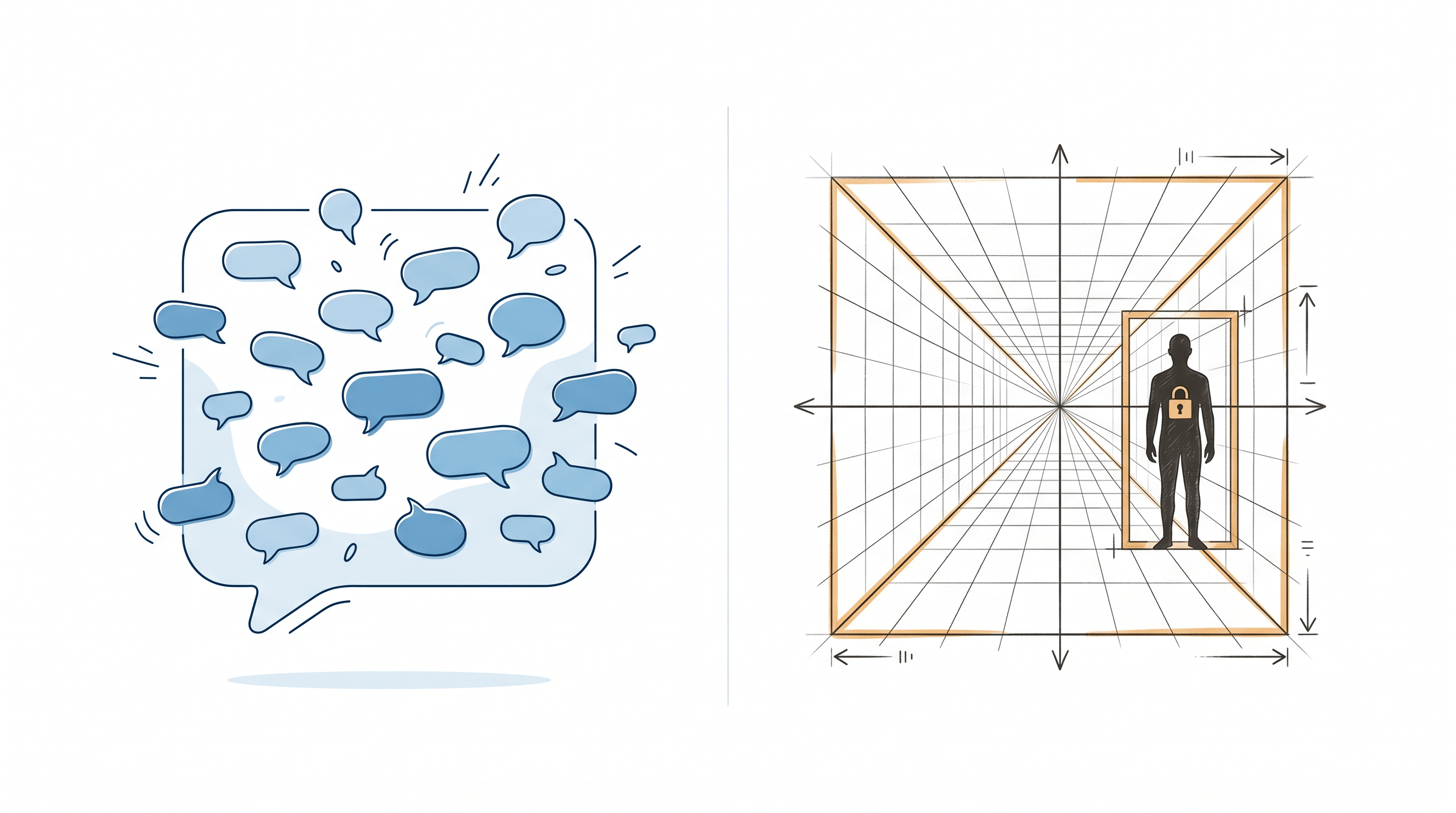
Sketch composition control is more deterministic than text scene control for layout, perspective, and subject position, because a drawing fixes spatial information that words can only approximate. Text control wins on speed and on edits to images you already have. Here is the breakdown across the dimensions that matter.
| Dimension | Text scene control (MAI Image 2.5) | Sketch composition control |
|---|---|---|
| Layout / object placement | Interpreted from words, varies per run | Fixed by your lines, repeatable |
| Perspective & vanishing point | Implied, often drifts | Drawn explicitly, held |
| Subject position & scale | Approximate ("on the left") | Exact, pixel-anchored |
| Iteration speed | Very fast (retype a phrase) | Fast (redraw a region) |
| Editing existing photos | Excellent | Limited (needs a sketch) |
| Skill needed | Prompt writing | A rough drawing, not fine art |
In our testing, the gap shows up most with perspective and overlapping objects. Ask a text model to "place the lamp behind and to the right of the sofa, with the window catching morning light," and you will often get a few runs where the lamp lands in front or the window scale is off. A sketch settles all three relationships in one stroke, so you are not re-rolling prompts to fix geometry. That is the core reason a sketch-to-image workflow is the more reliable MAI Image 2.5 alternative when composition is non-negotiable. For a deeper walkthrough, see our guide on sketch-to-image layout control.
How to Choose the Right Tool {#how-to-choose}
Pick by what you are starting from and how much control you need. The short version: edit a photo, use MAI Image 2.5; draw the composition, use a sketch-to-image tool.
- You are editing an existing image or need identity consistency → MAI Image 2.5. Its text-driven localized edits and character preservation are its strongest features.
- You need the exact layout, perspective, or subject position from a drawing → Sketch To for a fast, no-setup render, or ControlNet if you want layered, pixel-level control and have a GPU.
- You want to draw and see results live → Krea AI Realtime Canvas.
- Copyright safety is critical for commercial use → Adobe Firefly.
- You want one tool for generation plus a stock library → Freepik.
- You design brand assets and need vector-style layout control → Recraft.
How to Control Composition with a Sketch, Step by Step {#how-to}
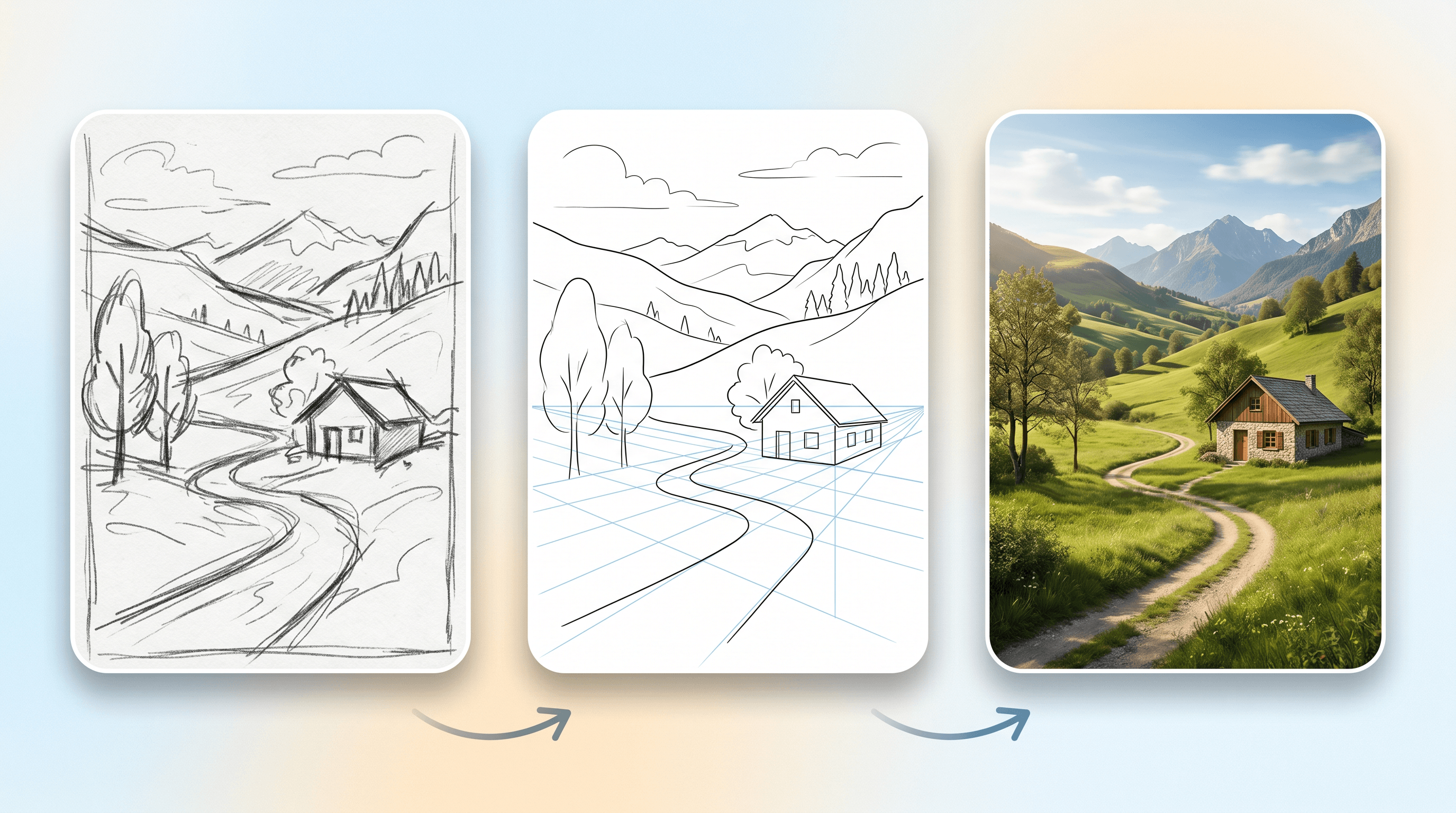
You do not need drawing skills to control composition with a sketch, you need a clear layout. Here is the five-step workflow we use to go from a rough drawing to a finished image with exact composition.
- Block the layout. Sketch the big shapes first: where the subject sits, the horizon line, and any foreground or background objects. Stick figures and boxes are enough.
- Add perspective lines. Draw light lines toward a vanishing point so the AI keeps depth and scale consistent. This is the step text prompts cannot reliably reproduce.
- Mark the focal point. Make the main subject the largest or most detailed element so the render knows what to emphasize.
- Render the sketch. Upload your sketch to Sketch To and select the Professional Model, it returns photo-realistic results in about 10 seconds while following your composition. This is the fastest way to turn a layout sketch into a finished image without local setup.
- Refine by region. If one area is off, redraw just that part of the sketch and re-render, instead of re-rolling a whole prompt. Each pass stays anchored to your original composition.
FAQ {#faq}
What is the best MAI Image 2.5 alternative for composition control? For deterministic composition, a sketch-to-image tool like Sketch To is the strongest MAI Image 2.5 alternative, because your drawing fixes layout, perspective, and subject position instead of leaving them to a text prompt. ControlNet offers even finer control if you are comfortable with a local Stable Diffusion setup.
Is sketch-to-image more accurate than text prompts for layout? Yes, for layout and spatial relationships. A sketch encodes exact position, scale, and perspective in one pass, while a text prompt re-interprets phrases like "behind" or "on the left" on every run. Text prompts remain faster for restyling and for editing images you already have.
Can I control perspective with a sketch? Yes. Drawing light perspective lines toward a vanishing point lets the AI hold depth and scale consistent, which is the single hardest thing to pin down with text scene control alone.
Do I need drawing skills to use sketch-to-image tools? No. A rough layout with boxes, stick figures, and a horizon line is enough. The AI handles rendering, lighting, and detail, you only supply the composition.
Does MAI Image 2.5 take a sketch as input? MAI Image 2.5 is built around text-driven scene control and editing rather than sketch conditioning. If your control comes from a drawing, a dedicated sketch-to-image tool or ControlNet is a better fit.
Is MAI Image 2.5 free? MAI Image 2.5 is available through Microsoft surfaces and Microsoft Foundry with usage-based access. Sketch To offers free trial credits for new users, with paid plans starting at $8/month.
Ready to control your composition with a sketch?
Text scene control is great for editing, but when layout, perspective, and subject position have to be exactly right, a drawing beats a paragraph. Try Sketch To free → Upload a rough sketch, pick the Professional Model, and get a photo-realistic image that follows your composition in about 10 seconds, no design skills or setup needed.
Transform Your Images with AI
Turn sketches into stunning images, remove backgrounds, swap faces, and more — all powered by AI.
Try Sketch To FreeShare
Sketch To
Tech writer covering AI tools, image processing, and creative workflows.
Related Articles

Best AI Sketch to Image Generators in 2026
Compare 7 AI sketch to image generators side by side. Features, pricing, real-time preview, and test results for Sketch To, Midjourney, ChatGPT, Leonardo AI, and more.

Top 5 Sketch to Real Photo AI Tools in 2026 (Compared)
Compared 5 sketch to real photo AI tools — Sketch To, Midjourney v7, Adobe Firefly, DALL-E 3, Flux — on realism, speed, price, license.

Sketch to Image AI vs AI Design Engineers: Sketches Win
Compare sketch to image AI tools (Sketch To, ControlNet, Firefly) with AI design engineers like Flowstep. See why hand-drawn sketches still win.