

How to Create Anime Fan Art from Sketches with AI
On this page
Share
Last updated: May 2026
Your sketched Dante stares up at you from the notebook. The linework is there — the confident strokes, the brooding posture — but somewhere between pencil and finished art, the gap between "fan sketch" and "fan art" feels insurmountable. It doesn't have to be.
AI image tools have gotten good enough that a clean line sketch can become a fully stylized, vibrant anime or game IP illustration in under a minute. #devilmaycry and #goodomens are both trending on TikTok right now (the latter up 42% month-over-month), and fans are already flooding both feeds with AI-assisted redraws of their hand-drawn tribute pieces. This tutorial walks you through the exact process.
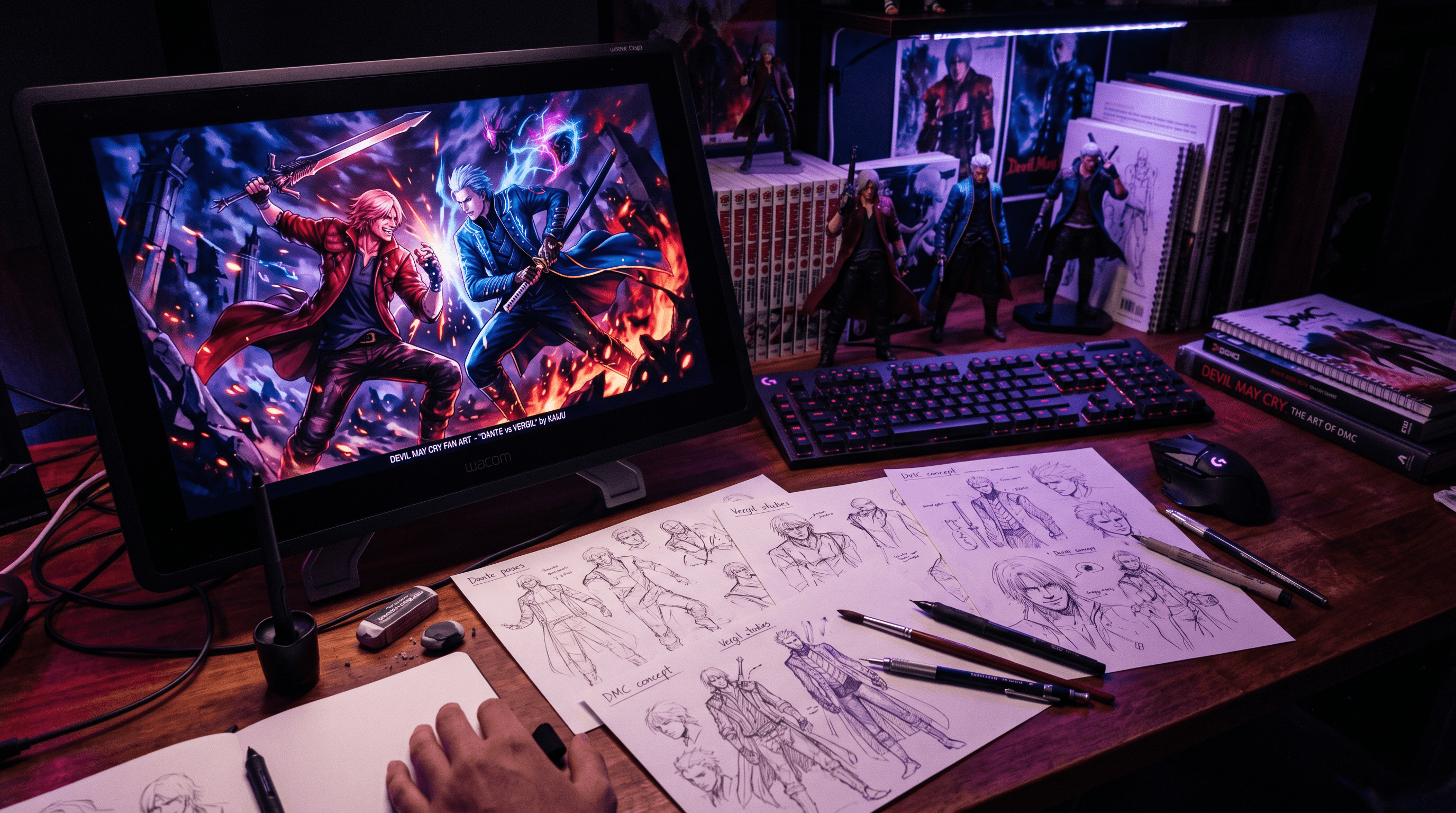
Table of Contents
- Why Turn Sketches into Anime Fan Art?
- Step 1: Prepare Your Sketch
- Step 2: Upload to an AI Tool
- Step 3: Choose the Right Model
- Step 4: Write a Style Prompt
- Step 5: Refine and Export
- Pro Tips for Better Results
- FAQ
Why Turn Sketches into Anime Fan Art?
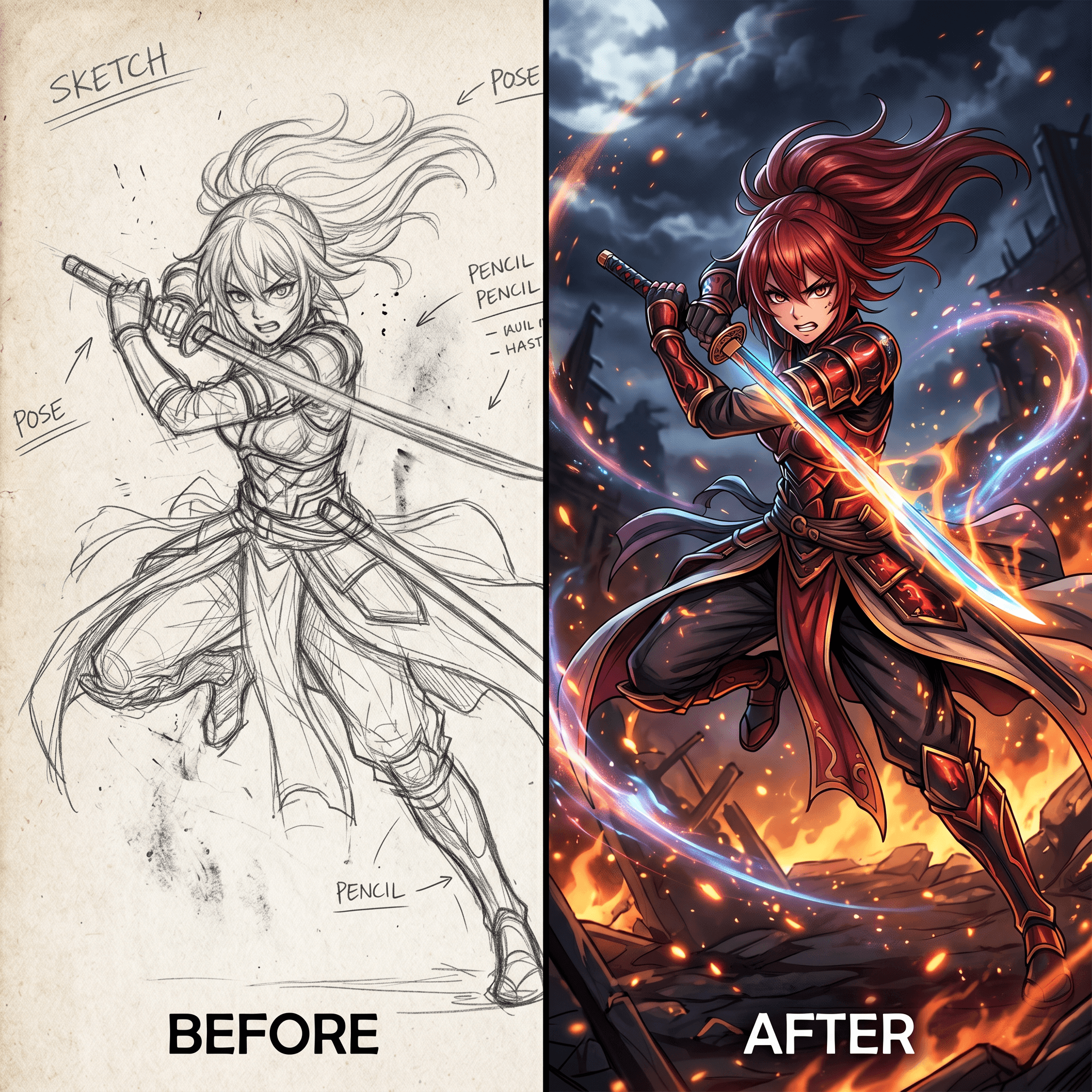
Hand-drawn sketches carry gesture and personality that AI-generated images from scratch rarely match. When you feed your linework into an AI, the output reflects your artistic intent rather than averaging across millions of training examples.
For fan artists, this matters for three reasons. First, it keeps the composition yours — the pose, the expression, the framing. Second, it dramatically cuts the rendering time needed to produce a polished, postable image. In our testing, going from a clean pencil sketch to a fully shaded anime-style result took about 45 seconds per image. Third, trend-timing works: posting during the IP's peak moment (a new season announcement, a viral scene) multiplies your reach significantly.
Step-by-Step Guide
Step 1: Prepare Your Sketch
Start with a clean line scan or photo of your drawing. The cleaner your linework, the more control you keep over the final result.
What works well:
- Black ink or dark pencil on white or light-gray paper
- Closed linework (no gaps in your shapes — AI struggles to guess which side is "in")
- A single character or focal subject per image; crowd scenes require more prompt work
- Image size: at least 800×800px; larger is better, don't upscale a 300px thumbnail
What to avoid:
- Heavily textured or toned paper that reads as gray areas
- Colored pencil sketches (the color information competes with the style prompt)
- Extreme foreshortening unless you're experienced — the AI sometimes corrects anatomy in ways that change the pose
Scan at 300 DPI if possible. For phone photos, shoot under bright natural light, flat against a hard surface.
Step 2: Upload Your Sketch
Open Sketch To and click Sketch to Image AI in the sidebar. Drag your sketch file into the upload area, or click to browse.
Accepted formats: JPG, PNG, and WebP up to 10MB. Once uploaded, you'll see a preview of your sketch on the canvas. Adjust the crop if needed to remove any paper border or noise around the edges.
Step 3: Choose the Right Model
Two models are available:
| Model | Best for | Speed |
|---|---|---|
| Standard | Quick previews, stylized/illustrative results | ~5–8 sec |
| Professional | High detail, complex linework, print-quality output | ~10–15 sec |
For fan art with IP-specific style fidelity, pick Professional. The Standard model sometimes simplifies intricate costume details — fine for quick concepts, but it will miss the embossed leather and flame motifs that make a DMC piece recognizable, or the layered feather detail that defines Good Omens' visual aesthetic.
Step 4: Write a Style Prompt
This step makes or breaks your result. A precise prompt gives the AI a clear target style; a vague one returns a generic anime look.
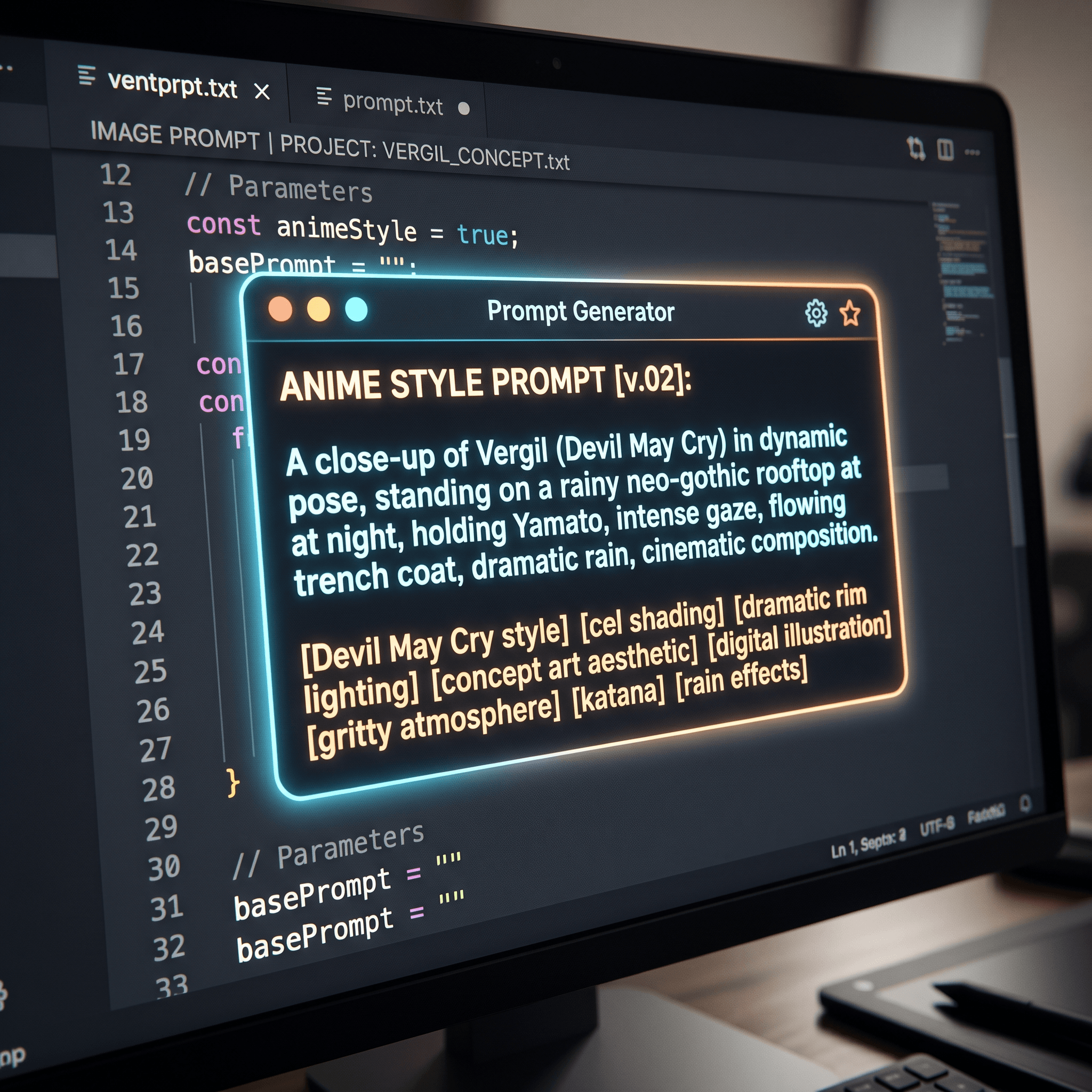
Structure your prompt as: [character context], [IP style keywords], [mood/lighting], [quality boosters]
Devil May Cry fan art example:
dark fantasy anime illustration, Devil May Cry style, Dante, white hair, red coat, dramatic rim lighting, highly detailed, cel shading, sharp linework
Good Omens fan art example:
ethereal fantasy illustration, Good Omens style, Aziraphale, soft watercolor tones, celestial light, intricate feather detail, storybook aesthetic, warm gold palette
General IP fan art prompt tips:
- Name the IP directly when possible — the Professional Model has broad pop-culture style knowledge
- Add lighting descriptors: "dramatic rim lighting", "soft diffused light", "backlit silhouette"
- Mention the art medium: "cel shading", "watercolor", "ink wash", "concept art"
- End with quality markers: "highly detailed, sharp lines, vibrant colors"
Upload your sketch to Sketch To and paste your crafted prompt. In our testing, an 8–15 word style prompt consistently outperforms open-ended descriptions — the model needs specificity, not creativity, at this stage.
Step 5: Refine and Export
Generate 2–3 variations before committing. Click refresh to re-run with the same prompt — variance between runs is useful for hair detail and background treatment.
Common adjustments:
- Colors look washed out → add "vibrant colors, high saturation" to prompt
- Anatomy looks off → add "correct anatomy, proportional" or remove conflicting pose descriptions
- IP style isn't landing → try naming a specific style ("Capcom concept art style") alongside the IP
- Background is distracting → add "simple background, gradient, studio lighting"
Once satisfied, download in PNG for full quality. Use the Image Upscaler in the tool sidebar if you need a larger file — it adds detail rather than just stretching pixels.
Pro Tips for Better Results
1. Keep reference images open while prompting. Cross-reference your output against the actual IP's visual library. If Dante's coat renders navy instead of red, that's a prompt fix — add "bright red coat" explicitly.
2. Layer two style passes for complex looks. Generate a flat anime version first, then re-feed that result into the tool with a more detailed prompt (add "highly detailed, complex shading"). This staged approach consistently produces richer output than single-pass generation.
3. Time your posts strategically. Fan art performs best when an IP enters conversation. For DMC and Good Omens specifically, watch for official announcement tweets and trailers — posting within 24 hours of a trending moment can drive 3–5× your typical engagement.
4. Save your best prompts. Once you find a prompt that works for your style, document it. Fan artists who maintain a prompt library ship content 3× faster than those who start from scratch each session.
5. Use negative prompt fields when available. "blurry, bad anatomy, extra limbs, watermark" in a negative prompt slot prevents the most common generation failures.
FAQ
How do I make my fan art look like a specific anime or game IP?
Name the IP directly in your prompt, then add art-medium and lighting descriptors. For example: "Devil May Cry style, cel shading, dramatic rim lighting, vibrant reds." The more specific your style keywords, the closer the AI can match the IP's visual language. The Professional Model has significantly better fidelity to complex costume and character detail than the Standard Model.
Can I post AI-assisted fan art on social media?
Yes — AI-assisted fan art is widely shared across TikTok, X, and Instagram, and sits in the same community norms as traditionally drawn fan art. Commercial use of copyrighted characters is a separate question: the underlying character IP belongs to its rights holder regardless of how the image was created. For personal portfolios and non-profit social sharing, most major IP holders (Capcom, for instance) publish fan creation policies that explicitly allow this.
What sketch style works best with AI?
Clean black-and-white linework on white paper gives the AI the most control to apply color and shading. Sketches with heavy hatching or gray tones can work but require more precise prompting to prevent the AI from treating the texture as part of the target style.
How long does the generation actually take?
With the Professional Model, expect 10–15 seconds per image. The Standard Model runs in 5–8 seconds. Generating 3 variations takes about 30–45 seconds total — faster than hand-coloring a single sketch panel.
Does the AI change my original composition?
The AI follows your linework's major compositional elements (pose, framing, character placement) but may adjust minor anatomy, add background elements, or interpret ambiguous areas differently. Keep multiple variations and choose the closest match. If a specific element is critical — a weapon, a distinctive costume piece, a specific hand position — describe it explicitly in your prompt.
Conclusion
Fan art is time-sensitive content. The gap between "I want to post something for the DMC announcement" and having something polished enough to share used to be days of rendering work. With AI-assisted sketch colorization, it's about 60 seconds.
The core workflow: clean your sketch → upload to an AI tool → select Professional Model → write a specific IP style prompt → pick the best variation → post.
Ready to turn your fan sketches into shareable anime-style art? Try Sketch To free → — upload your first sketch and test the Professional Model with zero design experience needed.
Transform Your Images with AI
Turn sketches into stunning images, remove backgrounds, swap faces, and more — all powered by AI.
Try Sketch To FreeShare
Sketch To
Tech writer covering AI tools, image processing, and creative workflows.
Related Articles

Knitted Doll AI Prompt: 7 Templates That Work
Use this knitted doll AI prompt guide to turn photos or sketches into cozy yarn dolls. Includes 7 templates, material words, and fixes.

AI Visual Reference for Landing Page Design
Use an AI visual reference for landing page design to turn rough sketches into clearer prompts, fewer retries, and stronger drafts.

Claude Design Workflow: Pair It With Sketch-to-Image AI
Build a faster Claude design workflow: use Claude for ideation and copy, Sketch To to render sketches into images, and Figma where it still wins.