

How to Use GPT-Image-2: OpenAI's Precision AI Generator
On this page
Share
Last updated: May 2026
OpenAI shipped GPT-Image-2 with a pricing change that quietly flips the math for working designers: a low tier at 1 credit per image, a medium tier at 3, and a high tier at 9-11. That isn't a marketing tweak — it's the first time an OpenAI image model has let you draft cheaply and ship at production quality without switching tools. Add native transparent PNG, batch generation up to 10, and three aspect ratios out of the box, and GPT-Image-2 stops being "another image API" and starts being the model you reach for when the brief is "ship this asset by 4pm." This guide walks through what's actually new, then takes you from sign-up to a downloaded production image in under a minute using Sketchto's GPT-Image-2 implementation.
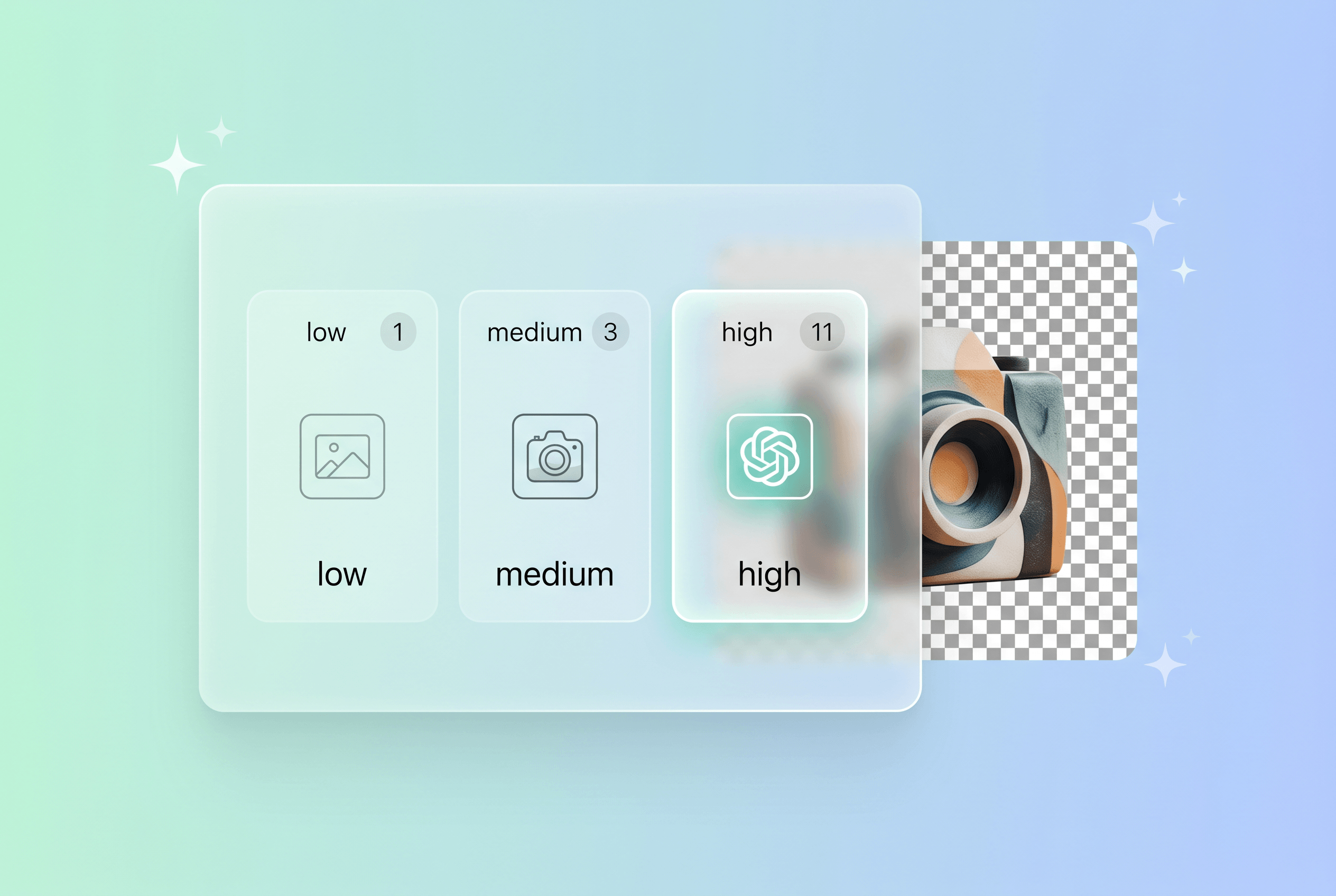
Table of Contents
- What's Actually New in GPT-Image-2
- Step-by-Step: How to Use GPT-Image-2 on Sketchto
- Pro Tips for Better Results with GPT-Image-2
- Where GPT-Image-2 Earns Its Place in Your Workflow
- FAQ
- Conclusion
What's Actually New in GPT-Image-2
GPT-Image-2 is OpenAI's latest text-to-image model, released as a production-grade upgrade over the previous generation. Four shifts matter for real design work:
1. Three quality tiers with explicit pricing. Earlier OpenAI image models charged a flat per-image fee that nudged you toward "always pay for high quality just in case." GPT-Image-2 splits the cost grid into three tiers: low at 1 credit, medium at 3 credits, and high at 9-11 credits (11 for 1:1, 9 for 3:2 / 2:3). In practice this means you can run 20 low-quality prompt experiments for the cost of 2 high-quality finals — the iteration-to-output ratio designers have been asking for since DALL-E 3.
| Quality | Credits (1:1) | Credits (3:2 / 2:3) | Use When |
|---|---|---|---|
| Low | 1 | 1 | Prompt exploration, mood checks, rapid iteration |
| Medium | 3 | 3 | Internal mockups, comp variations, daily work |
| High | 11 | 9 | Final production output, client deliverables |
2. Native transparent backgrounds. GPT-Image-2 exposes a background parameter with three values: auto, transparent, and opaque. Set it to transparent and pick PNG output, and the model returns alpha-channel cutouts — no Remove.bg step, no Photoshop masking pass. For logo work, product cutouts, UI icons, and stickers, that's 30-60 seconds saved per asset.
3. Batch generation up to 10 images per request. The number_of_images parameter accepts 1-10. Credits scale linearly (4 high-quality 1:1 images cost 4 × 11 = 44 credits), and — this is the part most quietly important — the batch returns genuine variations rather than near-duplicates. You can use a single 4-image batch as a real A/B test, not a fake one.
4. Flexible aspect ratios and output formats. Three aspect ratios ship: 1:1 square, 3:2 landscape, 2:3 portrait. Three output formats: WebP (default, smallest), PNG (transparency), JPEG (photo compression). Match the format to the destination — WebP for web delivery, PNG when the asset needs to composite, JPEG when you want photo-grade compression without an alpha channel.
The headline upgrade beneath all of this is instruction following. GPT-Image-2 renders complex prompts — specific product details, text on a label, multi-element compositions — with markedly less drift than the previous generation. In our testing, prompts that previously required 3-4 retries to land hit on the first or second try.
Step-by-Step: How to Use GPT-Image-2 on Sketchto
Five steps from cold start to downloaded production image. Total time under 60 seconds once you're signed in.
Step 1: Sign Up and Claim Free GPT-Image-2 Credits
Open sketchto.com and create an account with email or Google. New users get free credits applied to your account on first sign-in — enough to run a handful of high-quality GPT-Image-2 renders or dozens of low-quality drafts. No payment information required to try the model.
What to expect: account creation lands you in the dashboard with a credit balance shown in the top-right corner. That balance updates in real time as you generate.
Step 2: Open GPT Image 2 from the Model Selector
In the dashboard, click into the AI image generator and open the model selector. Pick GPT Image 2 from the list — or jump straight to the model page at sketchto.com/model/gpt-image-2, which loads with the model pre-selected and shows the dynamic credits UI so you see the exact cost before each generate, paying only for the tier you actually need.
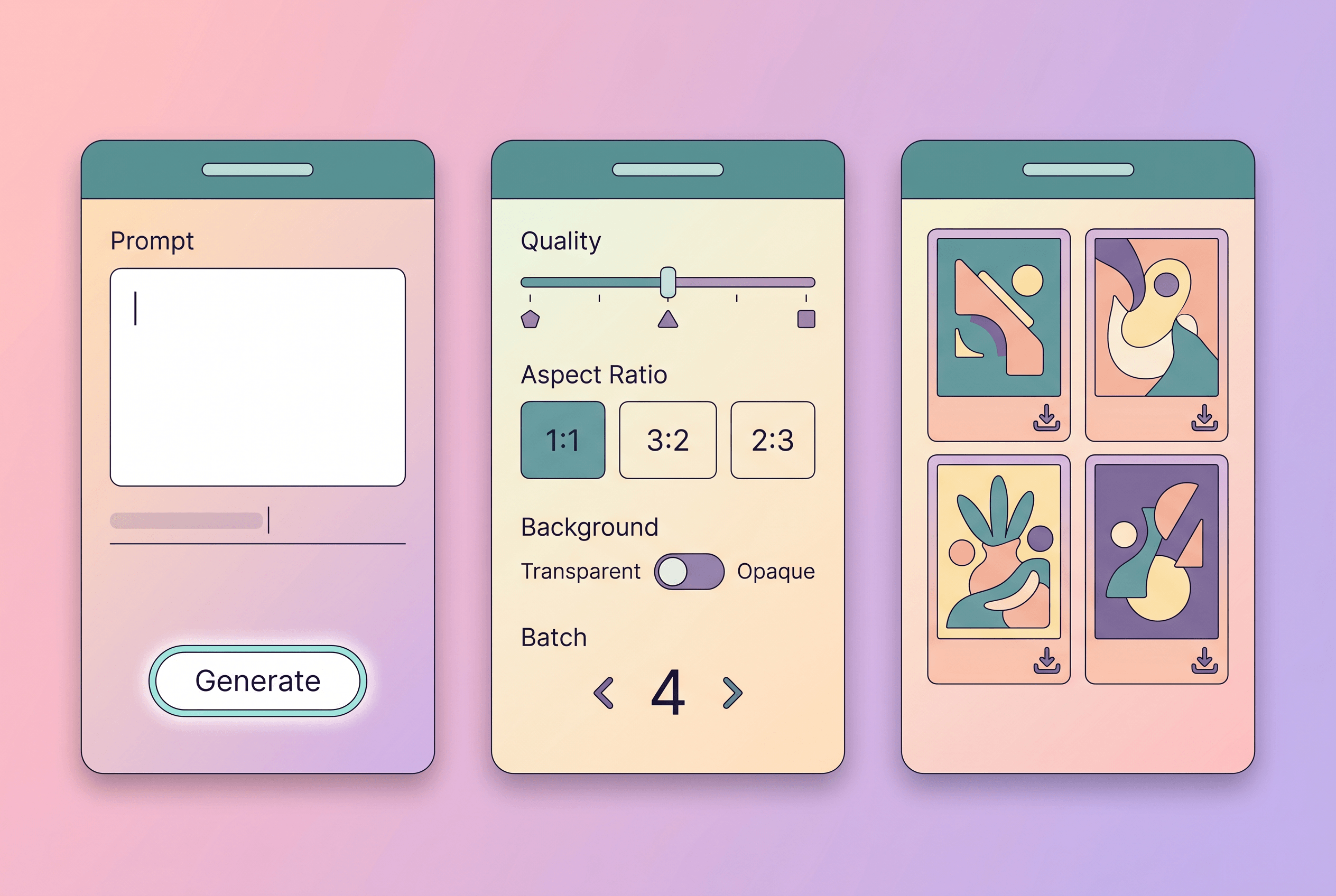
What to expect: the editor opens with a prompt input field at the top, a configuration panel on the right (quality, aspect ratio, background, batch size, format), and the Generate button at the bottom — which already displays the credit cost for your current settings.
Step 3: Configure Quality, Aspect Ratio, Background, and Batch Size
This is where GPT-Image-2's flexibility pays off. Set these four parameters before writing your prompt:
- Quality tier: Start with
low(1 credit) for any new prompt you haven't tested. Move tomediumonce the composition lands. Switch tohighonly for the final. - Aspect ratio: Pick
1:1for Instagram square or generic thumbnails,3:2for web banners and landscape compositions,2:3for portraits, posters, and TikTok-friendly stories. - Background: Leave at
autofor standard scenes. Set totransparentwhen the asset needs to composite into a layout — logos, product cutouts, icons. Set toopaquewhen you want a fully filled background regardless of subject. - Number of images: 1 for single generations, 4 for genuine A/B tests, 10 when exploring a creative direction wide.
Watch the Generate button as you change settings — it shows the exact credit total live (for example, 3 credits × 4 images = 12 credits). No surprise charges.
Step 4: Write the Prompt and Generate
Type your prompt into the input field. GPT-Image-2 rewards specificity: subject, composition, lighting, color, mood, style references. A prompt like "a luxury leather handbag on a marble pedestal, soft studio lighting from upper left, deep contrast, editorial magazine quality" lands more reliably than "nice handbag photo."
Click Generate. Low-quality renders return in roughly 8-15 seconds; high-quality 1:1 batches of 4 land in 30-60 seconds depending on platform load. The dynamic credit UI deducts the exact amount shown — no rounding, no hidden fees.
What to expect: results appear in a grid in the right panel. Click any image to enlarge; hover for download options.
Step 5: Download Individually or in Bulk
Each image has a download icon. Single click to grab a single asset. For batches, the download-all option packages every variation into a ZIP. Output respects your selected format — PNG with alpha channel if you chose transparent, WebP if you defaulted, JPEG if you switched.
What to expect: files land in your browser's downloads folder, named with the slug and a short hash. Open them, drop them into Figma or your design tool, and you're done.
Pro Tips for Better Results with GPT-Image-2
These come from running the model heavily across the first weeks of release. Each tip costs nothing to apply and most save real credits.
Iterate low, finalize high. Run your first 5-10 prompt drafts at low quality (1 credit each). Once a composition and prompt structure lands, re-run the winning prompt at high quality. This workflow saves roughly 70% of credits on any project that involves prompt experimentation — which is most of them.
Use background=transparent for anything that composites. If the final asset will live inside a layout (a website hero, a product listing, a Figma component), generate with transparency from the start. You skip the background-removal step entirely and the edges are cleaner than any cutout tool can produce.
Batch 4-10 for real variation, not safety. The temptation with batches is "give me 10 in case I need a backup." GPT-Image-2 actually returns meaningfully different compositions inside a batch, so use them as exploration. Set number_of_images=4 when you genuinely want to compare directions; the variation is wider than you'd expect.
Match aspect ratio to destination, not to source. Generating square images and cropping later wastes both credits and resolution. If the target is a 2:3 poster, generate 2:3 from the start. GPT-Image-2 composes intentionally for the chosen aspect — you'll get better results than cropping a square.
Pick output format by use case. WebP for the web (smallest file, fast load). PNG when the asset needs to composite or carry transparency. JPEG when you want photo-grade compression with no alpha channel — useful for hero images that will live on a homepage. Switching format after generation costs nothing extra; pick the right one up front.
Where GPT-Image-2 Earns Its Place in Your Workflow
Five concrete jobs that GPT-Image-2 does better than alternatives right now.
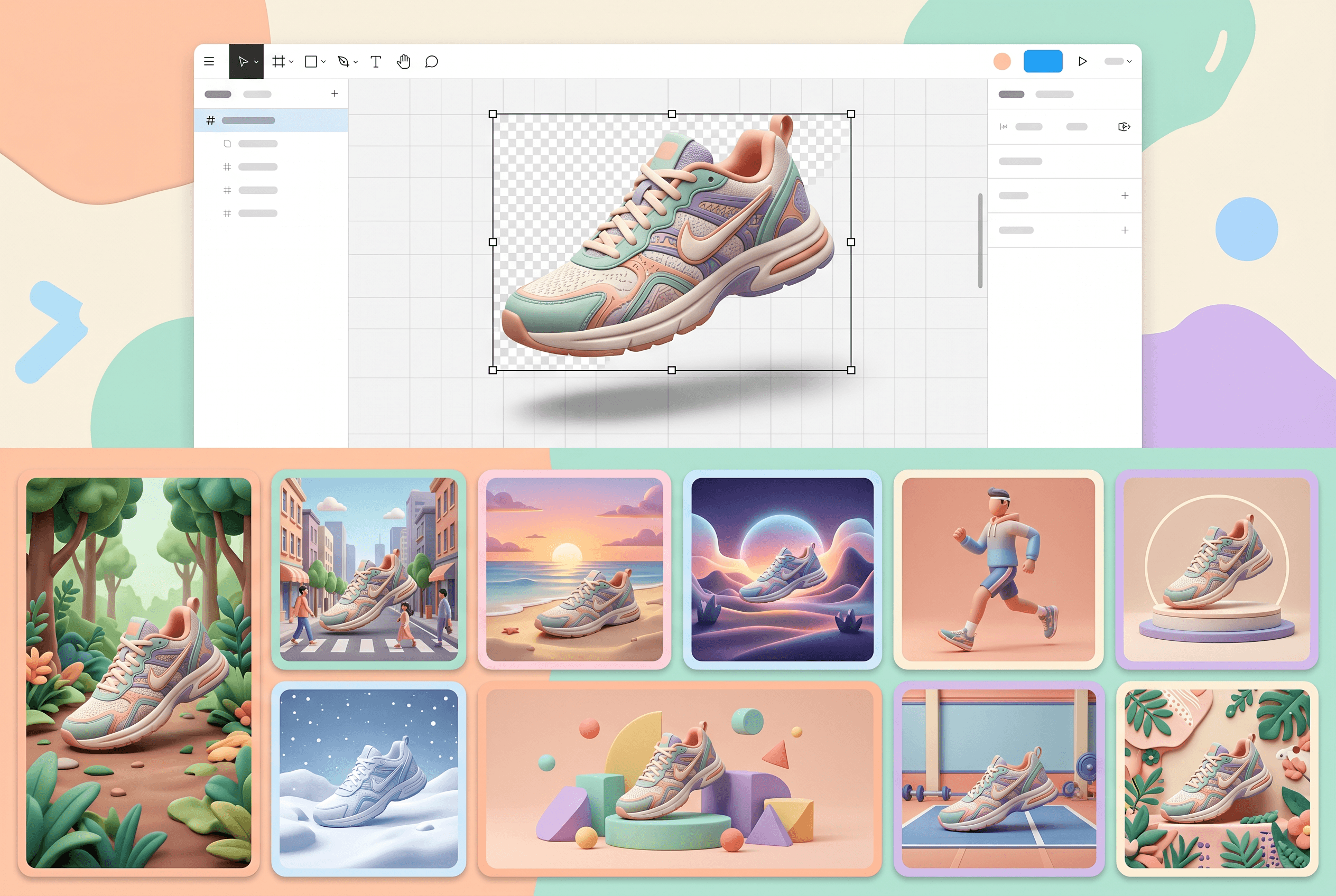
Product photography that's actually shippable. Precision is high enough for mockups, listings, and pitch decks. Combine background=transparent with high-quality output, and you get production-ready cutouts in 30 seconds versus a 10-minute photography session.
Brand creative variations. Marketing teams batch-generate 10 variations at medium quality (30 credits total), pick the best 2, and re-run at high. Total cost per usable creative drops below most stock photo licenses.
UI icons and stickers. Transparent PNG output means icons drop straight into design systems. The model's instruction following handles "flat, single color, geometric" styles reliably enough to skip the manual cleanup step.
Social media batches. 10 variations of a campaign asset at 1:1 medium quality (30 credits) covers a week of feeds. The genuine variation between batched outputs means you don't post the same image five days in a row.
Marketing posters and printables. 2:3 high-quality output (9 credits per image) handles posters, lookbook pages, and printable assets. Text-rendering accuracy is high enough to put product names and short copy directly in the prompt without external compositing.
FAQ
How much does GPT-Image-2 cost?
GPT-Image-2 uses three pricing tiers tied to quality and aspect ratio. Low quality is 1 credit per image. Medium quality is 3 credits per image. High quality is 11 credits for 1:1 and 9 credits for 3:2 / 2:3. Batch generation multiplies per-image credits by the number of images — for example, 4 high-quality 1:1 images cost 4 × 11 = 44 credits. The Generate button shows the exact total before you click.
Can I use GPT-Image-2 for commercial projects?
Yes. Images generated with GPT-Image-2 can be used for commercial purposes — marketing creatives, product mockups, social media content, UI assets, and printed materials. The precision and transparent background support make it well-suited for professional design workflows where consistency matters.
Does GPT-Image-2 support transparent backgrounds?
Yes. GPT-Image-2 exposes a background parameter with auto, transparent, and opaque options. Set it to transparent and pick PNG output to get alpha-channel cutouts directly — no background-removal step. Particularly useful for logos, product cutouts, UI icons, and sticker work.
How many images can GPT-Image-2 generate in a single batch?
GPT-Image-2 supports batch generation from 1 to 10 images per request via the number_of_images parameter. Credits scale linearly. Batched outputs are genuine variations rather than near-duplicates, so a 4-image batch is a real A/B test, not a safety net.
When should I use GPT-Image-2 versus Nano Banana 2?
Use GPT-Image-2 when you need precise instruction following, transparent backgrounds, or flexible quality-cost tradeoffs across drafts and finals. Use Nano Banana 2 when you need accurate in-image text rendering, Google Search grounding, or subject consistency across multi-character compositions. A detailed comparison guide is on the way — both models are available on Sketchto so you can test the same prompt across both before committing.
What output formats does GPT-Image-2 support?
Three formats: WebP (default, smallest file size, ideal for web), PNG (use when you need transparency or lossless compositing), and JPEG (photo-grade compression with no alpha channel). Pick by destination — WebP for sites, PNG for design systems, JPEG for hero images.
Conclusion
GPT-Image-2's real edge isn't a single feature — it's that the four shifts compound. Three quality tiers split exploration from production. Transparent backgrounds skip a post-processing step. Batch returns real variations. Precise instruction following means fewer retries. The combined effect: faster ship times and lower credit spend on the same outputs.
Five steps, sub-60 seconds, free credits on sign-up. Today the fastest path from "I need this image" to "I have this image" is GPT-Image-2.
Ready to try GPT-Image-2? Get free credits and start generating in under 60 seconds → — see the exact cost before every generate, pay only for the quality tier you need, and download production-ready assets without a separate background-removal step.
Transform Your Images with AI
Turn sketches into stunning images, remove backgrounds, swap faces, and more — all powered by AI.
Try Sketch To FreeShare
Sketch To
Tech writer covering AI tools, image processing, and creative workflows.
Related Articles

Knitted Doll AI Prompt: 7 Templates That Work
Use this knitted doll AI prompt guide to turn photos or sketches into cozy yarn dolls. Includes 7 templates, material words, and fixes.

AI Visual Reference for Landing Page Design
Use an AI visual reference for landing page design to turn rough sketches into clearer prompts, fewer retries, and stronger drafts.

Claude Design Workflow: Pair It With Sketch-to-Image AI
Build a faster Claude design workflow: use Claude for ideation and copy, Sketch To to render sketches into images, and Figma where it still wins.