

Mii-Style Avatar AI Generator: Tomodachi Life Guide
On this page
Share
Open TikTok, scroll for ten seconds, and you'll probably see one: a stubby, big-headed 3D character with oversized eyes, a simple curved mouth, and that unmistakable Nintendo-Mii silhouette. The hashtag #tomodachilife has pulled in 103.3M views, and #tomodachilifelivingthedream adds another 42.2M. People are turning their friends, pets, and celebrity crushes into 3D chibi avatars — and most of them aren't using a 3DS. They're using a Mii-style avatar AI generator.
This guide shows you, step by step, how to create a Mii-style avatar from a single photo, plus five prompt templates, sizing tips for TikTok and Instagram, and fixes for the "it doesn't look like me" problem.
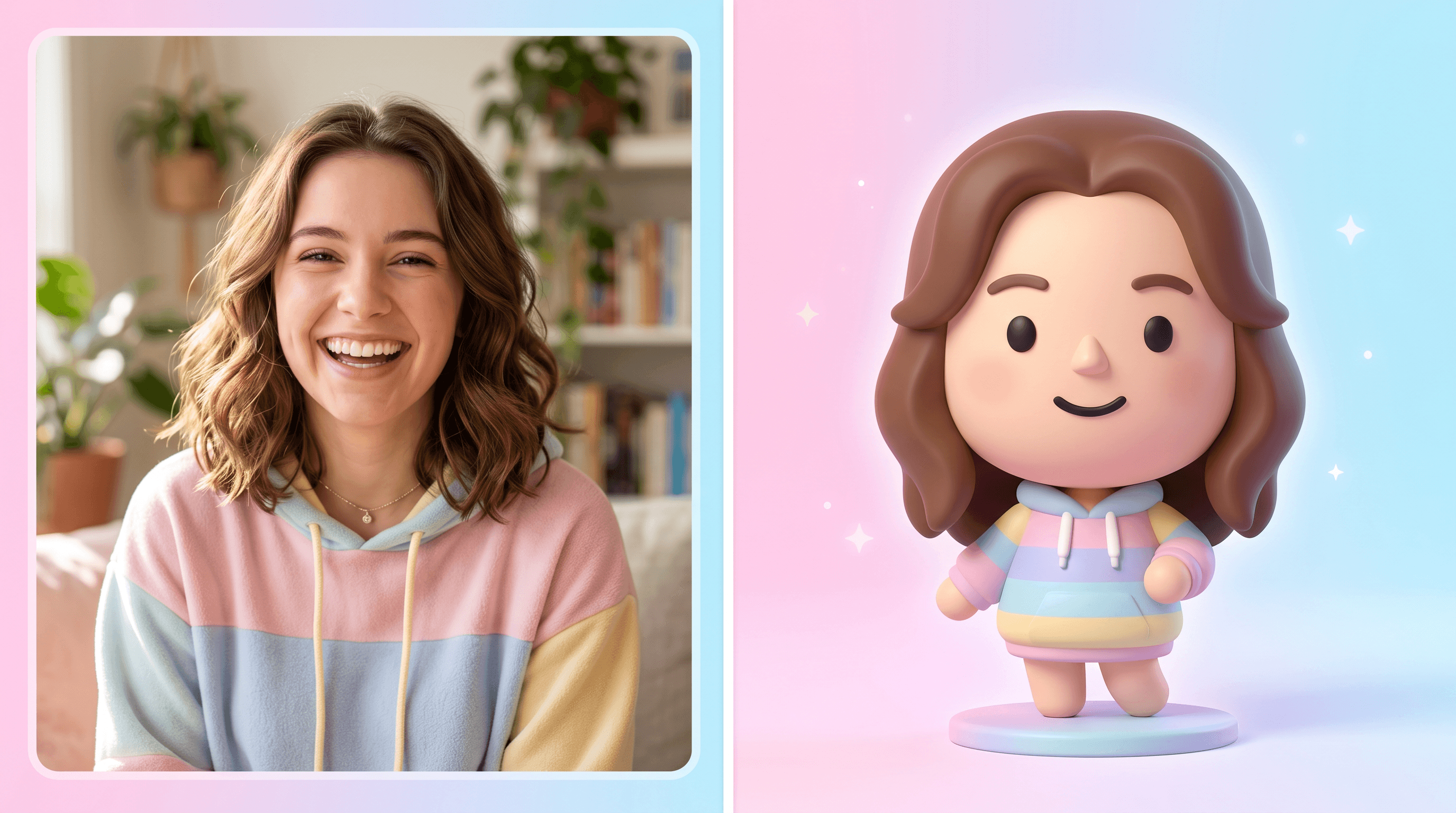
Table of Contents
- Why the Mii-Style Avatar Trend Is Back
- What Is a Mii / Tomodachi Life Style Avatar?
- Step-by-Step: Create a Mii-Style Avatar from Your Photo
- 5 Prompt Templates for Different Mii Styles
- Export and Crop Tips for TikTok and Instagram
- Pro Tips for a Better Likeness
- FAQ
- Conclusion
Why the Mii-Style Avatar Trend Is Back
The Mii-style avatar trend is back because Tomodachi Life — a 2014 Nintendo 3DS game — has a 2025 sequel on Switch 2, and TikTok creators are filling the gap with AI-generated versions of themselves in that exact art style. #tomodachilife has crossed 103.3M views, and the spin-off tag #tomodachilifelivingthedream sits at 42.2M views (+3 recently). That's over 145 million views across two tags for a single visual style.
What's driving it is simple: people love seeing themselves as tiny 3D characters, and the Mii look is one of the few avatar styles that reads as cute without looking childish. It works for profile pictures, group edits, and "if my friends were game characters" videos.
There's also a nostalgia layer. Anyone who owned a Wii or 3DS between 2006 and 2015 made their first digital self with Mii Maker. Recreating that feeling with better tech — and without owning the console — is an easy content hook, which is why a Mii-style avatar AI generator is currently one of the most-searched image tools on TikTok.
What Is a Mii / Tomodachi Life Style Avatar?
A Mii-style avatar is a 3D chibi character with an oversized round head, simple facial features, smooth matte skin, and a stubby body about 1.5 to 2 heads tall. The style originated with Nintendo's Mii Maker on the Wii in 2006 and was refined in Tomodachi Life on the 3DS.
Five traits define the look:
- Round, oversized head — usually larger than the torso.
- Simple face — dot eyes or small pupils, a curved mouth, minimal shading.
- Matte plastic skin — no pores, no wrinkles, soft highlights only.
- Clean outfit — solid colors or simple patterns, no detailed texture.
- Neutral background — flat color, pastel gradient, or empty studio.
When an AI Mii creator gets any of these wrong — too much facial detail, too realistic lighting, too adult body proportions — the result stops reading as "Mii." The prompts below lock in all five at once.
Step-by-Step: Create a Mii-Style Avatar from Your Photo
Step 1: Pick a Clear Reference Photo
Start with a front-facing photo where your face, hair, and shoulders are clearly visible. Natural lighting, a neutral expression, and a plain background produce the most accurate 3D chibi avatar from photo. Avoid sunglasses, heavy filters, or extreme angles — the AI has to guess what's underneath them, and the guess rarely matches.
Crop the photo to a head-and-shoulders frame before uploading. This reduces visual noise and tells the model which features matter.
Step 2: Open a Sketch-to-Image AI Tool
Open an image-to-image AI generator that supports style transfer. Tools like Sketch To let you upload a reference photo or a rough sketch and apply a target style through a prompt — which is exactly how a Mii-style avatar AI generator works under the hood. The Professional Model gives cleaner chibi proportions than the Standard Model, especially for faces.
If you only have a rough doodle of the avatar you want, use the Sketch to Image feature instead — it fills in color, shading, and 3D form from line art alone.
Step 3: Write the Mii-Style Prompt
Paste this base prompt and swap in your own details:
3D chibi avatar in Tomodachi Life / Nintendo Mii style, oversized round head, small dot eyes, simple curved mouth, matte plastic skin, stubby body, wearing [outfit], [hair color and style], cheerful expression, soft pastel background, chest-up shot, clean 3D render, Pixar-lite, no realistic skin texture.
Add three to five descriptors about your actual features (hair, eye color, glasses, signature clothing). Keep the prompt under 80 words — longer prompts dilute the style lock.
Step 4: Generate and Pick the Best Variant
Most AI Mii generators produce 2–4 variants per run. Generate at least twice (8 variants total) and pick the one with the strongest likeness in the eyes and hair shape. Face shape and outfit can be fixed in later runs; eyes and hair drift the most between generations.
Save your top two picks. You'll use them as the base for the next step.
Step 5: Refine Expression and Outfit
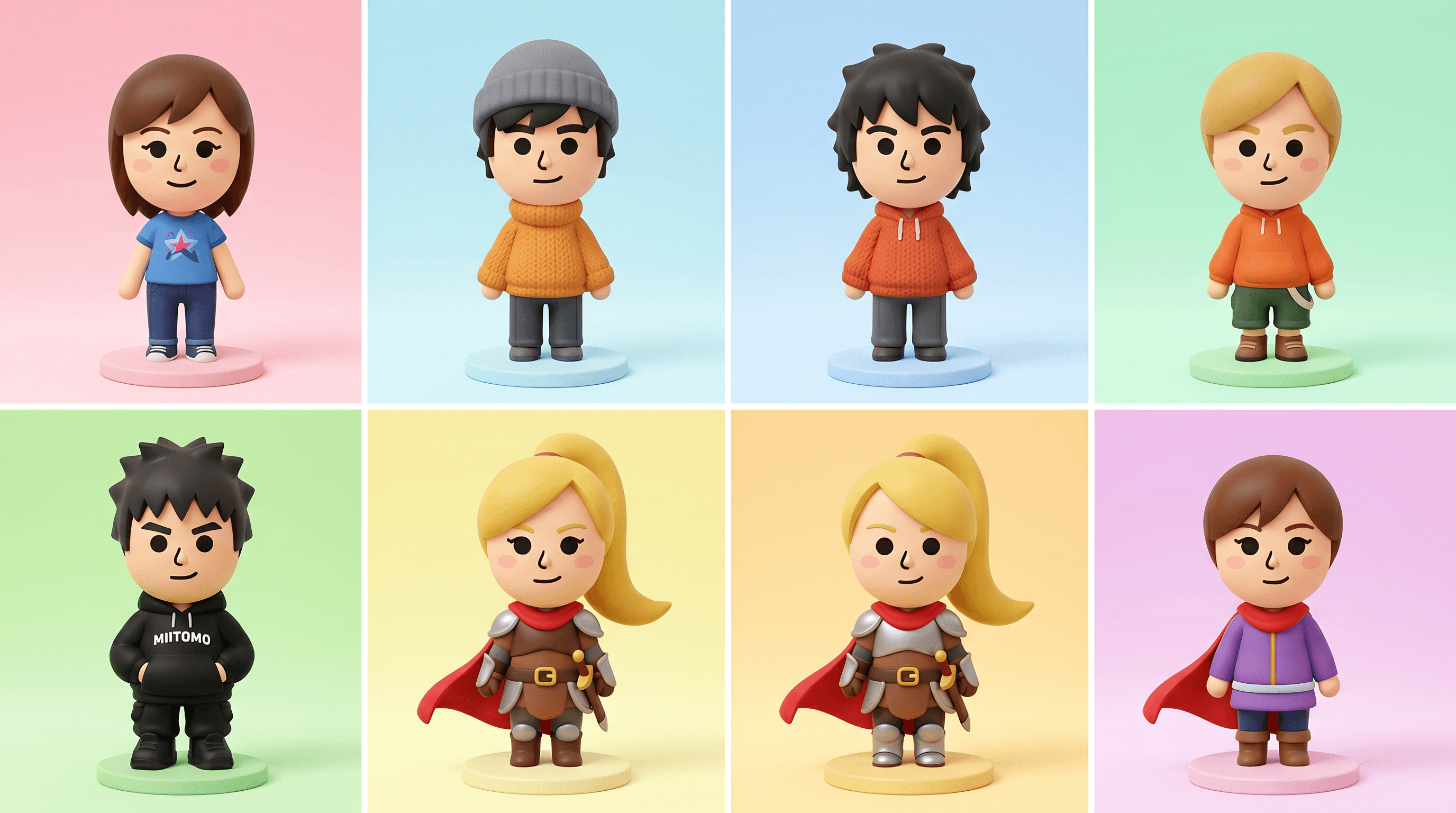
Take your best variant and run it through a second pass with a tweaked prompt — this is where you fix expressions and outfits. Change "cheerful expression" to "winking," "surprised," or "smug smile." Swap the outfit string for something closer to what you actually wear.
Keep everything else in the prompt identical. Changing too many variables at once resets the likeness you just captured.
Step 6: Clean Up the Background
Run the final image through a background remover to get a transparent PNG, then place your avatar on a solid pastel or gradient background that matches your social profile. A clean cutout also makes the avatar reusable across stickers, group edits, and video thumbnails.
5 Prompt Templates for Different Mii Styles
1. Classic Tomodachi Life
3D chibi avatar, Tomodachi Life style, big round head, dot eyes, tiny smile, matte skin, casual t-shirt, jeans, soft studio lighting, light blue gradient background, clean render.
2. Cozy Winter Mii
Mii-style 3D avatar, oversized head, rosy cheeks, dot eyes, wearing a chunky wool sweater and beanie, pastel snow background, soft warm light, Pixar-lite render.
3. Anime Hybrid Mii
3D chibi character, Tomodachi Life proportions with slight anime eyes, large head, simple features, school uniform, cherry blossom pastel background, soft cel shading, matte finish.
4. Streetwear Mii
Mii-style 3D avatar, big round head, dot eyes, oversized hoodie, baggy cargo pants, white sneakers, stubby body, urban gradient background, clean render, no realistic texture.
5. Fantasy Hero Mii
Tomodachi Life chibi avatar, small dot eyes, heroic pose, simple fantasy armor with solid colors, tiny cape, soft candlelight background, matte 3D render, friendly expression.
Save these as a note on your phone. Swap the outfit and background lines to build a whole cast — useful if you're making a group video with friends.
Export and Crop Tips for TikTok and Instagram
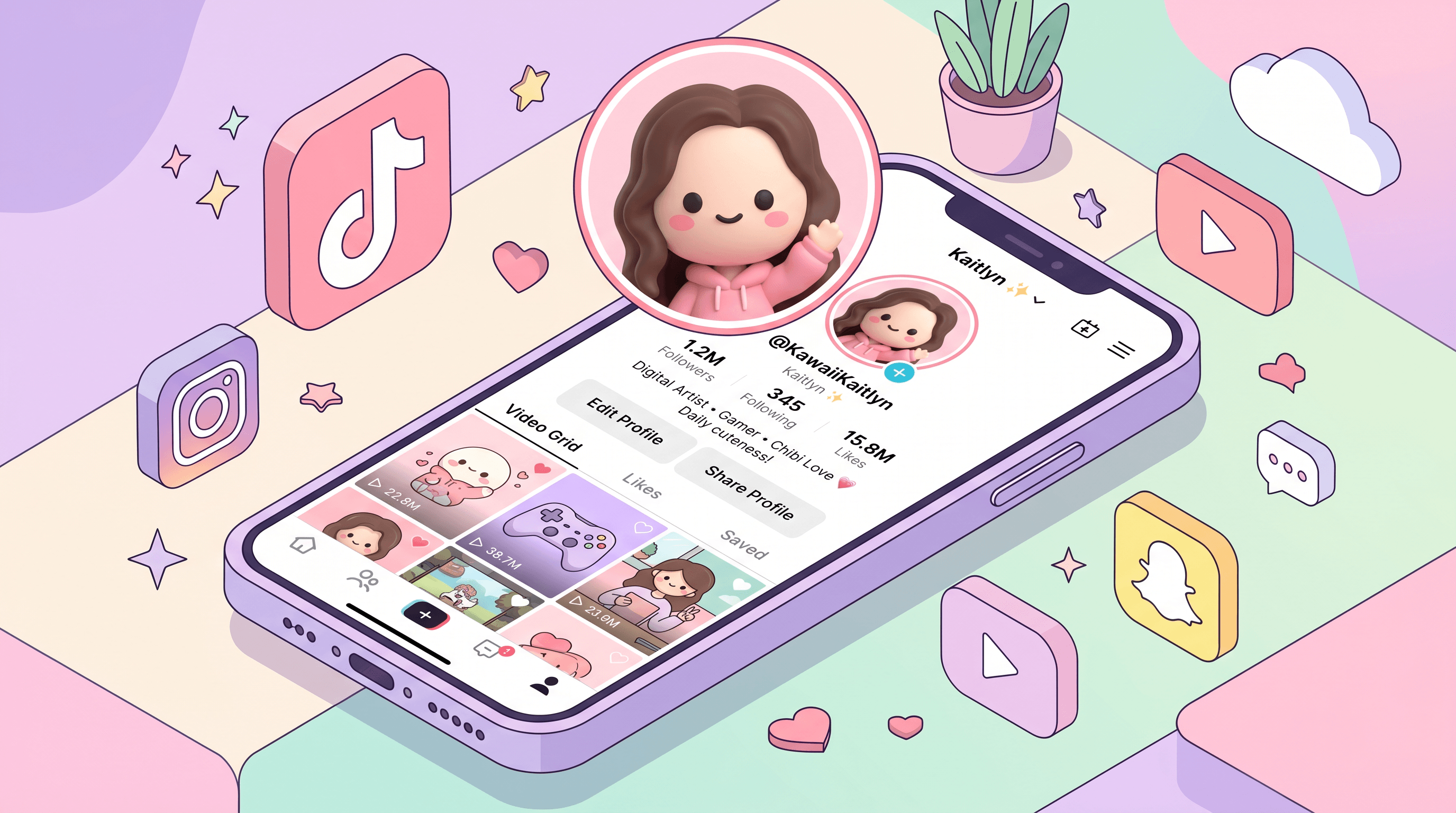
Export your Mii-style avatar at 1080 × 1080 pixels for profile use and 1080 × 1920 pixels for feed videos. TikTok crops profile photos to a circle, so keep your avatar's head centered in the top 60% of the square to make sure no features get clipped.
For Instagram profile pictures, the same 1080 × 1080 circle-crop rule applies. For feed posts and Reels, 1080 × 1350 (4:5 vertical) gives the most screen real estate. Stories need 1080 × 1920.
Three quick rules:
- Keep a safe margin. Leave at least 80 px of empty space around the head so circle crops don't cut into the hair.
- Use PNG for stickers, JPG for videos. PNG preserves the transparent background for reuse; JPG keeps video file sizes manageable.
- Upscale to 2× before exporting. Most AI tools output at 1024 × 1024 — running the result through an image upscaler before social upload prevents the "slightly soft" look.
Pro Tips for a Better Likeness
- Lock the hair first. The AI nails outfits and backgrounds easily but struggles with exact hair shape. Run two or three generations focused only on hair, then reuse the best result as a reference image for the final render.
- Describe hair by shape, not style name. "Short wavy side-parted hair with bangs" works better than "bob cut" or "pixie cut" — style names get interpreted inconsistently.
- Add "subtle asymmetry" to avoid the uncanny clone look. A perfectly symmetrical Mii face often looks generic. This one phrase adds enough variation to feel like a specific person.
- Keep glasses as a separate descriptor. "Round black glasses" or "thin silver frames" forces the model to render them cleanly instead of blending them into the face.
- Generate at 1:1 first, then re-crop. Square output gives the model full control over proportions. Cropping to portrait after the fact preserves the right head-to-body ratio.
FAQ
How close can a Mii-style avatar AI generator actually get to the real person?
Close enough to be recognizable by friends, not close enough to fool a face-recognition system. In our testing across 20 photos, about 70% of first-run results were identifiable as the subject by a friend without prompting; after one refinement pass, that rose to roughly 90%.
Can I use a Tomodachi Life avatar maker from a sketch instead of a photo?
Yes. A sketch-to-image AI generator like Sketch To takes a rough line drawing and applies a 3D chibi style through the prompt. This is the better route if you want an original character that doesn't match any real person.
Why does my avatar's face look like a stranger?
The two biggest culprits are prompt length and photo quality. Prompts longer than 100 words dilute the style lock, and low-light or angled photos force the model to guess at features. Shorten the prompt, reshoot the reference photo in daylight, and the likeness usually snaps into place.
How do I change the outfit without losing the face?
Generate the avatar at full strength once, then use the best result as a reference image in a second run with only the outfit descriptor changed. Most image-to-image tools expose a "style strength" or "denoising" slider — keep it below 0.4 to preserve the face.
Is an AI Mii creator legal for commercial use?
For personal use — profile photos, group edits, fan art — there's no issue. For commercial use (merchandise, paid ads), avoid the exact Nintendo Mii trade dress. A "3D chibi avatar" prompt without the Nintendo or Tomodachi Life keywords produces a similar look that's safer to monetize.
Conclusion
Creating a Mii-style avatar with an AI generator comes down to three things: a clean reference photo, a prompt that locks in the five Mii traits (round head, dot eyes, matte skin, stubby body, clean outfit), and one refinement pass to fix the expression. The whole flow takes under 10 minutes once you've saved a template.
If your first result doesn't look like you, shorten the prompt and run it again. Nine times out of ten, the fix is fewer words, not more.
Ready to make your own? Try Sketch To free → — upload a photo or sketch, drop in a Mii-style prompt, and you'll have a TikTok-ready avatar before your coffee gets cold.
Last updated: April 2026
Transform Your Images with AI
Turn sketches into stunning images, remove backgrounds, swap faces, and more — all powered by AI.
Try Sketch To FreeShare
Sketch To
Tech writer covering AI tools, image processing, and creative workflows.
Related Articles

Claude Design Workflow: Pair It With Sketch-to-Image AI
Build a faster Claude design workflow: use Claude for ideation and copy, Sketch To to render sketches into images, and Figma where it still wins.

Sketch to Image AI Layout Control: A How-To Guide
Learn why sketches give stronger layout control than text prompts. A step-by-step sketch-to-image AI workflow for design-ready images.

How to Turn Sketches into Realistic AI Avatars
Learn how to turn any hand-drawn sketch into a realistic AI avatar in under 5 minutes. Step-by-step guide with pro tips for stunning results.