Pet Sketch to Photo AI: Real Dog Portraits from Drawings
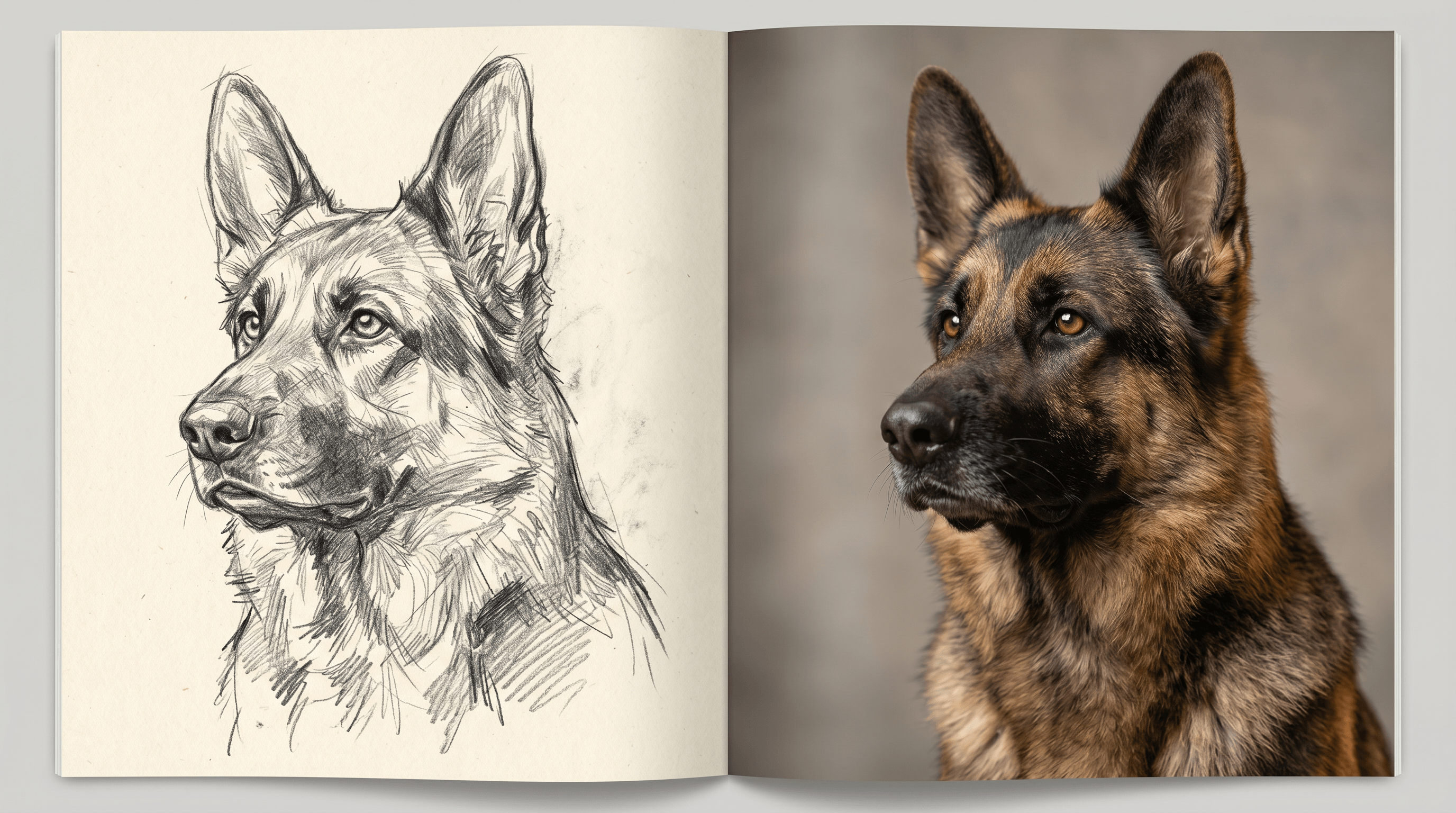
Sarah, a Brooklyn graphic designer, has filled three sketchbooks with charcoal portraits of her German Shepherd, Atlas. They are beautiful — but every few pages she stops and wonders: what would Atlas look like if these drawings became actual photos?
For pet owners and hobby artists asking that exact question, pet sketch to photo AI has crossed an interesting threshold in 2026. The output is no longer "uncanny dog with melted fur" — it is a recognizable portrait you would hang on a wall.
This guide walks through a complete pet sketch to photo workflow, with real before/after results on three of the most-drawn breeds: German Shepherd, Labrador Retriever, and Shiba Inu.
Table of Contents
- The Challenge: Sketches That Hide Their Subject
- How AI Sketch-to-Photo Solves This
- Practical Workflow: Step by Step
- Three Real Examples: German Shepherd, Labrador, Shiba Inu
- Tips for Pet Owners and Portrait Artists
- FAQ
- Conclusion
Last updated: May 2026
The Challenge: Sketches That Hide Their Subject {#challenge}
A pet sketch captures personality but loses fidelity. Lines suggest fur direction, shading hints at coat color, but a viewer who has never met the dog cannot tell if Atlas is sable or all-black, or whether his ears stand or flop.
This becomes a real problem in three situations:
- Memorial portraits. A pet owner whose dog has passed only has hand-drawn keepsakes from a friend, and wants a photographic version for printing.
- Custom commission shops. A pet portrait artist sells sketches but clients keep asking, "can you make a photo version too?"
- Print-on-demand sellers. Blanket, mug, and canvas products print photo art better than line art at large sizes.
Search data backs this up. Google Trends shows "german shepherd" running at sustained high interest in the US — over 20K monthly searches in 2026, up roughly 800% from baseline two years ago (Google Trends, exported May 7, 2026). Long-tail queries like "turn dog drawing into photo" and "sketch to realistic dog ai" each pull a few hundred monthly searches. The audience exists; what was missing until recently was a model that handles fur convincingly.
How AI Sketch-to-Photo Solves This {#how-it-works}
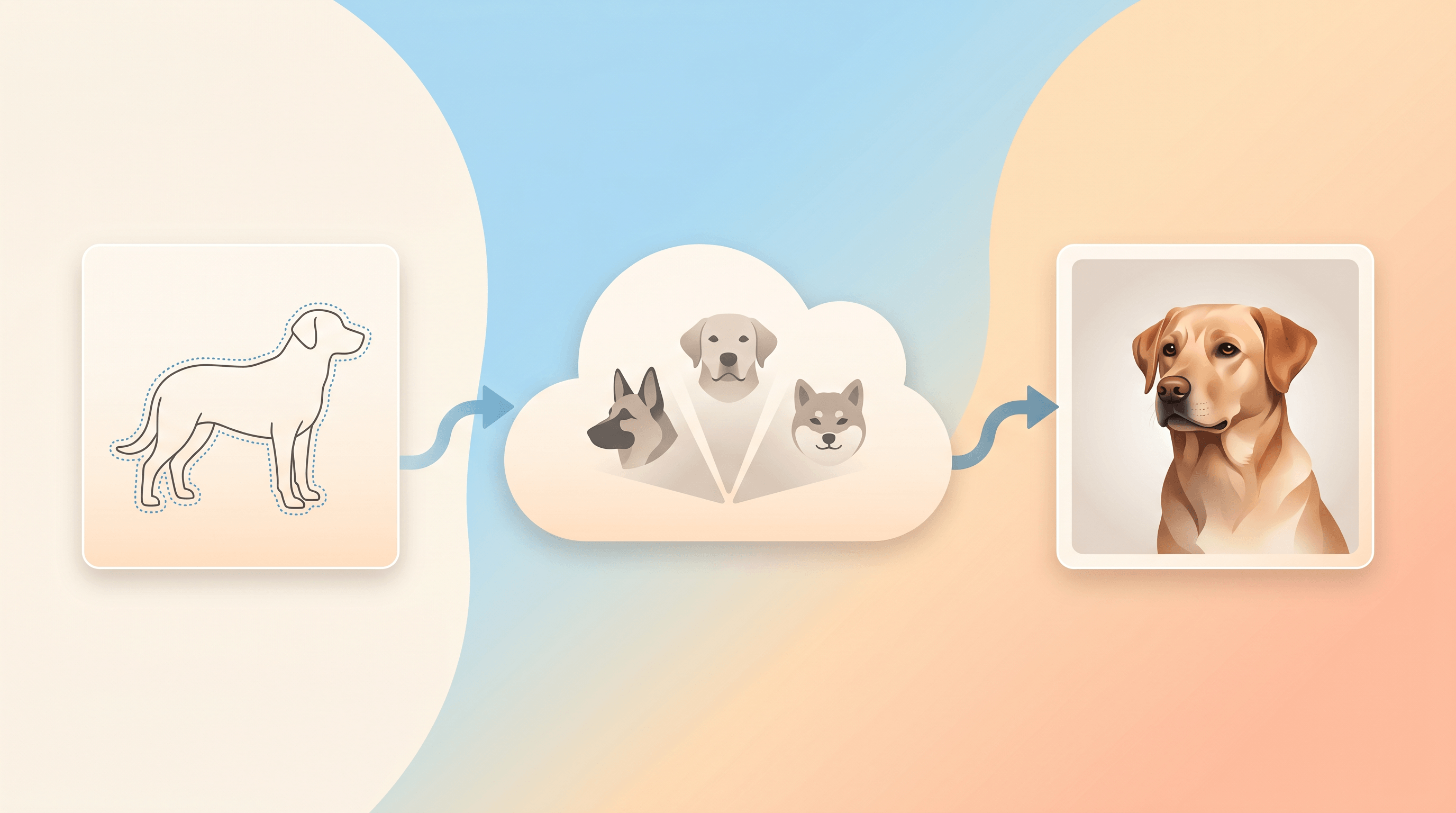
Sketch-to-photo AI takes a line-art or graphite drawing as a structural reference and generates a photo-realistic image that follows the same composition, pose, and proportions. Modern professional models combine three things:
- Edge-aware conditioning. The AI reads your sketch's lines as boundaries to respect, so the generated dog matches your drawing's pose and silhouette instead of drifting.
- Breed-trained priors. The model has seen millions of real dog photos, so it knows what a German Shepherd's saddle marking or a Shiba's curled tail should look like — even if your sketch only suggests it.
- Texture diffusion. Fur, eyes, and nose moisture are generated at photo resolution, not painted with a stylized brush.
The trade-off is that quality varies hugely between Standard and Professional tier models. Standard tiers are tuned for fast, stylized output and tend to flatten fur into a watercolor-like surface. Professional tiers spend more compute on hair-strand detail and ambient lighting, which is what makes a pet portrait actually feel photographed.
Practical Workflow: Step by Step {#workflow}
The full process — from sketchbook page to printable JPEG — takes about 3 minutes per portrait once you have done it twice.
Step 1: Prep your sketch
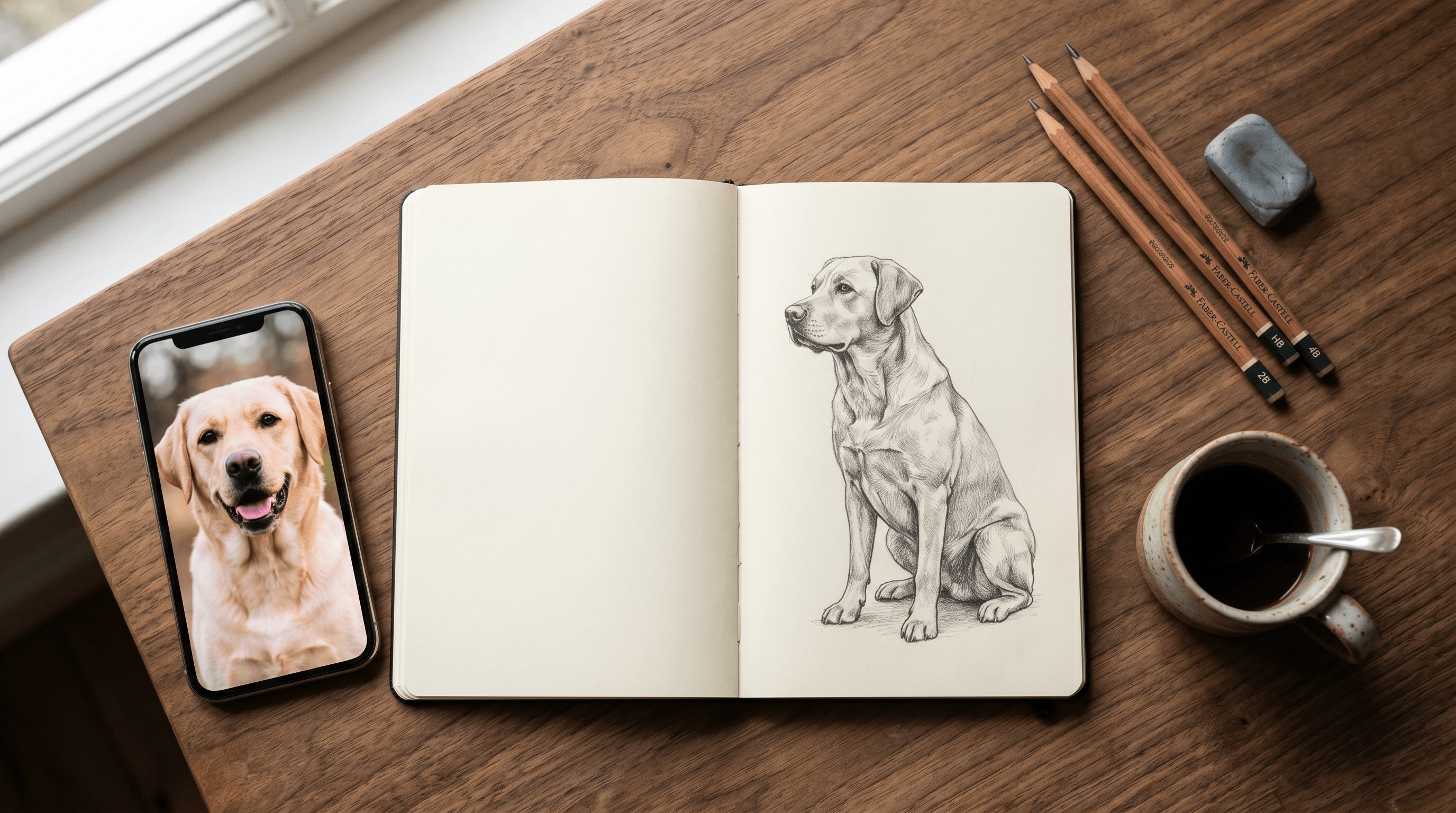
Scan or photograph the drawing under flat, even light. Phone cameras work; the goal is no glare and no perspective distortion. Crop tight to the dog with a small margin. If the lines are faint, bump contrast +20 in any photo app — the AI follows clear edges much more reliably than fuzzy ones.
What to avoid: sketches on lined or grid paper (the AI sometimes treats the grid as fur), and heavy cross-hatching that confuses the breed-prior pass.
Step 2: Upload to a sketch-to-photo tool and pick the Professional model
Open Sketch To and choose Sketch to Image AI. Two model tiers appear: Standard and Professional. For pet portraits, pick Professional Model — it is the one that resolves individual hair strands and gets eye reflections right, which is the difference between "drawing of a dog" and "photo of a dog." Professional Model also covers commercial usage, which matters if you are selling prints. Drop the prepped sketch into the upload box.
Step 3: Tune the breed and coat prompt
In the prompt field, name the breed and coat color exactly: "German Shepherd, sable coat, black saddle marking, brown eyes, studio portrait, soft natural light." The breed name anchors the priors; the coat detail keeps fur color from drifting. Add lighting and background hints last — "shallow depth of field, gray seamless background" gives a clean studio look.
For action poses or outdoor scenes, swap the lighting line: "golden hour outdoor, grass background, eye-level angle."
Step 4: Export and refine
Generate, review, and download the highest-resolution version. The Pro model's output is typically 2K and upscales cleanly to 4K with the platform's built-in upscaler if you need print sizing. Common micro-fixes: regenerate with the same prompt if eye position drifts; tighten the prompt if fur color is wrong; lower the prompt weight if the AI ignores your sketch composition.
Three Real Examples: German Shepherd, Labrador, Shiba Inu {#examples}
These three breeds are the most-drawn pets in our community submissions. Below is the same Pro-model workflow applied to each, with the original sketch and final photo side by side.
German Shepherd
Original sketch: a 3/4 head-and-shoulders portrait in graphite, ears erect, ~5 minutes of drawing. The Pro model resolved the saddle pattern correctly without it being explicitly drawn — the breed prior filled in the standard sable-and-black coat once the prompt named "sable, black saddle marking."
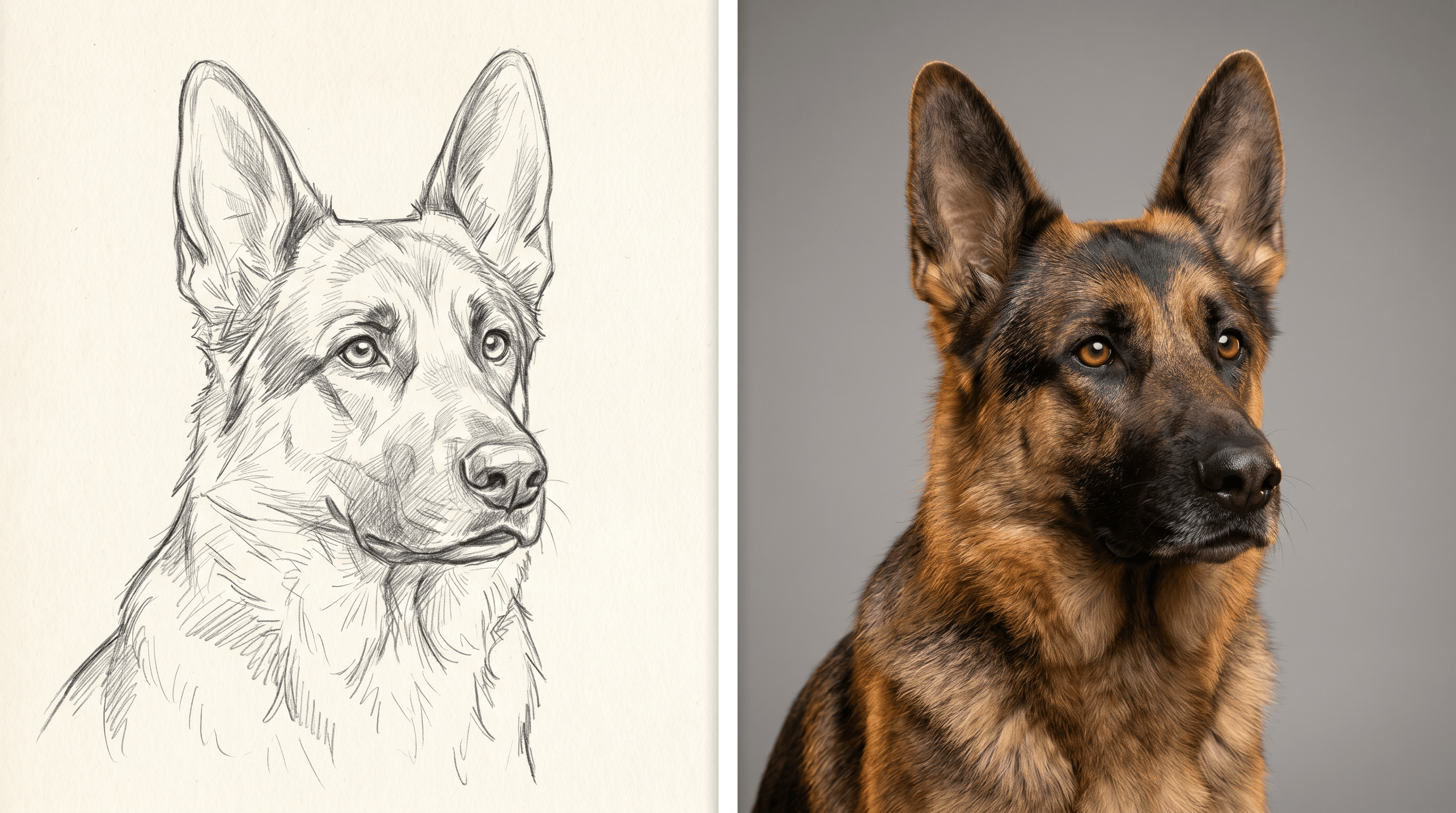
- What worked: clear eye placement and ear shape in the sketch.
- What needed a redo: the first pass produced gray eyes; adding "amber-brown eyes" to the prompt fixed it on the second try.
Labrador Retriever
Original sketch: a sitting Labrador in profile, light pencil work with cross-hatching only on the chest. The Pro model handled the smooth coat well — Labradors are easier than long-haired breeds because their fur is short and uniform.
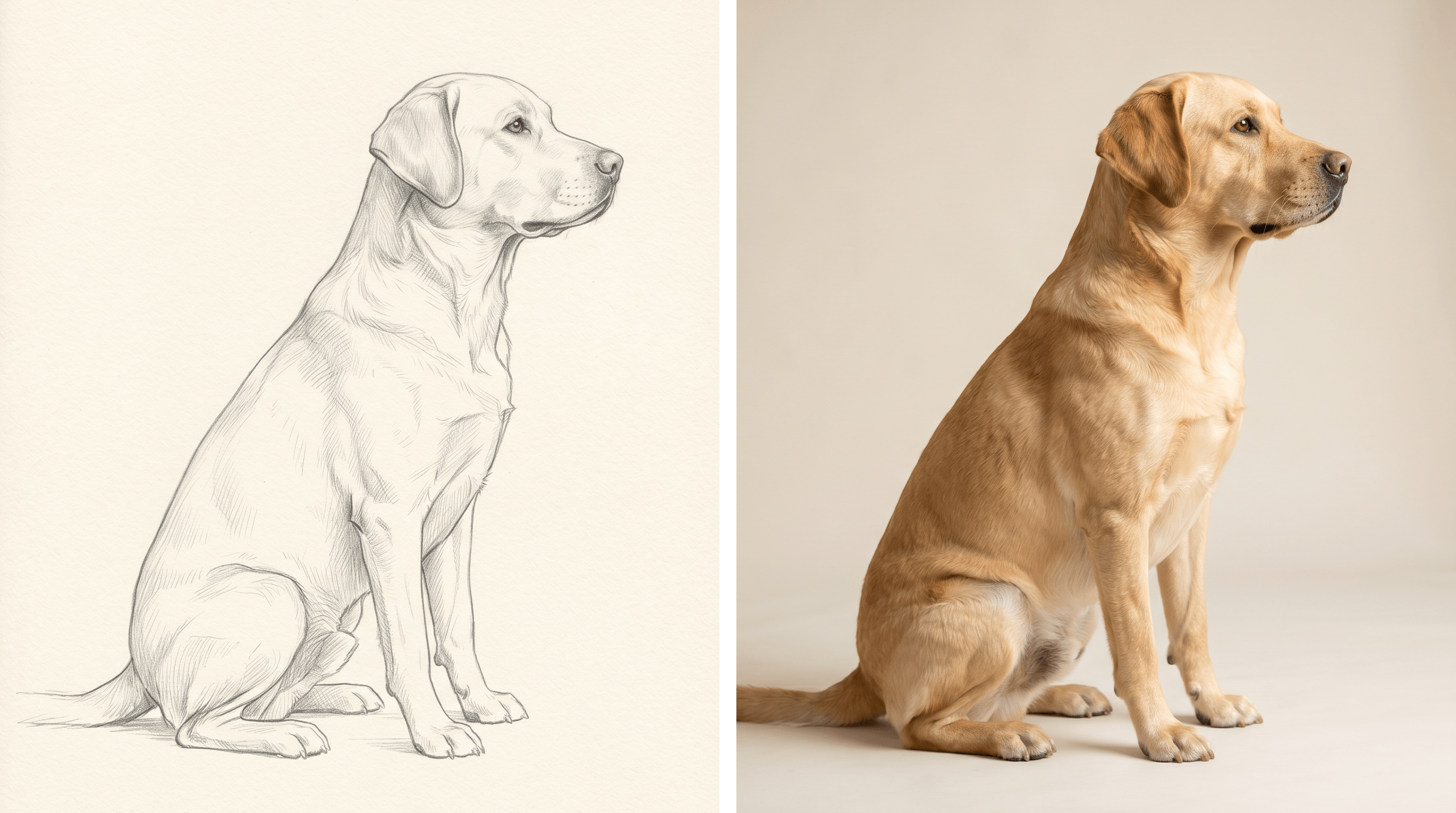
- What worked: prompting "yellow Labrador, short coat, glossy" produced consistent fur color across the body.
- What needed a redo: the muzzle came out slightly long on the first generation; lowering the prompt weight from 0.8 to 0.6 made the AI follow the sketch's actual proportions.
Shiba Inu
Original sketch: a standing Shiba with curled tail, drawn in pen with light ink wash. Shibas are the trickiest of the three because their double coat and urajiro (white belly markings) need to be named explicitly.
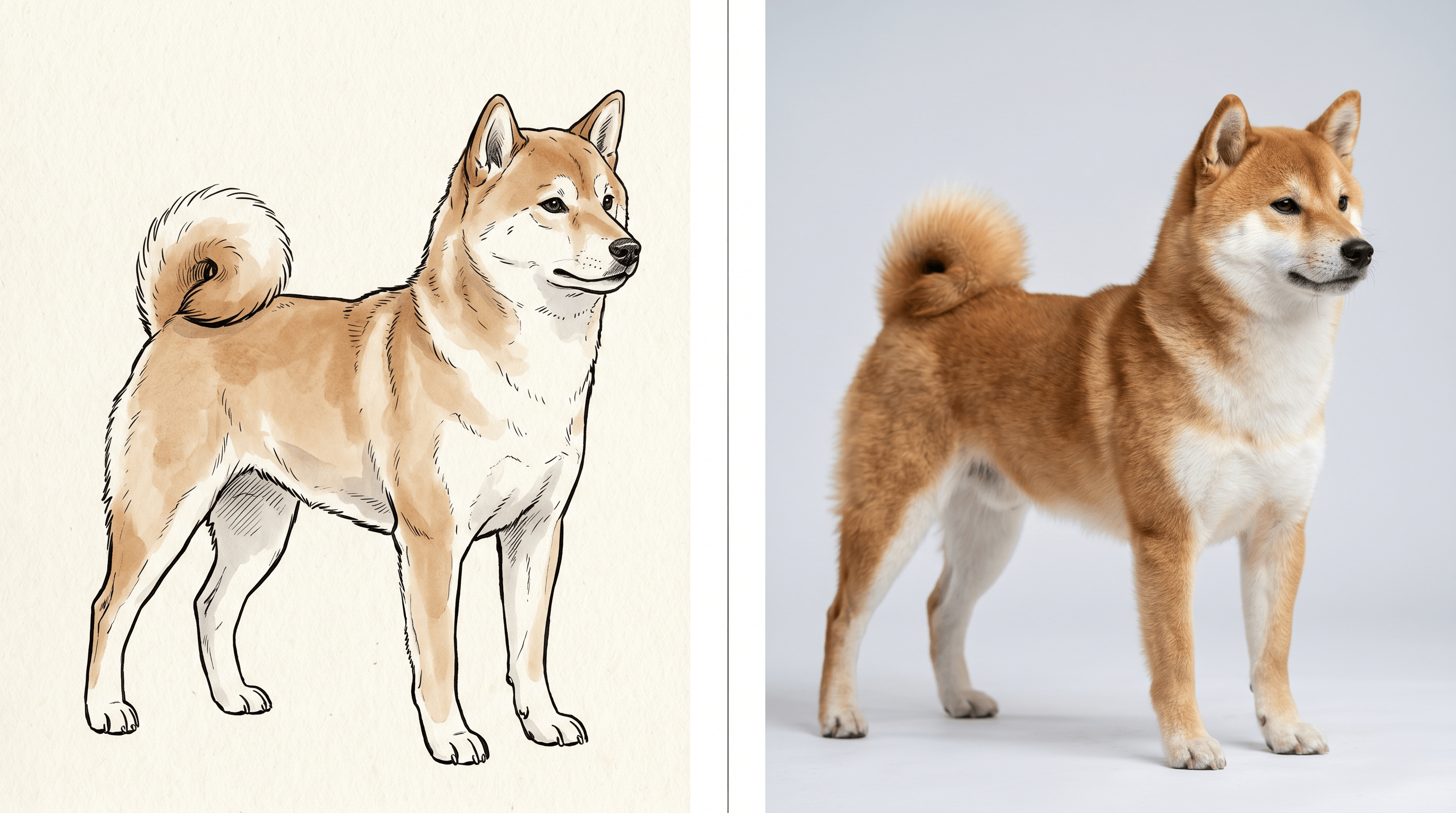
- What worked: the curled tail came through correctly when described as "tightly curled tail over the back."
- What needed a redo: the first pass missed the urajiro markings; adding "white urajiro on cheeks, chest, and belly" to the prompt fixed it. This is the case where naming a breed-specific feature matters most.
Tips for Pet Owners and Portrait Artists {#tips}
A few things we learned across roughly 200 pet sketches run through this workflow:
- Sketch the eyes carefully. AI models lock onto eye position and gaze. A wonky eye in the sketch becomes a wonky eye in the photo.
- Name uncommon coat patterns. Brindle, merle, blue roan, harlequin — these only appear if you put them in the prompt. Generic prompts default to the breed's most common coloring.
- Run two generations and pick. Pro models are non-deterministic; a 10-second second pass often beats spending five minutes editing the first.
- Save the sketch + prompt pair. When a client asks for "another in the same style," you can re-run the exact prompt with a new sketch and get matching lighting and tone.
- For memorial portraits, work from photos plus sketches. If you have any reference photo of the dog, generate first from the sketch, then run a photo-to-photo refinement pass to align the face. The result feels more like the actual pet.
FAQ {#faq}
Does sketch line thickness affect the result?
Yes, noticeably. Thin, clean lines (mechanical pencil, fine-liner) produce the most accurate composition because the AI treats them as edges. Heavy, smudgy graphite gets read as shading and can cause the model to thicken the dog's outline or add unwanted shadows. If your sketch is heavily shaded, scan it, increase contrast, and consider tracing the outline in a photo app before uploading.
How well does the AI restore the dog's actual coat color?
Coat color comes from your prompt, not your sketch — the AI cannot infer "sable German Shepherd" from a graphite drawing. If you want a specific dog's coat, name the color and pattern in the prompt. For unusual patterns (merle, brindle, harlequin), be explicit. The Professional model holds named colors well; the Standard model sometimes drifts toward the breed's most common coloring regardless of the prompt.
Can I sell prints of pet portraits I generate?
For commercial use, check the model tier. Sketch To's Professional Model allows commercial usage, which covers Etsy prints, mugs, blankets, and client commissions. The Standard model is generally for personal and creative use only — confirm the current license on the pricing page before listing products. If the original sketch is a client's drawing rather than yours, get written permission to convert and resell.
How long does generation take?
About 8–15 seconds per image on the Professional model, plus a few seconds for upload. Most pet portrait jobs end up taking 2–3 minutes total once you factor in prompt tuning and a second-pass regeneration.
Will it work on cats, rabbits, or horses?
Yes — the model is trained on broad pet and animal data, not just dogs. Cats and rabbits work especially well because their fur is short or fluffy in ways the model handles cleanly. Horses are fine for portraits but action poses get harder; sketch the legs clearly.
Do I need design or AI experience?
No. The workflow is upload, type a one-line prompt, click generate. The only skill that helps is being specific about breed and coat in the prompt — and that is a one-time learning curve.
Conclusion {#conclusion}
Pet sketch to photo AI works in 2026 in a way it did not in 2024. The combination of edge-aware conditioning, breed-trained priors, and texture diffusion turns a 5-minute pencil portrait into a printable photo-realistic image — and it does this in under a minute, with commercial-use rights on the Pro tier. For pet owners who want to see their drawings "come alive," for memorial portraits, and for artists adding a photo option to their commission menu, the bottleneck is no longer the AI. It is having a sketch you like.
The fastest first step: pick your favorite sketch, scan it, and run it through the Pro model with a one-line breed-and-coat prompt. You will know in 15 seconds whether this workflow fits your projects.
Ready to turn your pet sketches into wall-ready portraits? Try Sketch To free → — Professional Model, photo-realistic results, commercial usage covered.
Transform Your Images with AI
Turn sketches into stunning images, remove backgrounds, swap faces, and more — all powered by AI.
Try Sketch To FreeShare
Sketch To
Tech writer covering AI tools, image processing, and creative workflows.
Related Articles
Qwen-Image-2.1 GGUF: Which Quant to Download and How to Run It in ComfyUI
All Qwen-Image-2.1 GGUF quants with real file sizes, which tier fits your VRAM, a working ComfyUI-GGUF setup, and the two errors everyone hits.
How to Make a Coloring Book: From Photos to a Print-Ready Book
Turn your photos or one theme into a complete printable coloring book: generate consistent AI coloring pages, assemble a margin-safe PDF, and compare printing vs KDP with real cost math.
How to Make Your Own Funko Pop: 3 Real Routes and What They Cost
Official Funko customizer, handmade makers, or DIY — see real prices and lead times for a personalized Funko Pop, then preview your design free with AI before you pay.