Local AI Image Generator vs Online Sketch Tools
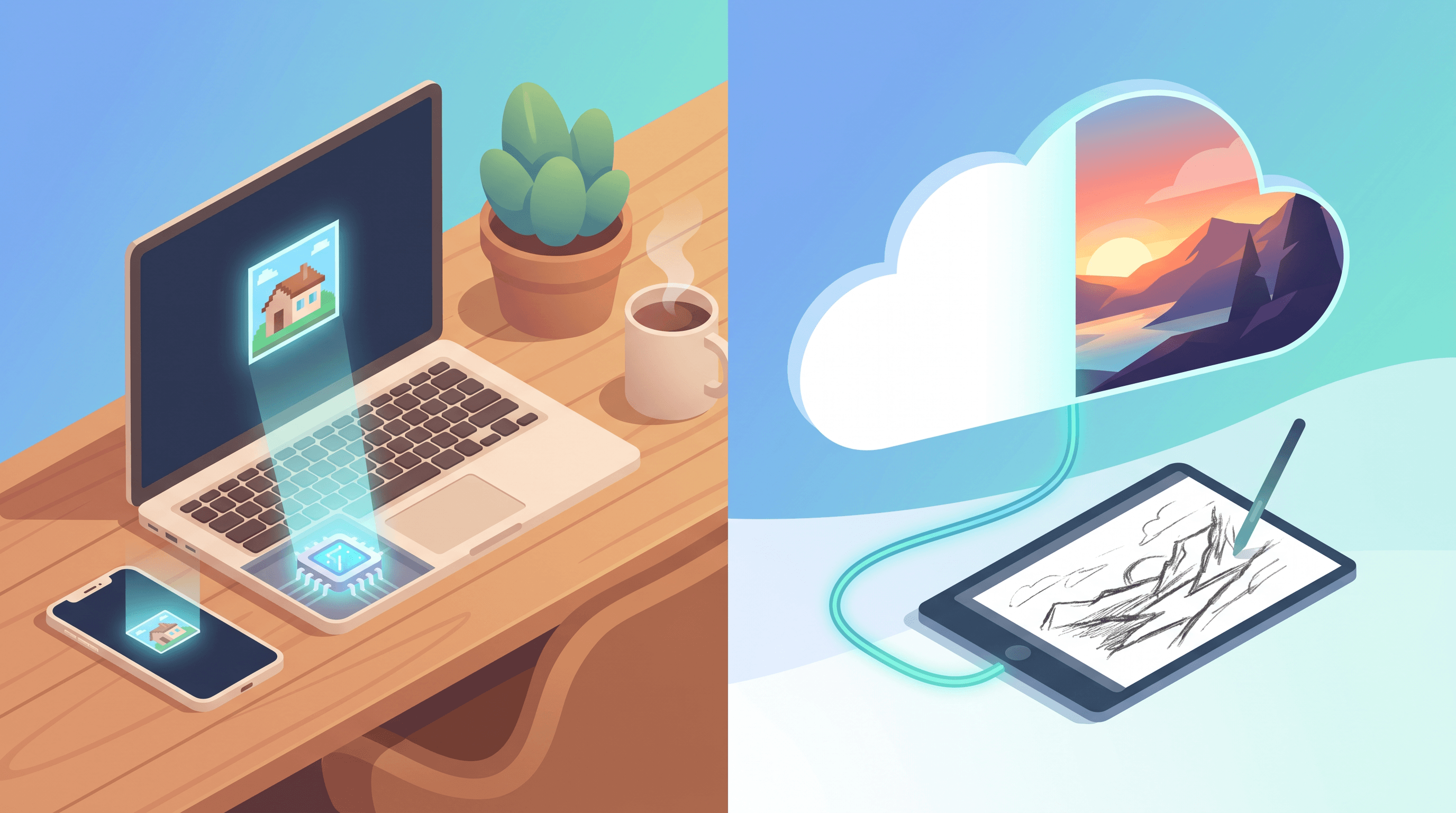
Last week a single Hacker News thread put "1-Bit Bonsai Image 4B" near the top of the front page: a quantized image model small enough to generate a 512x512 picture on an iPhone in under 10 seconds, with no cloud and no API bill. The comments split fast. Half the crowd was thrilled to run a model offline on a phone; the other half pointed out the output still looked rough next to a hosted tool. That argument is the whole debate in miniature, and it is why the local AI image generator is suddenly a real option instead of a hobbyist curiosity.
Last updated: June 2026
If you sketch ideas and want them turned into finished images, the choice between a local AI image generator on your own machine and an online service shapes your cost, your privacy, and how much time you spend fiddling versus creating. This guide compares both honestly, names the real tools on each side, and shows where each one wins.
Table of Contents
- What Is a Local AI Image Generator?
- Local vs Online AI Image Tools: The Real Tradeoffs
- Top Tools Compared
- Feature Comparison Table
- How to Choose the Right Tool
- How to Turn a Sketch into a Polished Image (Step-by-Step)
- FAQ
What Is a Local AI Image Generator?
A local AI image generator is software that creates images entirely on your own device's CPU or GPU, with no internet connection and no cloud server. Your prompts and images never leave the machine. Quantized models like Bonsai Image 4B compress the math so far that phones and low-memory laptops can now run one too.
The "1-bit" and quantized trend is what changed the math. Bonsai Image 4B, released by PrismML under the Apache 2.0 license, is a heavily quantized version of the FLUX.2 Klein 4B model. According to figures shared in the Hacker News discussion (item 48346257, roughly 464 points and 200+ comments), the 1-bit build is about 0.93 GB at ~88% of full quality, the ternary build about 1.21 GB at ~95%, versus 7.75 GB for the unquantized model. Posters reported around 9.4 seconds for a 512x512 image on an iPhone 17 Pro Max.
The thread was not all praise. Several commenters noted that on-device generation already shipped on iPhones through Draw Things, and that the raw quality of these tiny models is "not great" compared to hosted services. That tension, small-and-private versus large-and-polished, runs through every comparison below.
Local vs Online AI Image Tools: The Real Tradeoffs
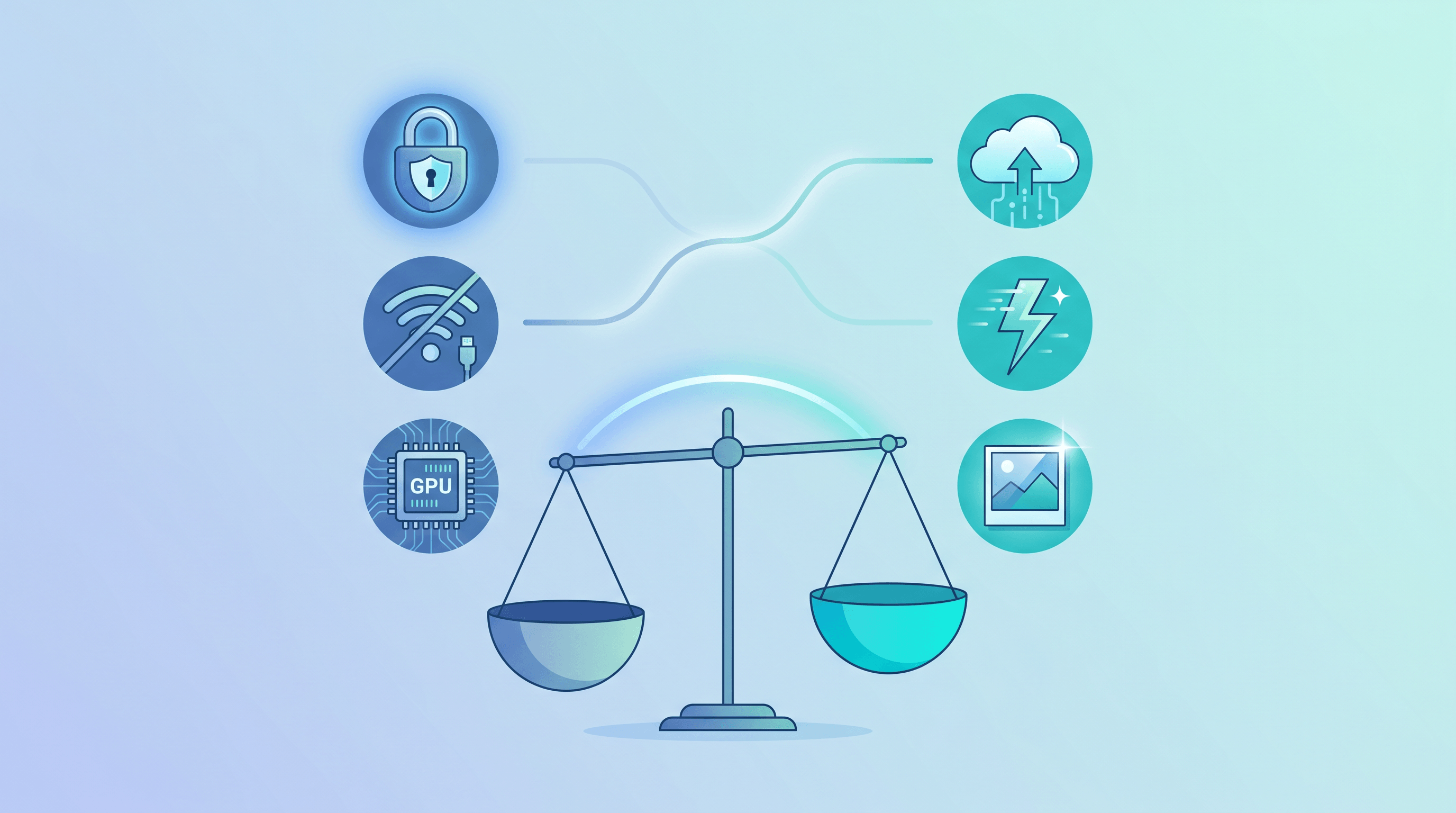
A local AI image generator wins on privacy, offline use, no subscription, and full control with no content filters. Online tools win on zero setup, no GPU requirement, stronger guided results, higher output detail, and commercial-ready licensing. Neither side is strictly better; the right pick depends on whether you optimize for control or for finished results.
The case for a local AI image generator is concrete. Your data stays on your device, you can work on a plane with no signal, you pay once for hardware instead of a monthly bill, and there are no safety filters blocking edge-case prompts. The cost shows up elsewhere: you need a capable GPU (commonly 8 GB of VRAM minimum, ~12 GB as a comfortable sweet spot), you handle installation and model downloads, and you maintain the whole stack yourself when something breaks.
An online AI image generator flips that. There is nothing to install, no GPU to buy, and the results from a guided workflow tend to look finished on the first try. The trade is a recurring subscription and the fact that your images pass through someone else's servers. For a creator who needs sketch to image AI that produces a usable, commercial-ready file in seconds, that trade is usually worth it.
Top Tools Compared
The real options split cleanly into a local AI image generator you run yourself and online services you log into. Below, each tool gets a Best for and a Not ideal for, including the limitations of our own product, Sketch To.
Local AI Image Generators
Bonsai Image 4B (PrismML)
- Best for: Low-memory and CPU devices, including iPhones with 4-6 GB of available memory. Apache 2.0 license, fully offline.
- Not ideal for: Anyone with an 8 GB+ GPU who wants top quality. The quantization that makes it tiny also caps the detail, and HN commenters disputed whether the quality holds up.
AUTOMATIC1111 (Stable Diffusion WebUI)
- Best for: The most feature-rich free WebUI with the largest install base. Runs on Windows, Linux, and macOS; NVIDIA preferred.
- Not ideal for: Speed and VRAM efficiency, newer FLUX models, or non-technical users. The Forge fork is faster if speed matters.
ComfyUI
- Best for: Node-graph control and the best FLUX support. The Krita backend integration is strong.
- Not ideal for: Beginners or quick one-off prompts. It has the steepest setup of any tool here.
Fooocus
- Best for: Beginners who want prompt-and-go. Easiest local install, roughly 5 minutes to your first image.
- Not ideal for: Power users who want fine-grained control over every parameter.
InvokeAI
- Best for: Inpainting and canvas editing with a guided, polished UX.
- Not ideal for: Chasing the absolute newest, bleeding-edge models the day they drop.
Draw Things
- Best for: Free, offline generation on Mac, iPhone, and iPad via Apple Metal. Rated about 4.5 stars across ~700 ratings, and roughly 20% faster than older ComfyUI builds in its own benchmarks.
- Not ideal for: Windows or Linux users, and anyone who wants a heavily designed desktop UI.
Krita AI Diffusion (by Acly)
- Best for: AI generation directly inside the Krita canvas, with ControlNet and output up to 8K. Auto-installs a ComfyUI backend; supports FLUX.2, SD, and SDXL across all GPUs.
- Not ideal for: Non-Krita users and CPU-only machines.
Online Sketch-to-Image Tools
Sketch To
- Best for: Turning a rough sketch or line drawing into a polished, photo-real image fast, with no setup. Two models: a Standard Model for everyday work and a Professional Model for commercial-ready realism.
- Not ideal for: Offline use. It is web-based, so it needs a connection, and ongoing use is a subscription rather than a one-time cost.
Krea AI
- Best for: A live sketch canvas where the image updates as you draw. Free tier with 100 units to try.
- Not ideal for: Commercial use on the free tier, where licensing is limited.
Leonardo AI
- Best for: ControlNet-style sketch conditioning and fine pose control. Plans from about $12/month.
- Not ideal for: Beginners; the control surface is deep and takes time to learn.
Adobe Firefly
- Best for: Brand-safe, commercially licensed generation inside the Adobe ecosystem. From about $9.99/month.
- Not ideal for: Tight budgets and users outside Adobe's tools.
Gemini "Nano Banana Pro"
- Best for: High-detail output up to 4K. Bundled with Google's AI Pro plan at about $19.99/month.
- Not ideal for: Precise sketch-to-image control, where it is weaker than dedicated tools.
Feature Comparison Table
A local AI image generator and a hosted service make opposite trades, so the fastest way to weigh them is side by side. This table compares local generators as a category, online tools as a category, and Sketch To specifically.
| Feature | Local Generators | Online Tools | Sketch To |
|---|---|---|---|
| Setup | Install + model downloads | None (web login) | None (web login) |
| Privacy | Everything stays on device | Images pass through servers | Images pass through servers |
| Offline use | Yes | No | No |
| Cost model | One-time hardware | Subscription | $8/mo Basic, $16/mo Pro |
| Hardware needed | 8 GB+ VRAM (~12 GB ideal) | Any device with a browser | Any device with a browser |
| Sketch-to-image guidance | Manual (ControlNet setup) | Built-in, varies by tool | Purpose-built, one upload |
| Output detail | Caps with smaller models | High, model-dependent | Pro Model = commercial-grade |
| Commercial-ready | License varies (check model) | Usually yes on paid tiers | Yes on Pro Model |
| Best for | Privacy, offline, tinkering | Fast finished results | Sketches into polished photos |
How to Choose the Right Tool
Pick a local AI image generator if privacy, offline access, or a one-time cost matter most, and you have a capable GPU plus the patience to maintain it. Pick an online tool if you want finished, commercial-ready results without managing hardware. Most people land in one of three clear buckets.
- Privacy-first or offline: You handle sensitive material, work without reliable internet, or simply do not want images on a third-party server. Run Draw Things on a Mac or iPhone, or ComfyUI / AUTOMATIC1111 on a Windows or Linux box with an 8 GB+ GPU. Bonsai Image 4B is worth trying on low-memory devices, with quality expectations set accordingly.
- Budget tinkerer: You enjoy the setup as much as the output and want zero recurring cost. Fooocus gets you generating in about 5 minutes; Krita AI Diffusion adds canvas control once you are comfortable.
- Creator who needs polished results fast: You care about the final image, not the pipeline. An online sketch-to-image tool like Sketch To, Krea, or Leonardo skips the hardware question entirely and returns a usable file in seconds.
How to Turn a Sketch into a Polished Image (Step-by-Step)
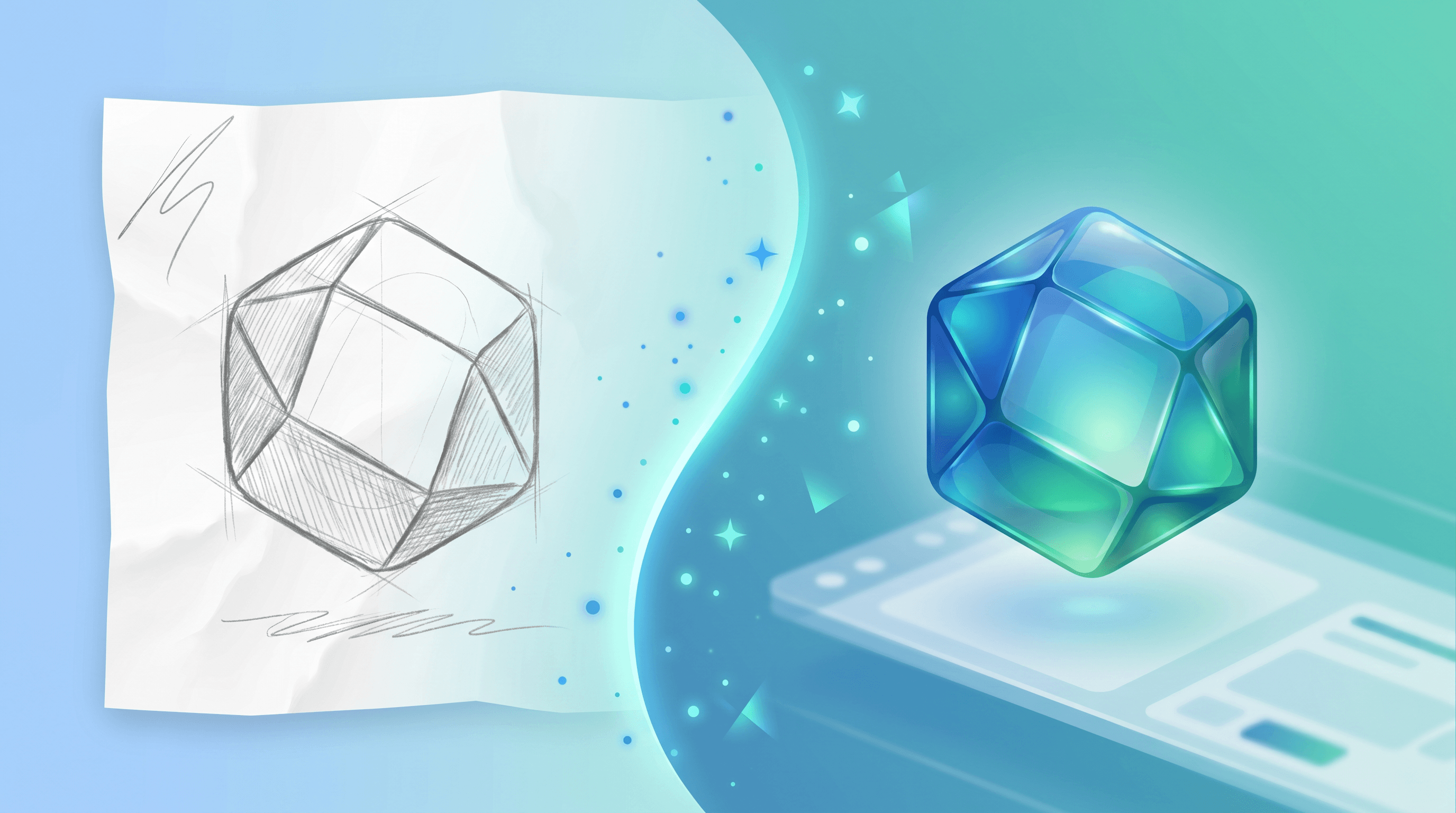
Turning a sketch into a finished image takes about a minute with an online tool, with no local AI image generator to install and no GPU to buy. Below is the real flow using Sketch To, which is built specifically for this job. The same general steps apply to most online sketch-to-image services.
- Scan or photograph your sketch. A clear pencil or pen drawing on white paper works best. Even a phone photo is fine as long as the lines are visible.
- Open the sketch-to-image tool. Go to the Sketch to Image AI page and upload your file. No install, no account hurdles to start.
- Pick a model. Select the Professional Model for photo-realistic, commercial-ready results in about 10 seconds, or the Standard Model for quick everyday drafts. New users get free trial credits, so you can try Sketch To on a real drawing before paying anything.
- Add a short prompt. Describe the style, lighting, or material you want, for example "product photo, soft studio light, ceramic." This guides the render without redrawing your lines.
- Generate and refine. Review the result, tweak the prompt, and regenerate if needed. Most sketches land on a usable image within two or three tries.
- Clean up and export. Use built-in tools like the AI Drawing to Photo converter or the background remover, then download your finished image.
That is the practical advantage of an online tool: a workflow that runs the same on a phone, a Chromebook, or a workstation, with no VRAM math involved.
FAQ
Is a local AI image generator better than online tools? Not categorically; it depends on your priority. A local AI image generator is better for privacy, offline use, and avoiding subscriptions, while online tools currently produce higher-detail, more commercial-ready results with no setup. Choose local for control, online for finished output.
Can I run an AI image generator offline? Yes. A local AI image generator like Draw Things, ComfyUI, AUTOMATIC1111, or Bonsai Image 4B generates images fully offline once the model is downloaded. Online services such as Sketch To, Krea, and Leonardo require an internet connection because the work happens on their servers.
Is Bonsai Image 4B free? Yes. Bonsai Image 4B from PrismML is released under the Apache 2.0 license, so it is free to download and run, including for commercial use under that license. It is a quantized version of FLUX.2 Klein 4B, optimized to run on low-memory and mobile devices.
What hardware do I need for a local AI image generator? A local AI image generator for desktop Stable Diffusion or FLUX needs a GPU with at least 8 GB of VRAM, with roughly 12 GB as a comfortable sweet spot. Quantized models like Bonsai Image 4B run on far less, around 1 GB of memory, which is why they work on phones, though at lower quality.
Which tool is best for turning a sketch into a realistic image? For fast sketch-to-image conversion without managing hardware, a purpose-built online tool like Sketch To is the most direct option, with a Professional Model aimed at photo-real, commercial-ready output. Krea and Leonardo offer strong sketch control if you want a live canvas or ControlNet-style conditioning.
Do online AI image tools own my generated images? Usually not on paid tiers; most online generators grant commercial usage rights to subscribers, though free tiers often restrict commercial use. Always check the specific plan. Sketch To's Professional Model output is intended for commercial use, and you can confirm the details on its pricing page.
Ready to turn your sketches into stunning photos without buying a GPU or installing a single model? Try Sketch To free → and get AI-powered sketch-to-image conversion in about 10 seconds, with a Professional Model built for commercial-ready results and no design skills needed.
Transform Your Images with AI
Turn sketches into stunning images, remove backgrounds, swap faces, and more — all powered by AI.
Try Sketch To FreeShare
Sketch To
Tech writer covering AI tools, image processing, and creative workflows.
Related Articles
Google Pics vs Independent AI Image Tools: Which One Fits Your Work?
Google Pics brings Nano Banana image editing into Slides, Docs, and Drive. See how it compares with independent AI image platforms — and which one fits your workflow.
Text to Image vs Sketch to Image: Krea 2 Lessons
Compare text to image vs sketch to image after Krea 2, and learn when prompts, sketches, or both fit concept art and design work.
Reve 2.0 Alternative: Sketch-to-Image Layout Control
Looking for a Reve 2.0 alternative? Compare 6 layout-based AI image generators and see when sketch-to-image beats 4K layout control.