Fotor vs SketchTo: Which Actually Turns a Sketch Into a Realistic Image?
TL;DR: We fed the same three inputs — a clean line drawing, a phone photo, and a pencil scene sketch — into Fotor's AI image generator and SketchTo's sketch-to-image converter on November 6, 2026. SketchTo followed the drawing's structure far more faithfully; Fotor produced prettier "finished" images but drifted from what we drew, and its style instructions landed harder on photo restyling. For turning sketches into usable realistic images, the dedicated tool wins; for quick anime-style restyling, Fotor's multi-model generator is the stronger pick. Full side-by-side results, settings, and pricing below.
Fotor keeps adding AI features — a multi-model image generator with reference-image support, GoArt-style effects, and a full photo editor — so it's fair to ask whether a general-purpose tool has caught up with dedicated sketch generators. A search for "Fotor sketch to image" mostly returns marketing pages, not tests. So we ran the comparison ourselves: three identical inputs, the same instruction text on both tools, recorded models and settings, on the same day.
One disclosure up front: we build SketchTo, so we obviously have a stake here. We've tried to keep the judgments specific enough that you can disagree with us — every result below is shown, not summarized away. If you want our take on photo-effect suites more broadly, our BeFunky alternatives comparison covers that angle.
How we tested Fotor vs a dedicated sketch generator
The test was simple: identical files, identical instructions, two tools, one afternoon. We used three inputs that represent the three jobs people actually bring to a sketch-to-image tool:
- A clean line drawing — a vector-style line-art portrait (drawn as an SVG, exported to PNG) with a headband, V-neck collar, and clearly placed facial features. This is the "I drew something, make it real" case.
- A phone photo — a casual, slightly tilted cafe snapshot of a woman with curly hair, freckles, and a nose ring. This tests restyling: keeping a real person recognizable while changing the medium.
- A pencil scene sketch — a graphite drawing of a cottage with an oak tree, fence, path, hills, and clouds. This tests whether a tool preserves a full composition, not just one subject.
On the Fotor side we used its AI Image Generator: one reference image attached via "Add picture", the model left on its default (Kling O1), and the aspect ratio set to 1:1 to match the input. On the SketchTo side we used the sketch-to-image converter in custom-prompt mode, on its default Nano Banana model, which costs 2 credits per run and matches the input's aspect ratio automatically. The exact same instruction text went to both tools for each test.
All tests ran on November 6, 2026. The test account on our side was a free plan (46 credits, spent 6); the Fotor account was a free-tier login. Pricing and quota facts below were checked the same day.
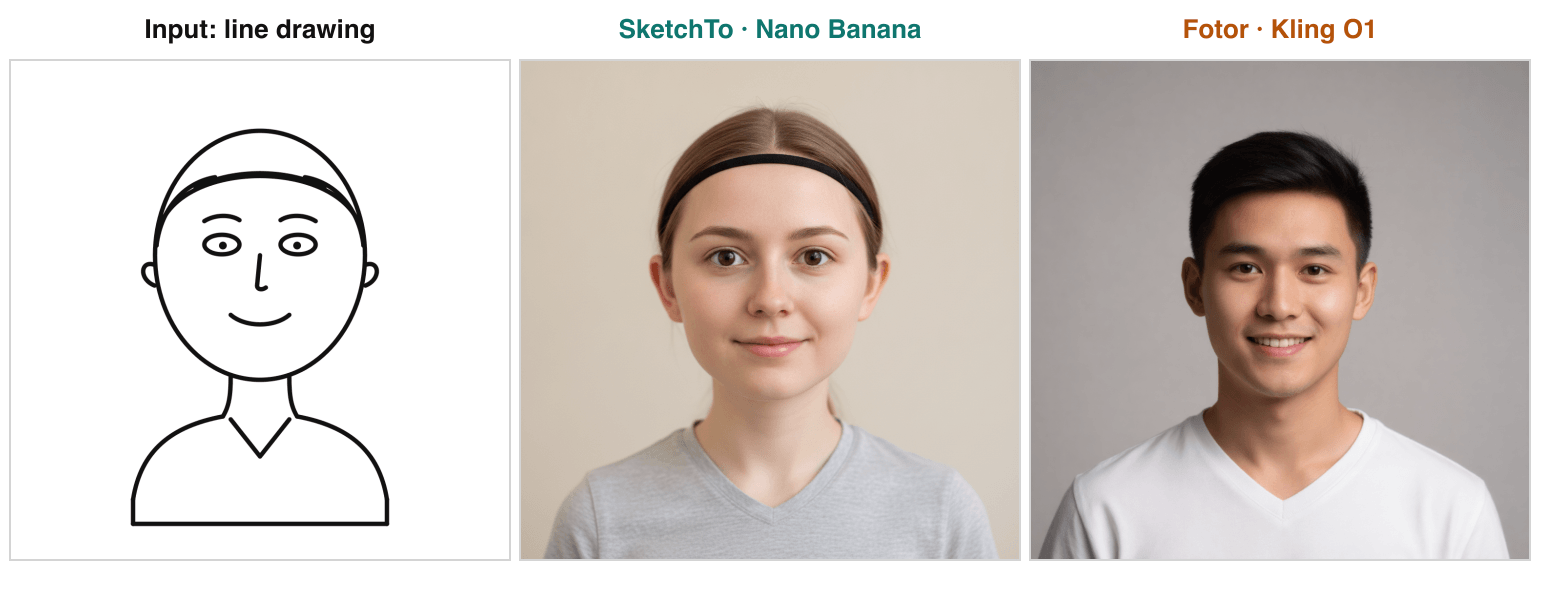
Same input and instruction, tested November 6, 2026. Left: original line drawing; middle: SketchTo (Nano Banana); right: Fotor (Kling O1, generated on fotor.com).
Test 1: a line drawing becomes a realistic portrait
SketchTo treated the drawing as a blueprint; Fotor treated it as inspiration. Both produced photorealistic portraits, but the differences are exactly what a "sketch to image" comparison is about:
- SketchTo (Nano Banana) kept the drawing's structure almost one-to-one: the black headband stayed a headband, the eyes, brows, nose and smile landed where they were drawn, and the V-neck collar survived as a gray V-neck tee. The invented details (hair below the band, skin tone) are the ones the line art never specified.
- Fotor (Kling O1) produced arguably the prettier picture — a polished, studio-lit headshot. But it turned the drawn headband into a full head of swept-back hair, changed the shirt color, and replaced the plain background with a generic gray studio backdrop. The drawing's most distinctive feature simply didn't make it through.
If your drawing has specific design decisions in it — a costume element, a hairstyle, a prop — Fotor's default reference-image flow did not protect them. SketchTo did. For sketches-to-render fidelity, that's the difference between a usable result and a redo. Want to run your own drawing through the structure-preserving path? Try SketchTo's sketch-to-render converter — it's the same 2-credit flow we used here, and new accounts start with 4 free credits.
Test 2: restyling a phone photo into an illustration
Fotor followed the style instruction better; SketchTo kept the person better. We gave both tools the same photo and the same instruction: turn it into a clean anime illustration while keeping her facial identity, curly hair, freckles, pose, and the cafe scene.
- Fotor delivered genuinely anime-styled output — cel shading, clean line work, the works. The cafe scene, curly hair, and hoop earring carried over. But the freckles were gone, the nose ring was gone, and the face drifted toward a generic younger anime lead.
- SketchTo kept the identity markers almost completely: freckles, nose ring, hoop earring, necklace, pose, even the blurred street through the window. The catch: the style came out as a soft semi-realistic illustration, not the anime look we asked for.
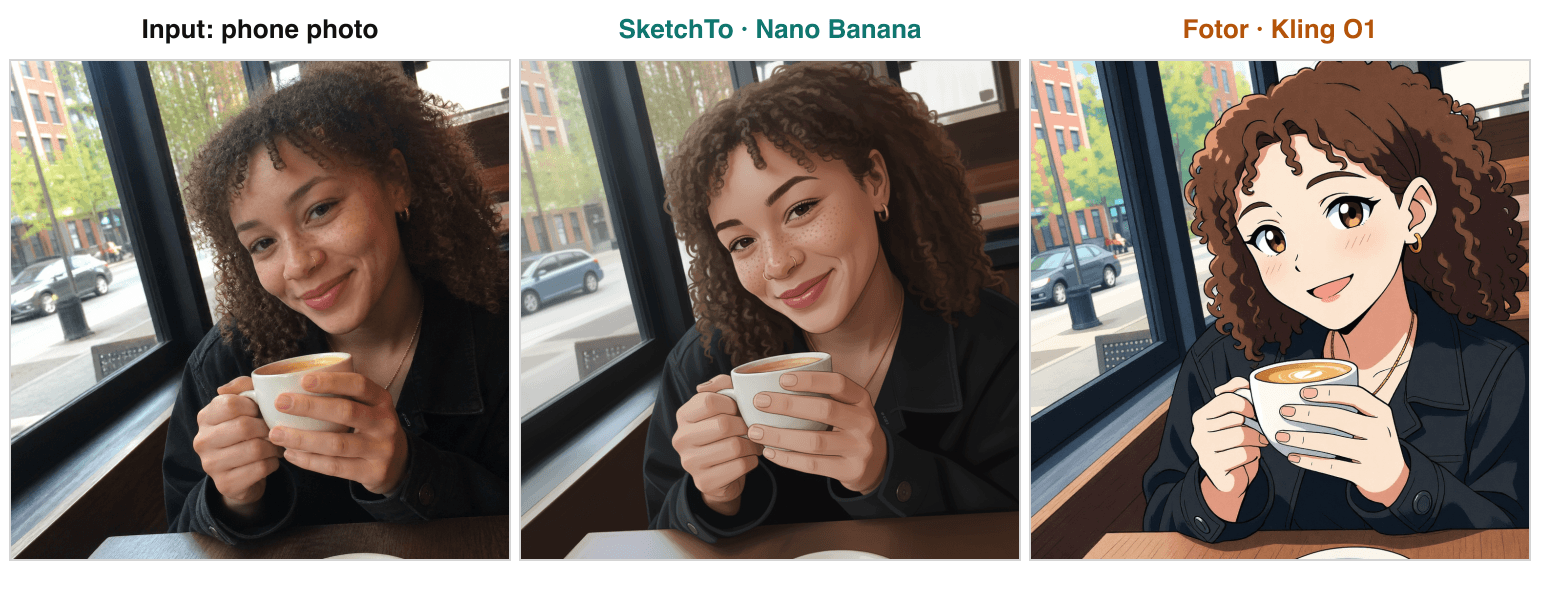
Photo-to-illustration test, November 6, 2026. SketchTo kept facial identity markers; Fotor followed the anime instruction but dropped freckles and the nose ring. Fotor output generated on fotor.com.
So this round splits: if the assignment is "make it anime," Fotor's multi-model generator is more obedient. If the person needs to stay recognizable — client work, brand assets, a real face — SketchTo's output was the one we could hand over without explaining what got lost. Worth noting: Fotor's model picker includes other models, so a different model might behave differently; we tested its default path because that's what most users will hit.
Test 3: a scene sketch with background
Both tools preserved the composition; neither delivered photorealism. The pencil scene sketch — cottage left, oak tree right, fence and gate across the foreground, path winding to rolling hills — came back with its layout fully intact on both sides: chimney smoke, window boxes, gate latch, cloud placement.
But when asked for "a realistic photorealistic photo of the same scene," neither tool's default path got there. SketchTo returned a colored-pencil/watercolor-style colorization; Fotor returned a gouache storybook-style rendering. Both are attractive illustrations, and both would work as design references — but if you need an actual photo-grade scene render, this test says neither tool's one-click path gets you there yet. You'd iterate with stronger prompts or local edits.
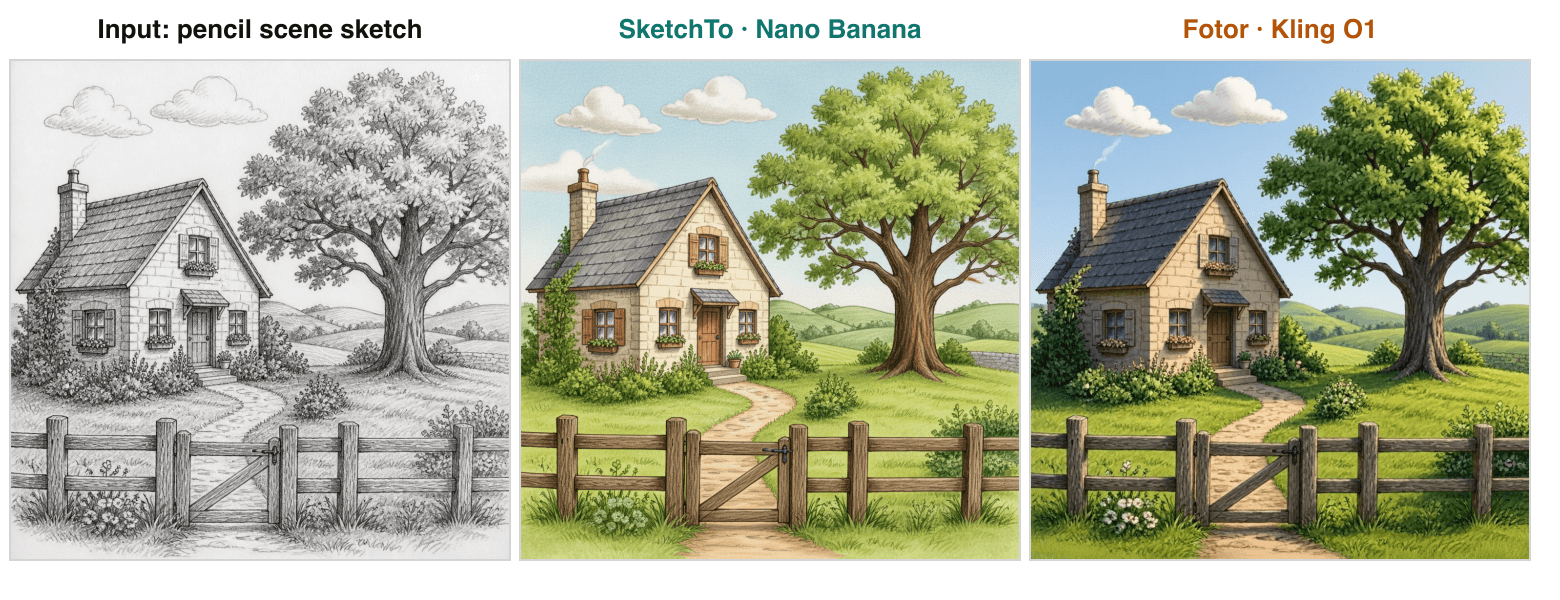
Scene-sketch test, November 6, 2026. Both tools preserved the composition; neither reached photorealism at default settings. Fotor output generated on fotor.com.
Controllability and workflow
SketchTo is built around the sketch-in, image-out loop; Fotor is built around breadth. A few practical differences we hit while testing:
- Editing after generation. Fotor's strength is what happens next: its editor offers background removal, object removal, retouching, and batch tools around the same account. SketchTo's editor covers local re-transforms, history with side-by-side compare, and re-running the same session with a tweaked prompt — narrower, but closer to how sketch iteration actually works.
- Reference-image behavior. Fotor accepts up to four reference pictures on its generator, which is great for style fusion, but in our test the reference clearly acted as inspiration rather than structure. SketchTo's converter treats the sketch as the geometry source and the prompt as the material change.
- Model choice. Fotor exposes a model picker (Kling O1 by default, with Nano Banana, Midjourney, FLUX and GPT Image advertised). SketchTo also offers pro models (Nano Banana Pro, Seedream, Flux, GPT Image) at higher credit costs. We tested defaults on both sides; power users can tune either.
Fotor vs SketchTo pricing and credits (checked November 6, 2026)
The dedicated tool is meaningfully cheaper per image; Fotor is cheaper to try and bundles more tools. Current numbers:
| Fotor | SketchTo | |
|---|---|---|
| Free tier | Free forever plan with limited free credits | 4 free credits on signup |
| Entry plan | Pro — US$38.39/year billed annually (US$3.99/mo shown with a 20% OFF badge; list price US$47.99/year), 100 credits/month | Basic — US$95.88/year, 2,400 credits/year (≈1,200 images) |
| Higher tier | Pro+ US$69.99/year (300 credits/mo); Max US$167.92/year (1,000 credits/mo) | Pro — US$191.88/year, 9,600 credits/year (≈4,800 images), commercial license included |
| Per-image cost | Model-dependent; Fotor's own example: 100 credits ≈ 6 Nano Banana Pro images (≈17 credits each). Our Kling O1 test runs showed no visible per-run cost on the free account | 2 credits on the default Nano Banana model; cost is shown before every generation |
| Expiry | Subscription credits roll over up to 5 months while subscribed | Subscription credits reset each cycle; credit packs valid 1 year |
Two honest caveats. First, Fotor's prices move: the same pricing page showed US$47.99/year for Pro on both October 22 and October 28, and US$38.39 with a promo badge on November 6 — verify at checkout (Fotor pricing, SketchTo pricing). Second, we couldn't see what our Fotor test runs cost because the interface never displayed a per-generation price; if per-image math matters to you, that opacity is worth knowing about.
Which should you use?
Pick the tool that matches what your sketch needs to become. Based on the tests above:
- You drew something specific and want it rendered realistically — the headband must stay a headband. Use a dedicated sketch generator: SketchTo's converter preserved the drawing's structure, Fotor's default generator rewrote it.
- You want a photo restyled into anime or illustration and don't mind stylized faces — Fotor's multi-model generator followed the style instruction better and bundles editing tools for what comes after.
- You need a person to stay recognizable — SketchTo kept freckles, piercings, and accessories where Fotor's stylization dropped them.
- You need a photoreal render of a full scene sketch — neither default path got there on November 6, 2026; plan on iteration either way, and Fotor's editor plus a stronger model may close the gap faster for you.
- You mainly want photo effects and filters — that's Fotor's home turf (see our BeFunky alternatives comparison for that whole landscape); a sketch-to-image tool isn't the right lens for it.
That's the whole test: same sketches, two philosophies — fidelity versus finish. Check both against your own drawings before committing a subscription to either.
All Fotor feature and pricing facts were checked on fotor.com on November 6, 2026. Test outputs are unedited generations from both products; the comparison panels above combine the original inputs with those outputs.
Transform Your Images with AI
Turn sketches into stunning images, remove backgrounds, swap faces, and more — all powered by AI.
Try Sketch To FreeShare
SketchTo Team
Tech writer covering AI tools, image processing, and creative workflows.
Related Articles
6 Best BeFunky Alternatives for Photo Effects and Toon Filters (2026)
Looking for something similar to BeFunky? Compare six alternatives — Fotor, SketchTo, PicMonkey, Pixlr, Picsart, and Photopea — on cartoon filters, effects, and batch editing.
Best Art Craft Apps: AI Tools for Craft and Design Ideas
A task-by-task guide to art and craft apps: what the trending ArtCraft open-source suite actually is, plus the AI converters — bead patterns, stencils, coloring pages, sketch-to-render — that help real craft projects.
PhotoCraft vs Photoshop: Is the Open-Source Photoshop Alternative Worth Downloading?
PhotoCraft is a free, open-source Photoshop alternative built in Rust. See what v0.7.0 can and can't do against Photoshop, whether it's safe to download, and how to install it.