Midjourney's V8.2 Edit Model: Which Editing Mode Should You Use?
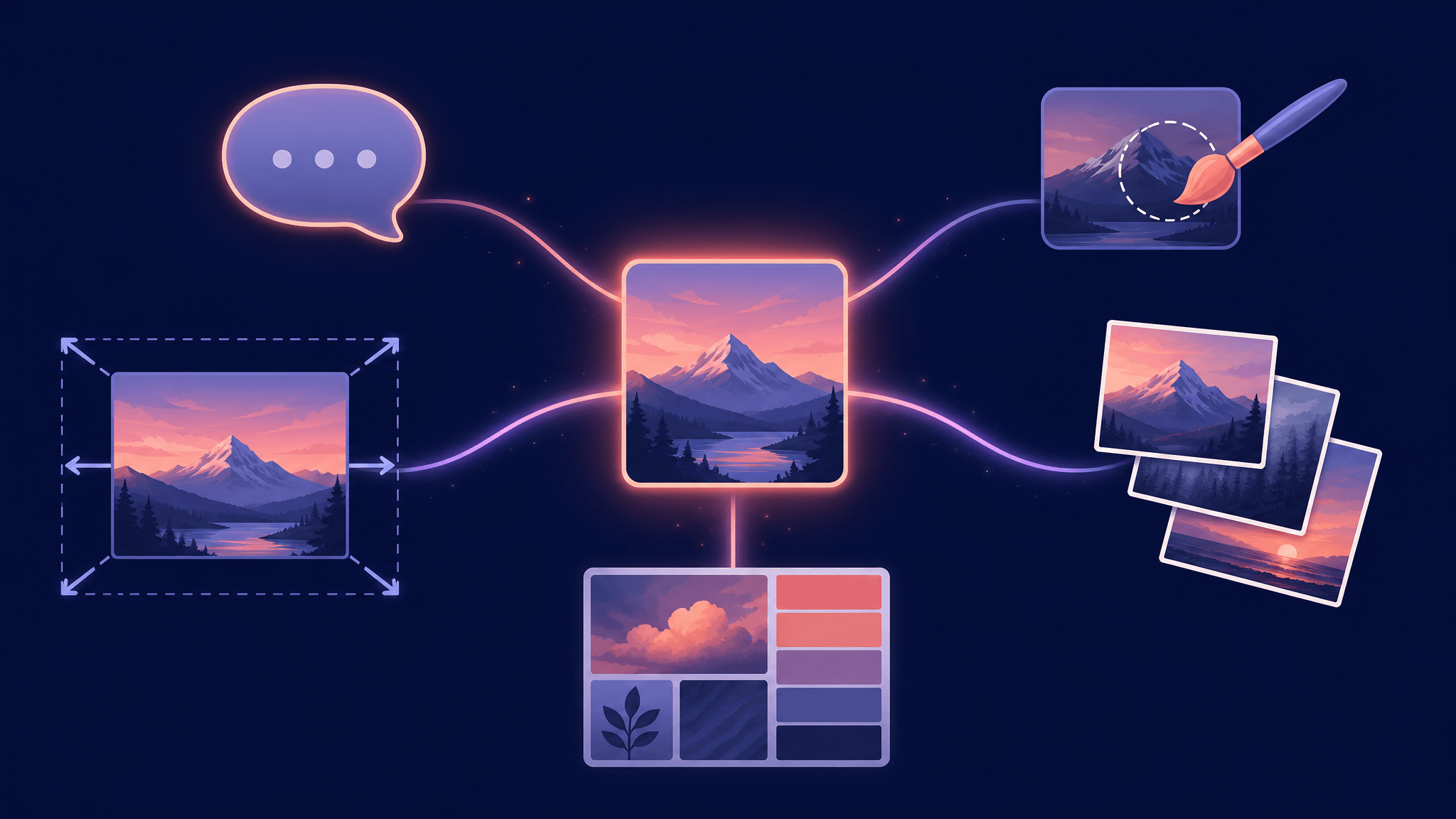
Midjourney just opened its first V8.2 image edit model to all users for testing, and it quietly ends an old dilemma: instead of choosing between a chat-style editor, a mask brush, a canvas expander, and a reference-image tool, you now get all of them in one model. That doesn't make the choice easier, though — it moves the question from "which tool do I open?" to "what kind of change am I actually making?"
The short answer:
- A specific region is wrong (a logo, a hand, a background patch) → inpainting
- The image is fine but too small or badly cropped → outpainting
- You want a new image built from your existing ones (up to four) → multi-image reference
- You want your own style carried into the result → personalization, moodboards, and srefs
- You can describe the change in a sentence and the whole image can shift → instruction editing
The rest of this guide compares the five modes against the same criteria — what each one changes, what it keeps fixed, and what the official documentation tells you to watch out for — so the next edit starts with the right mode instead of trial and error.
What the V8.2 edit model actually is
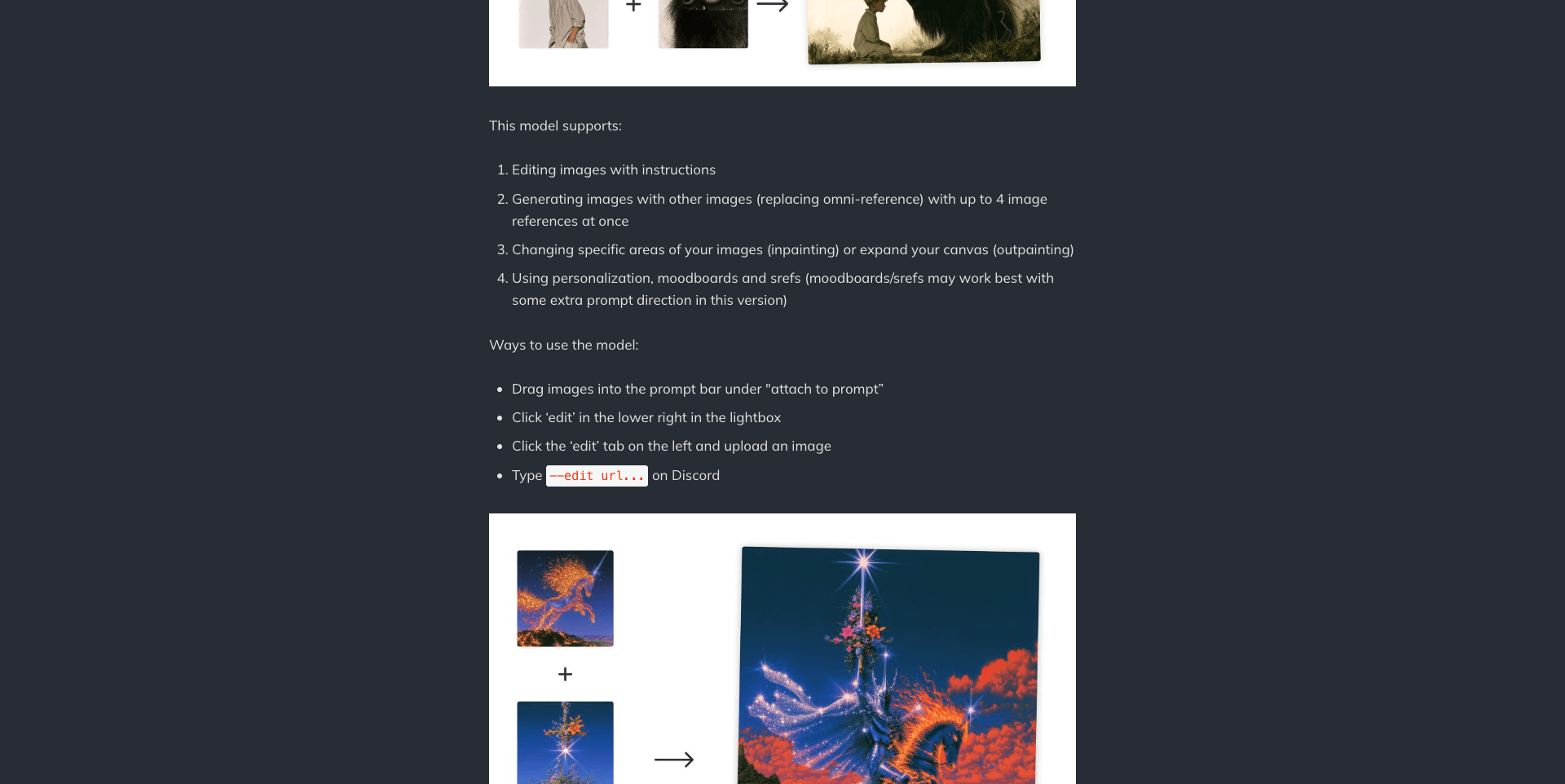
On August 27, 2026, Midjourney announced that its first V8.2 image edit model was opening to everyone for testing. One model now covers four families of behavior:
- Editing images with instructions — you describe the change in words.
- Generating images from other images — with up to 4 reference images at once, replacing the older omni-reference feature.
- Changing specific areas (inpainting) or expanding the canvas (outpainting).
- Using personalization, moodboards, and srefs — with the documented caveat that moodboards and srefs "may work best with some extra prompt direction in this version."
There are four entry paths: drag an image into the prompt bar under "attach to prompt," click the "edit" button in the lower right of the lightbox, use the Edit tab in the left navigation and upload an image, or type --edit url... on Discord. Midjourney has also updated the interfaces on both midjourney.com and alpha.midjourney.com, and warns that alpha "will be changing rapidly with lots of experiments" — so screenshots and UI details may drift while the model itself settles.
Source: Midjourney official updates (updates.midjourney.com), August 27, 2026.
The five editing modes, compared
The table below applies the same three criteria to every mode. Everything in it comes from the announcement and the official Editor documentation — this is a documented-capability comparison, not a quality ranking.
| Mode | What it changes | What stays fixed | Documented watch-outs |
|---|---|---|---|
| Instruction editing | Whatever you describe, potentially across the whole image | Your intent, expressed in words | Whole-image shifts can go further than you wanted |
| Inpainting (region edit) | Only the masked or selected area | Everything outside the mask | Mask quality decides the result's boundaries |
| Outpainting (canvas expand) | The canvas beyond the original edges | The original image inside | Aspect ratio and composition are yours to set |
| Multi-image reference | The subject/concept, composed from up to 4 inputs | The reference images as source material | Replaces omni-reference; legacy images need --ow removed first |
| Moodboards / srefs / personalization | The style direction of the result | The content described by your prompt | "May work best with some extra prompt direction in this version" |
Instruction editing: say the change, accept the ripple
Instruction editing is the most conversational mode: you attach an image and describe what should be different. Its strength is that you don't need to know where the change lives in pixels — "make the lighting warmer," "replace the sign with a wooden one." The trade-off is scope control. Because the model reads your whole image, a sentence can ripple into areas you considered final. If you can draw the boundary of your change, a mask-based mode gives you a harder edge.
Inpainting: the surgical mode
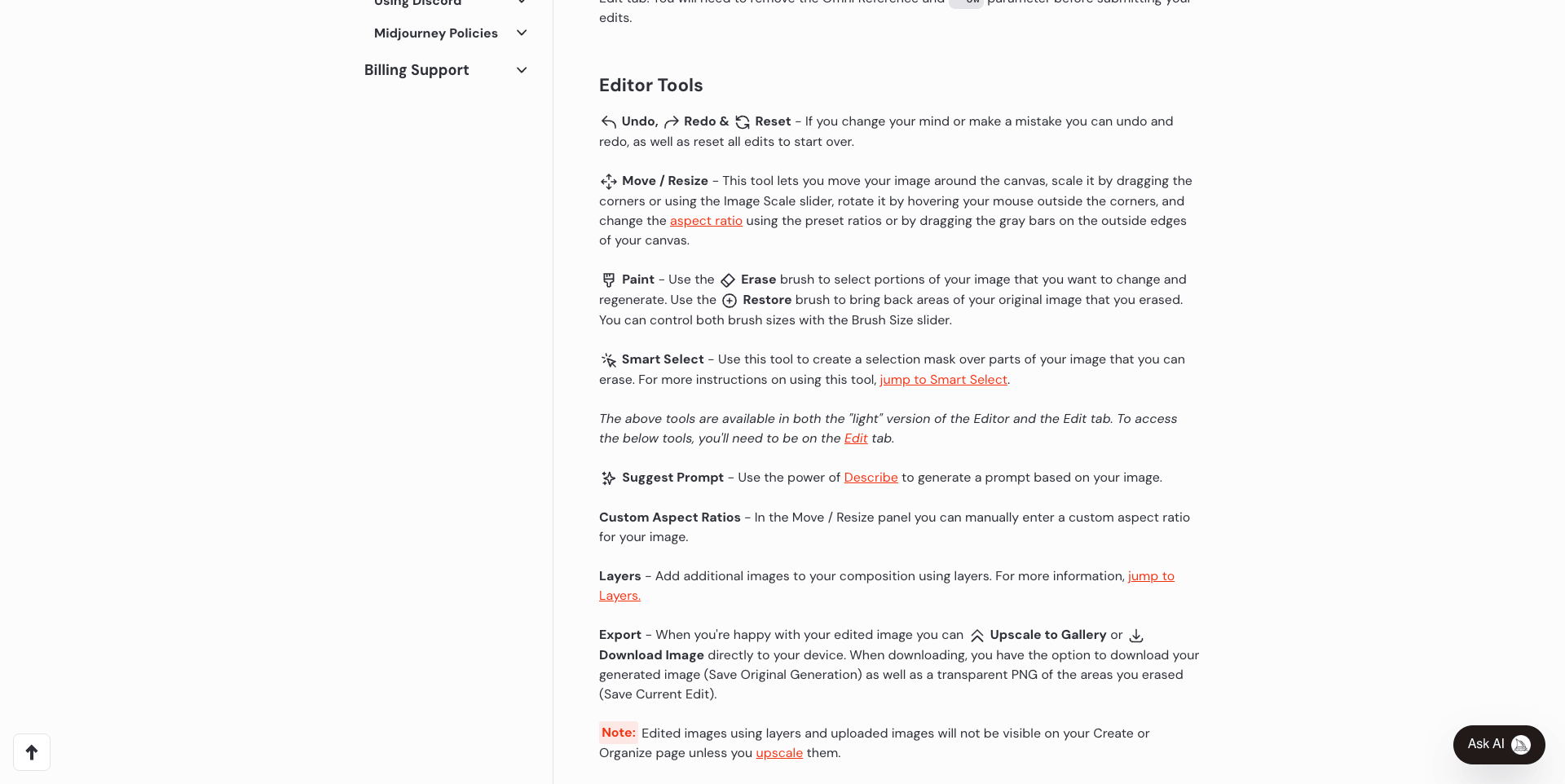
Inpainting is now handled by the V8.2 edit model, but the control surface is the Editor's: an Erase brush to mark the region to regenerate, a Restore brush to bring original pixels back, and a brush-size slider for both. Midjourney's documentation also documents Smart Select, which builds a mask from positive "Include" and negative "Exclude" points, then applies it as either "Erase Selection" or "Erase Background." Use inpainting when the change has a clear location — a face, a product label, one flower in a bouquet — and everything around it is already right.
Source: Midjourney official documentation (docs.midjourney.com).
Outpainting: grow the canvas, keep the picture
Outpainting extends the image beyond its current edges. In the Editor this pairs with Move/Resize (scale, rotate, aspect-ratio presets, and custom ratios on the Edit tab) and with Pan and Zoom Out. It's the mode for practical framing problems: a portrait that needs to become a banner, a square post that needs vertical space, a scene whose top was cut off. The original image stays; the model invents the continuation.
Multi-image reference: compose from your own material
The V8.2 model generates from up to four reference images at once, replacing omni-reference entirely. The practical upshot, as AIHOT's coverage of the release observed: fusing several materials no longer requires stitching them into a single image first — each input goes straight to the model. One migration detail matters: gallery images made with Omni Reference open only in the Edit tab, and you must remove the Omni Reference and its --ow parameter before submitting edits. The Editor's Layers system is the related composition surface — you stack images, and when you submit a layered edit only the visibly transparent areas regenerate.
Moodboards, srefs, and personalization: steer the style, not the content
The fourth family directs how the result looks rather than what it shows. Personalization, moodboards, and srefs now work with the edit model, but Midjourney explicitly says they may work best with some extra prompt direction in this version — treat them as a style steer you combine with a clear content prompt, not as a one-click style transfer.
How to choose: three questions
Decision frameworks fail when they start from features instead of from your edit. Start from these three questions instead.
1. What are you changing — a region, the canvas, the subject, or the look? A region → inpainting. The canvas → outpainting. The subject/concept from your own images → multi-image reference. The look → moodboards, srefs, personalization. Something describable in one sentence that may touch everything → instruction editing.
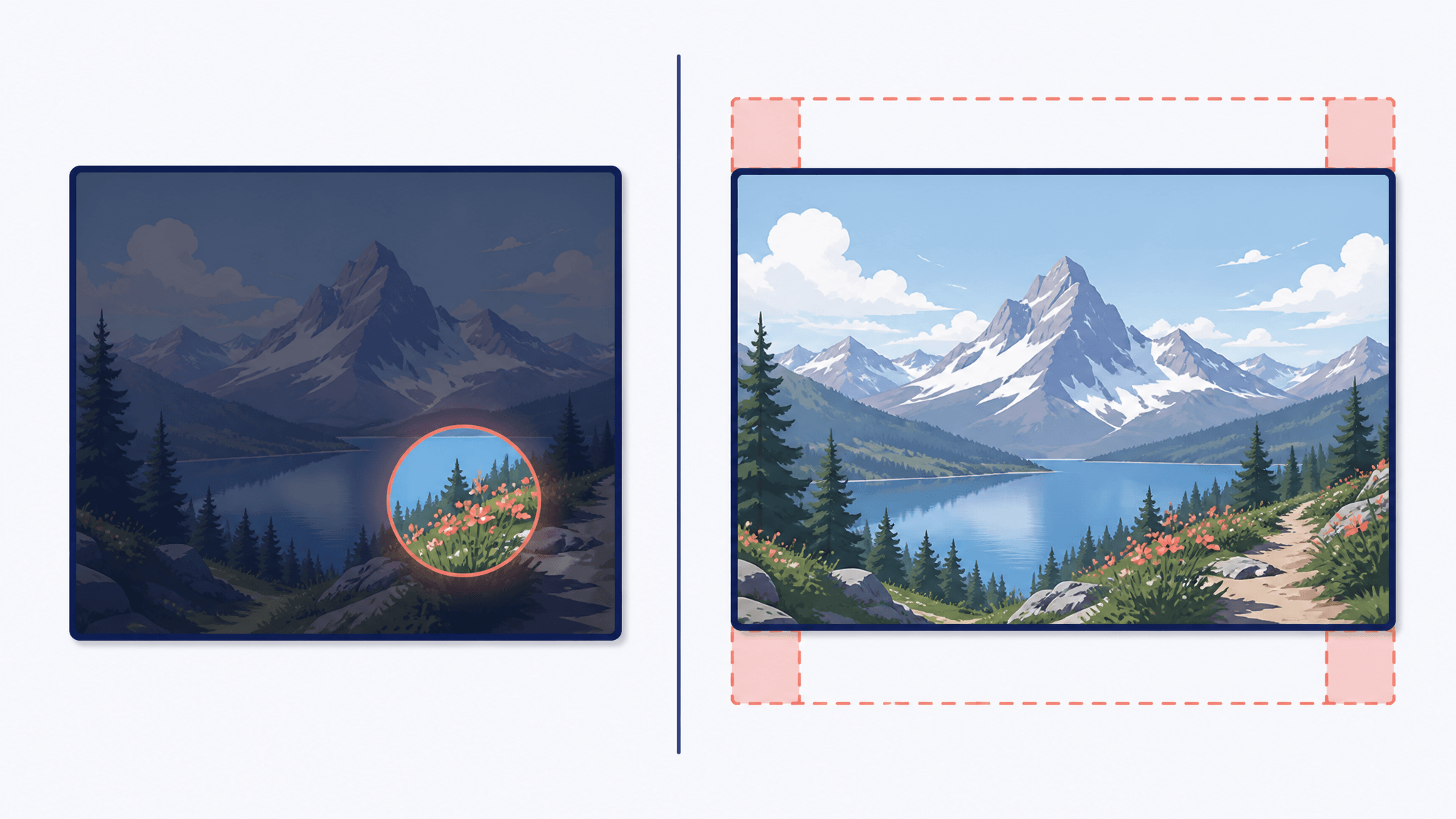
2. What must stay fixed? This is the real separator between instruction editing and inpainting. If everything except your target region must survive untouched, mask first. If the image is raw material and you'll accept global shifts, say it with words.
3. How much precision does the change need? Brushes and Smart Select points are precision instruments; prompts are direction instruments. The more a change is "exactly here and nowhere else," the more you want the mask tools. The more it is "overall, make it feel like X," the more you want words, references, or style boards.
When a prompt is the wrong tool
One honest caveat to a comparison like this: all five modes above exist to change an image generatively. Some edits aren't generative problems at all. Removing a photobomber, clearing a background for a product shot, extending a photo to a standard banner size, or upscaling a finished image are single-task fixes — and for those, a dedicated one-click tool is usually faster and more predictable than composing a prompt, because there's nothing to describe and nothing to re-roll.
Full disclosure: we build SketchTo, which offers exactly this kind of task-specific tool — Remove Object and Uncrop & AI Expand for the two most common cases, plus background removal and upscaling. If your edit is "make this specific thing disappear" or "make this fit that size," that path is shorter than any prompt.
The V8.2 edit model earns its keep on the edits that can't be reduced to one click — where you need the model to imagine something new on your behalf.
Documented limits to know before you start
These are Midjourney's own notes, worth reading before your first edit session:
- Edge cases are expected. The announcement asks users to report failures via the feedback control in the lightbox or by sharing the jobid/url — early results will include misses.
- Moodboards and srefs need help in this version. Plan on extra prompt direction when you combine them with edits.
- Omni-reference images don't migrate silently. They open only in the Edit tab and require removing the
--owparameter before resubmitting. - Editor work needs an explicit upscale to reach your gallery. Creations don't appear on your Create or Organize pages until you upscale them.
- The interfaces are still moving. Alpha is explicitly experimental; don't anchor your workflow to a button position yet.
The bottom line
The V8.2 edit model's real change isn't any single feature — it's that Midjourney stopped making you switch tools to switch editing strategies. Instruction editing, inpainting, outpainting, multi-image reference, and moodboards are now dialects of one model. That makes the opening question of every edit session simpler and more important: what kind of change is this? Answer that first — a region, a canvas, a subject, a style, or a sentence — and the right mode picks itself.
Transform Your Images with AI
Turn sketches into stunning images, remove backgrounds, swap faces, and more — all powered by AI.
Try Sketch To FreeShare
SketchTo Team
Tech writer covering AI tools, image processing, and creative workflows.
Related Articles
AI Game Art in 2026: What 85.8% Developer Adoption Actually Changes
A 2026 CESA survey reports 85.8% of Japanese game developers using generative AI. What that number actually covers, where AI image generation fits in game art production, and a starter workflow for solo developers.
CadQuery vs OpenSCAD for AI-Generated Functional Parts
Both CadQuery and OpenSCAD turn AI-written code into printable parts — they just fail differently. A 2026 controlled benchmark shows where each wins, and how to verify the output.
From Sketch to Photoreal: FLUX.2 and the New AI Sketch Workflow
A deep guide to sketch↔image workflows with FLUX.2: multi-reference, 4MP editing, prompt control, evaluation, and practical recipes.