AI Prompts for Product Photography: A Background and Label Test
Swapping the background of a product photo is a common, low-friction edit — but the product itself can quietly change in the process: text gets respelled, logos drift, edges soften. So instead of another list of generic prompts, we ran a small test: two different AI prompts for product photography, one labeled tea tin, and a close look at what actually survived.
Both prompts ran through SketchTo's AI Background Changer. Both outputs kept all four printed strings on the label readable. And the more constrained prompt — the one we expected to protect the label better — produced a grayer background and did not prove itself superior. That honest result, plus the exact prompts and a short inspection checklist, is what this article delivers.
Key takeaways
- In this test, a single detailed prompt swapped a real-world scene for a studio background.
- Printed label text survived both test runs — but we checked it deliberately, and so should you.
- Extra constraints didn't produce a visibly better result here; one run each, so treat that as an observation, not a benchmark.
- The reliable habit is comparing the output against the original at full size before you use it.
What we tested, exactly
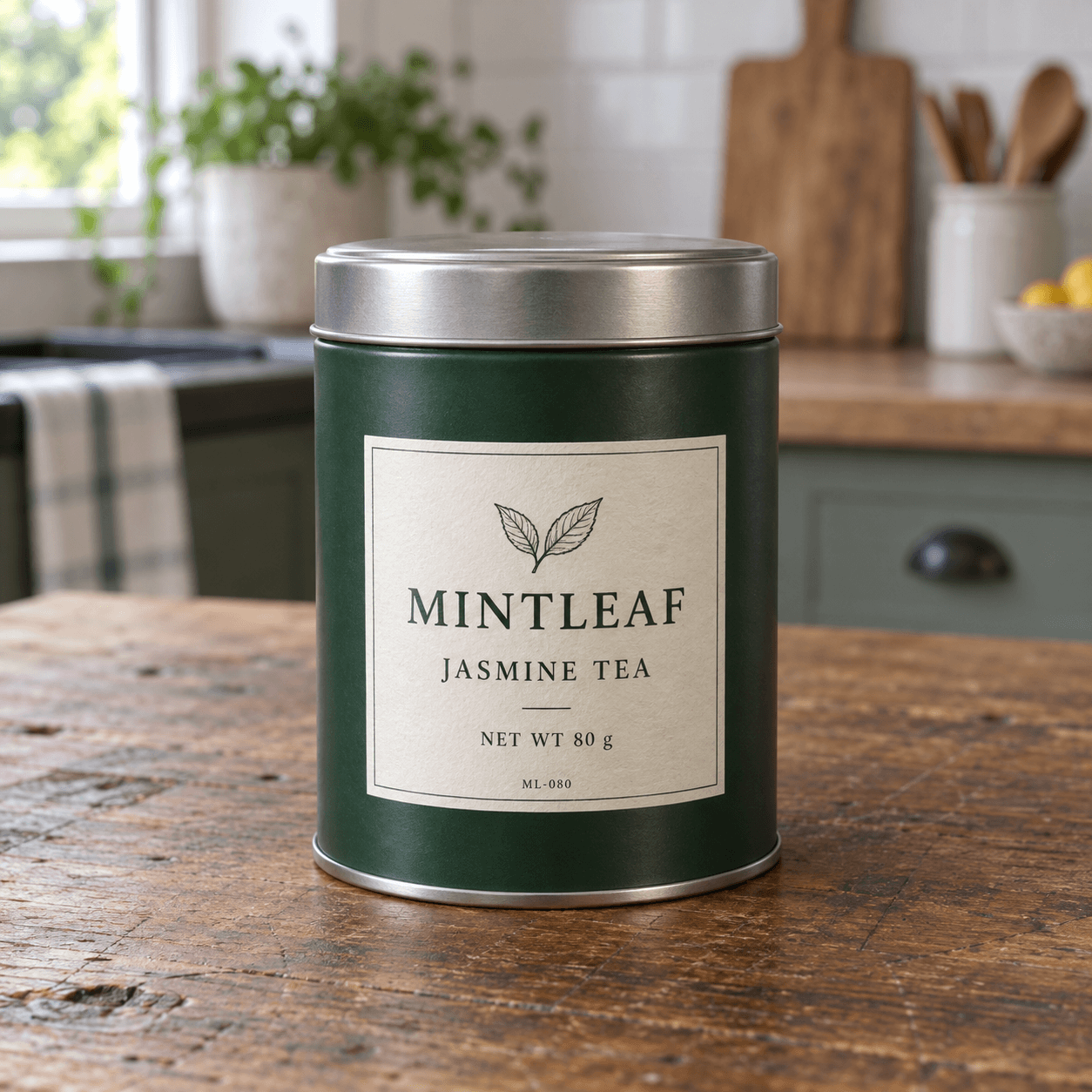
One disclosure first: the product in this test is not real. The input photo shows a fictional "MINTLEAF" tea tin — dark green body, silver lid, cream label — generated with an AI image tool specifically for this experiment. No real brand or customer photo was used, and the input was not generated by SketchTo itself.
Why a fictional tin? Because the printed text is the detail we most need to protect, and a dense label with four distinct strings gives us a clear pass/fail signal:
- MINTLEAF
- JASMINE TEA
- NET WT 80 g
- ML-080
The original image puts the tin on a rustic wooden table with a kitchen scene behind it — warm light, plants, utensils. A realistic starting point for a small merchant's phone photo.
Input fixture: synthetic fictional tea tin generated with an AI image tool for this test — not a real product or customer photo.
We then asked SketchTo's AI Background Changer (running its default Nano Banana model at test time) to replace that scene with a studio background. Two runs, two prompts, one run per prompt. Each run cost 2 credits and took about 25 seconds in the browser — 4 credits total for the whole test. SketchTo shows the credit cost before each generation, so nothing about the spend was a surprise.
If you want to follow along, the tool we used is here: SketchTo's AI Background Changer. Upload your product photo, paste a prompt, and check the cost shown before you run it.
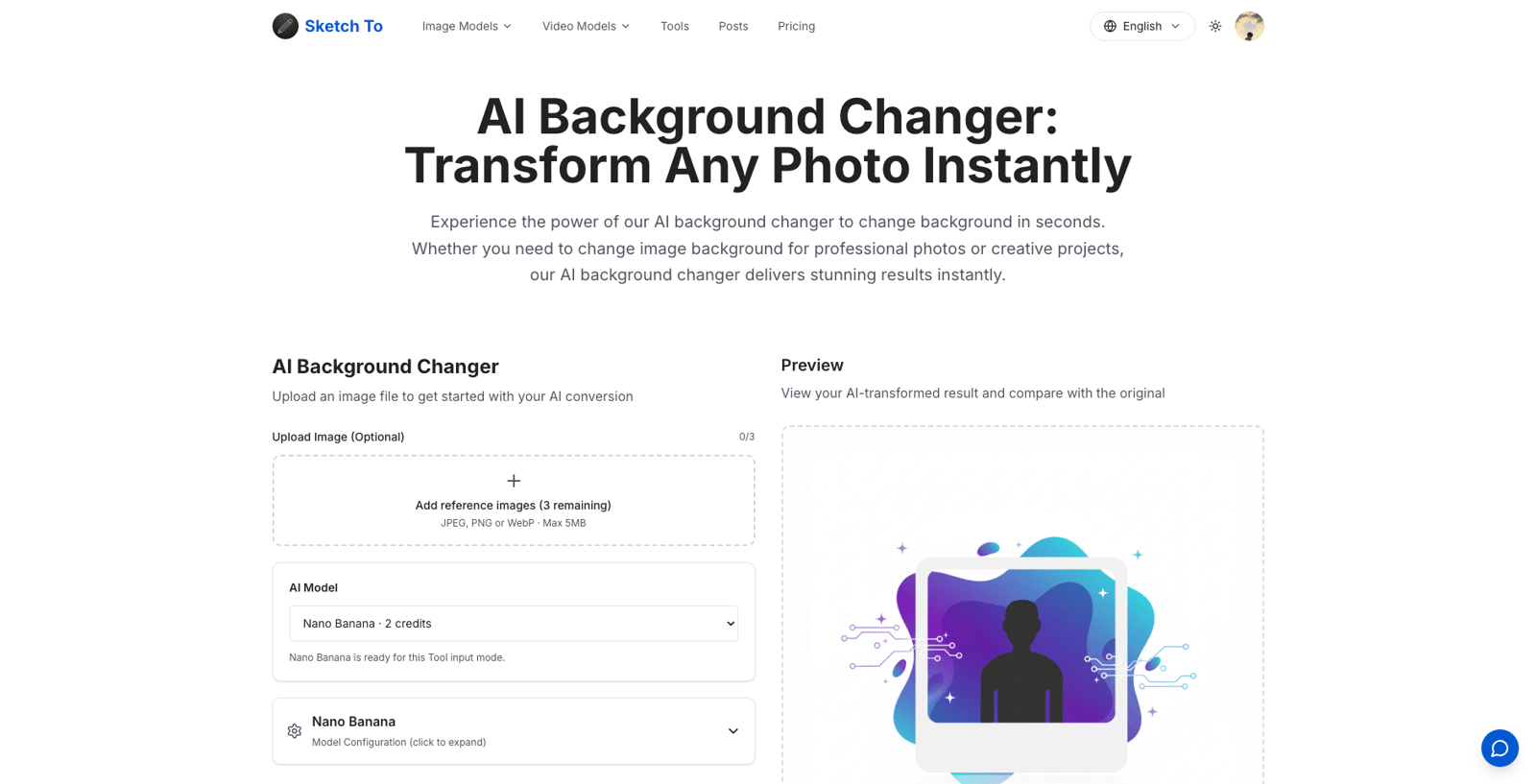
The SketchTo tool used for both test runs (screenshot: sketchto.com, accessed September 9, 2026).
The two exact prompts
Both prompts are reproduced exactly as entered. Copy them, adapt the product nouns and label strings to your own photo.
Prompt 1 — the baseline. A conventional instruction: describe the new scene, then list what must stay unchanged.
Replace the kitchen and wooden table with a seamless pure white studio
background and a soft realistic contact shadow. Keep the tea tin completely
unchanged: same shape, lid, label, printed text, leaf mark, colors,
orientation and proportions. Do not add accessories or extra parts.
This is the prompt style you'll find across published prompt lists: name the new background, name the light, forbid additions. It works because it tells the model where the product sits, what surrounds it, and what the light looks like — a principle that shows up across practitioner guides.
Prompt 2 — label-constrained. Same goal, but the product is declared a locked foreground, the exact printed strings are spelled out, and the model gets an explicit fallback:
Edit the background only. Replace the kitchen and wooden table with a clean
white studio sweep and a subtle contact shadow. Treat the tea tin as a locked
foreground: preserve its silhouette, lid thickness, metal rims, exact dark
green color, cream label shape and leaf drawing. Keep the camera angle,
product size and position in the frame unchanged. Preserve all printed
characters exactly: MINTLEAF / JASMINE TEA / NET WT 80 g / ML-080. Do not
redesign, redraw, respell or add any part of the product. No props. If a
detail cannot be preserved, leave that detail as in the reference rather
than inventing it.
The additions we were testing: "locked foreground," the four literal strings, and the "leave that detail as in the reference" clause — an attempt to stop the model from inventing a plausible-looking replacement when it can't reproduce a detail.
The results
Both runs returned a studio-style image with the kitchen gone and a soft contact shadow under the tin. The original input for both runs is the full photo shown above, in What we tested — compare each output below against it directly. Here is the baseline output:
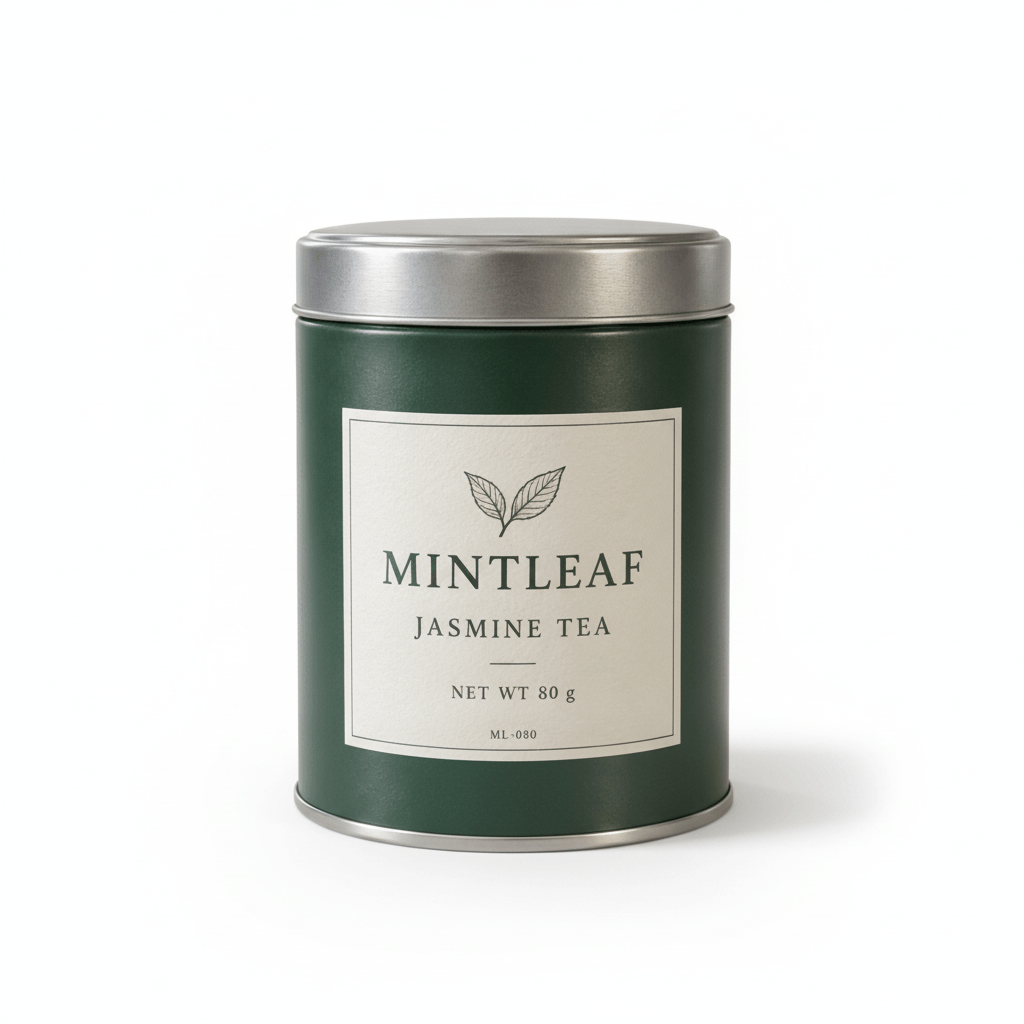
Baseline prompt output (actual SketchTo run on the synthetic fixture).
And the label-constrained output:
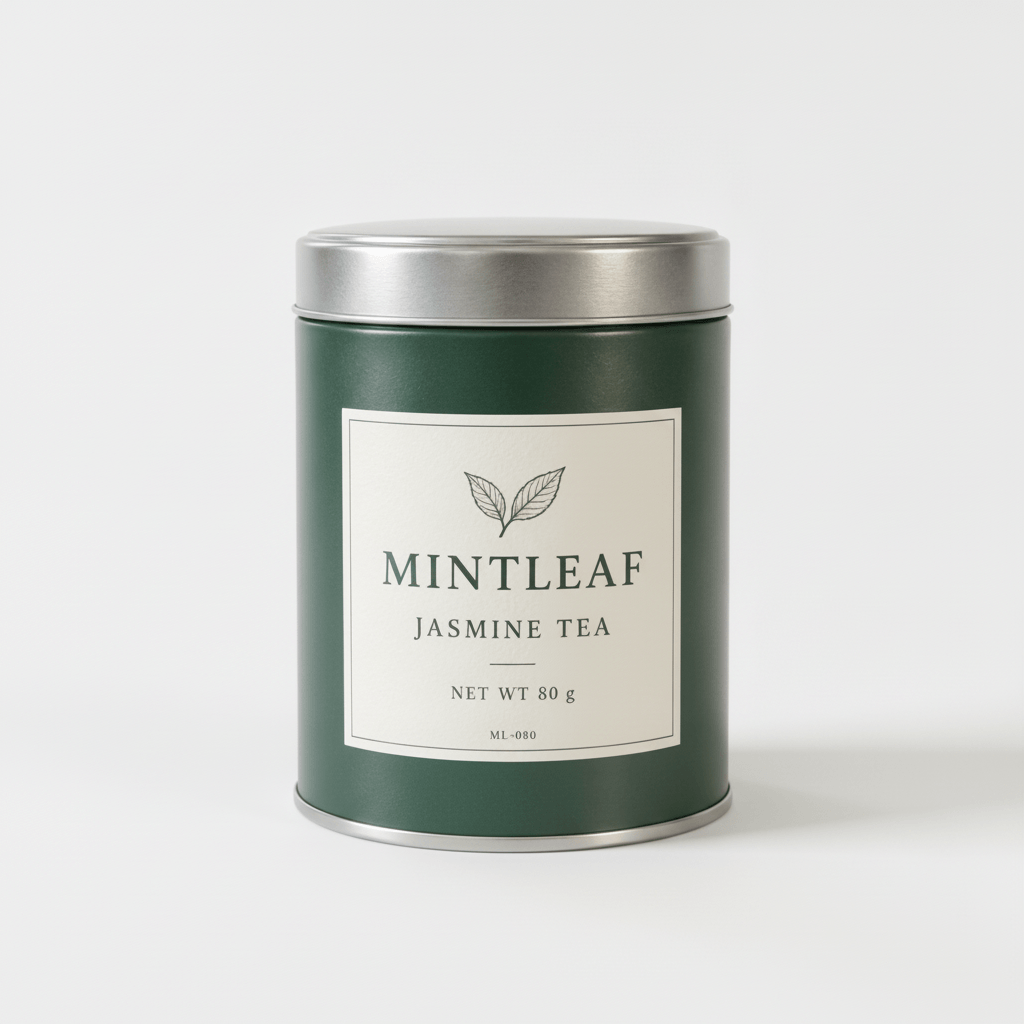
Label-constrained prompt output — background rendered grayer; extra constraints did not establish a better result (one run each).
What we observed, looking at both outputs against the original:
- All four label strings are readable in both outputs, and consistent with the source. MINTLEAF stays MINTLEAF; "NET WT 80 g" keeps its spacing and the lowercase g.
- The silhouette, dark green color, and label layout remain recognizable in both — nobody redrew the tin into a different product.
- The lighting changed. Lid reflections differ from the input in both runs, which is expected when the environment changes; the metal now reflects a studio, not a kitchen.
- The constrained prompt's background is visibly grayer than the baseline's near-white. Whether that reads as "clean studio" or "dull gray" is a taste call — but it was not an improvement we could demonstrate.
That last point matters. We expected the constrained prompt to be the safer choice for label preservation. In practice, the baseline already preserved the text, and the constrained variant came out grayer. With one run per prompt we can't attribute that difference to the extra constraints — only note that more constraints did not establish a better result here.
Inspect before you trust: a 60-second checklist
Whichever prompt style you use, the output is a proposal, not a final. Before using an AI background swap on a real product photo, compare it against the original at full size:
- Label text. Read every string, character by character — brand name, product name, weights, codes. It's the first thing to check because respelled text is easy to miss at a glance.
- Silhouette and edges. Trace the outline. Watch for softened or reshaped edges, especially thin handles, glass rims, or anything that sticks out.
- Metal rims and shiny parts. New environment means new reflections. Reflections should look plausible for the new scene, not warped or doubled.
- Color drift. A wooden table can tint a product warm; a white sweep can shift it cool. Check the body color against the original.
- Contact shadow. The product should sit on the new surface with a shadow that matches the new light direction — a floating product looks off.
- Additions. Scan for props, reflections of objects that aren't there, or invented details the model added to fill the scene.
This habit — zooming in and comparing before/after at full size — is the standard advice across practitioner guides to product-preserving background replacement, and our test shows why: the failures it catches are easy to miss at a casual glance.
What this test does and doesn't prove
One section, stated once, so the limits are clear:
- One run per prompt. Two prompts, two outputs. That's an observation about these two images, not a controlled comparison, a success rate, or a claim that any prompt is better in general.
- Visual assessment only. We read the label strings by eye against the original; no OCR tool or pixel-diff measurement was used.
- No preservation guarantee. Both outputs kept the label readable, but reflections and fine surface detail changed. AI background replacement does not promise a pixel-identical product, and you should not assume it.
- "White" is a description, not a spec. We didn't measure RGB values, and a light background here says nothing about marketplace compliance requirements.
- One tool. These results belong to SketchTo's AI Background Changer specifically. Nothing here transfers automatically to other tools — or to SketchTo's separate white-background tool.
Reusable habits vs. unproven extras
Two habits from this test rest on solid ground — the baseline used them and worked, and practitioner guides share the same advice:
- Describe the scene like a photographer. New background, surface, light, and shadow, named explicitly. Vague prompts delegate those decisions to the model.
- List what must stay unchanged. A short list of what defines the product (shape, lid, label, colors, orientation) gives the model a concrete checklist.
The additions in our second prompt are different: they sound protective, but this test gives them no credit.
- Naming the exact strings ("Preserve all printed characters exactly: …"), declaring a "locked foreground," and adding a fallback clause ("leave that detail as in the reference rather than inventing it") target the redraw failure practitioners warn about — a confident, plausible-looking product redraw.
- In our single constrained run, they did not improve on the baseline: the text survived in both, and the constrained variant's background came out grayer for reasons we can't attribute with one sample.
Treat them as optional, unproven extras. If you include them anyway, our one run at least saw no label harm — but that is an anecdote, not evidence.
And if the first output fails your inspection, run it again — a second generation costs another 2 credits, and comparing two candidates beats arguing with one.
The takeaway
Changing a product photo's background with AI was cheap to attempt in this test — 2 credits and about 25 seconds per run. The prompts above are starting points; the inspection checklist is the part that makes the result trustworthy. Text, silhouette, rims, light, shadow: five glances at full size, every time.
Transform Your Images with AI
Turn sketches into stunning images, remove backgrounds, swap faces, and more — all powered by AI.
Try Sketch To FreeShare
SketchTo Team
Tech writer covering AI tools, image processing, and creative workflows.
Related Articles
How to Turn a Photo Into Pop Art (Warhol-Style Prompts and Fixes)
Learn how to turn a photo into pop art with copyable Warhol, comic halftone, and WPAP prompts — plus fixes for face collapse, dense dots, and flat filter results.
Harry Potter Anime AI: What the Malfoid Trend Is and How to Make Your Own Clips
The Harry Potter anime clips on your feed are AI fan works, not a real anime. What the Malfoid trend is, why it exploded in October 2026, the workflow and prompts behind it, and the IP rules worth knowing.

Qwen-Image-2.1 GGUF: Which Quant to Download and How to Run It in ComfyUI
All Qwen-Image-2.1 GGUF quants with real file sizes, which tier fits your VRAM, a working ComfyUI-GGUF setup, and the two errors everyone hits.