How to Turn a Photo Into Pop Art (Warhol-Style Prompts and Fixes)
You can turn a photo into pop art with one click — but one click usually gets you a filtered photo, not pop art. The difference comes down to three structural ingredients: flat blocks of bold color, a print texture like halftone dots or silkscreen grain, and repetition or hard-edge geometry. Get those into the prompt and the result stops looking like an Instagram filter and starts looking like something Warhol would have pulled off a screen.
Here is the short version of the workflow:
- Pick a photo with clear contrast and one readable subject.
- Choose a pop art lane — Warhol grid portrait, comic halftone portrait, or WPAP geometric portrait.
- Write the prompt with a four-part structure: lock the face, name the structure, name the texture, direct the color.
- Generate, judge the result against a checklist, and fix one thing at a time.
The rest of this guide walks through each step, gives you copyable starting prompts for all three looks, and covers the three ways these generations usually fail.
What makes pop art look like pop art
Pop art emerged in Britain in the mid-1950s and America in the late 1950s, then peaked through the 1960s. Artists pulled their imagery from the world around them — Hollywood movies, advertising, product packaging, and comic books — instead of traditional art subjects (Tate). American pop art in particular favored representational images with hard edges and distinct forms.
Andy Warhol's contribution to the portrait look is the reason this article exists. By 1963 he was mass-producing images with photographic silkscreen prints and turning out endless variations of celebrity portraits in garish colors (Britannica). Two things matter when you translate that into an AI photo edit:
- The look is printed, not painted. Flat color areas, visible dot screens, and silkscreen imperfections are the texture of the style.
- The repetition is the point. A single filtered portrait misses what made Warhol's grids striking: the same face, re-inked four or nine times in different color schemes.
Keep those two ideas in mind — they are also exactly what you will check for when a generation comes back wrong.
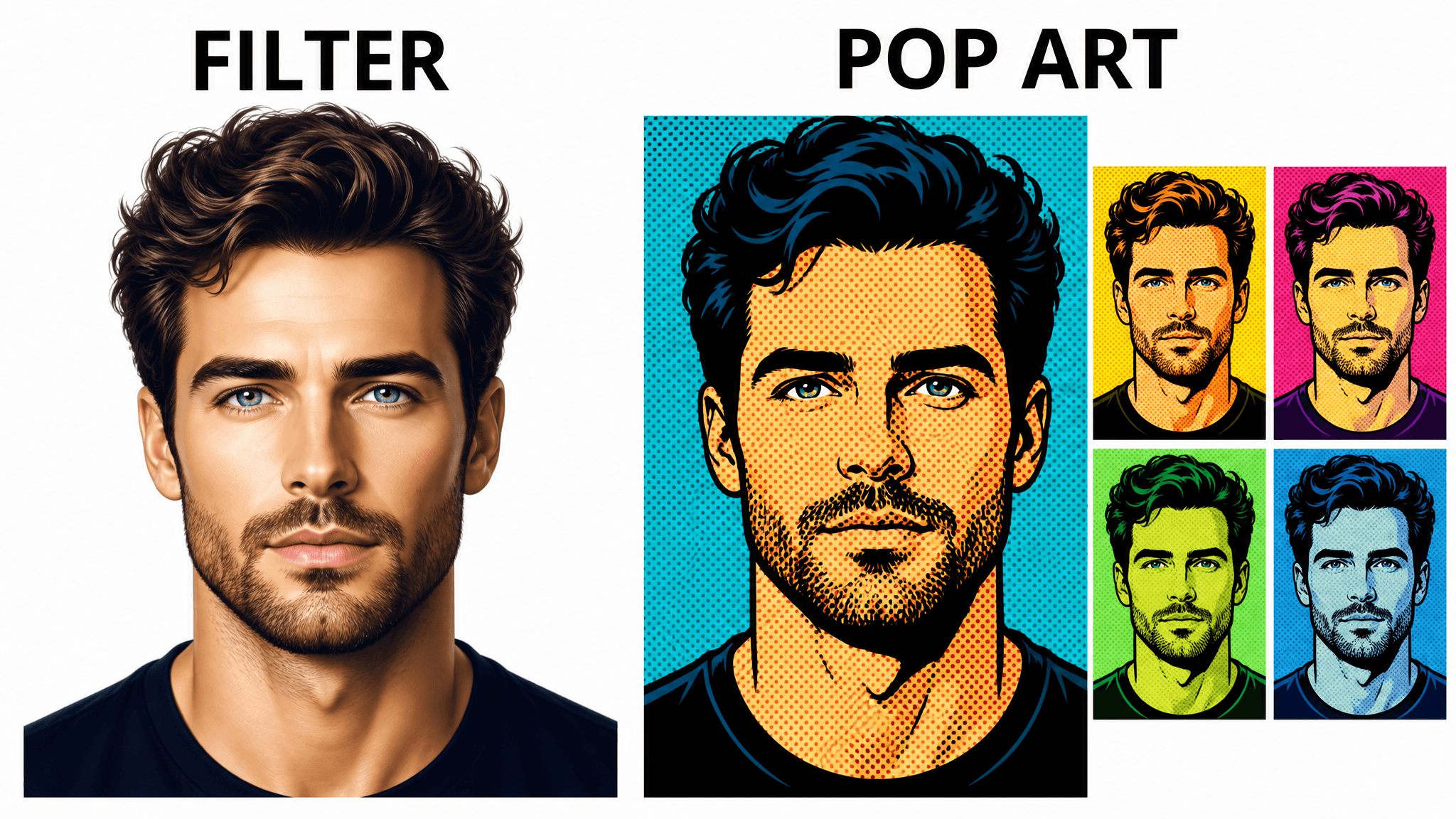
Illustrative comparison: a filter changes the look; pop art structure (flat blocks, print texture, grid) changes the construction.
Step-by-step: turn your photo into pop art
Step 1: pick a photo that survives flattening
Pop art strips away shading and detail, so the photo has to carry the identity on its own. Choose one with:
- a single clear subject, face large in the frame;
- strong contrast between the face and the background;
- a plain or simple background — clutter becomes noise once colors flatten;
- even lighting, no heavy shadows across the face.
Selfies shot against a wall or outdoors on an overcast day work well. Group photos and distant shots do not — the generator has too little facial information to work with once the style flattens everything.
Step 2: choose your pop art lane
"Pop art" covers several distinct looks, and mixing them in one prompt usually produces mush. Pick one lane first:
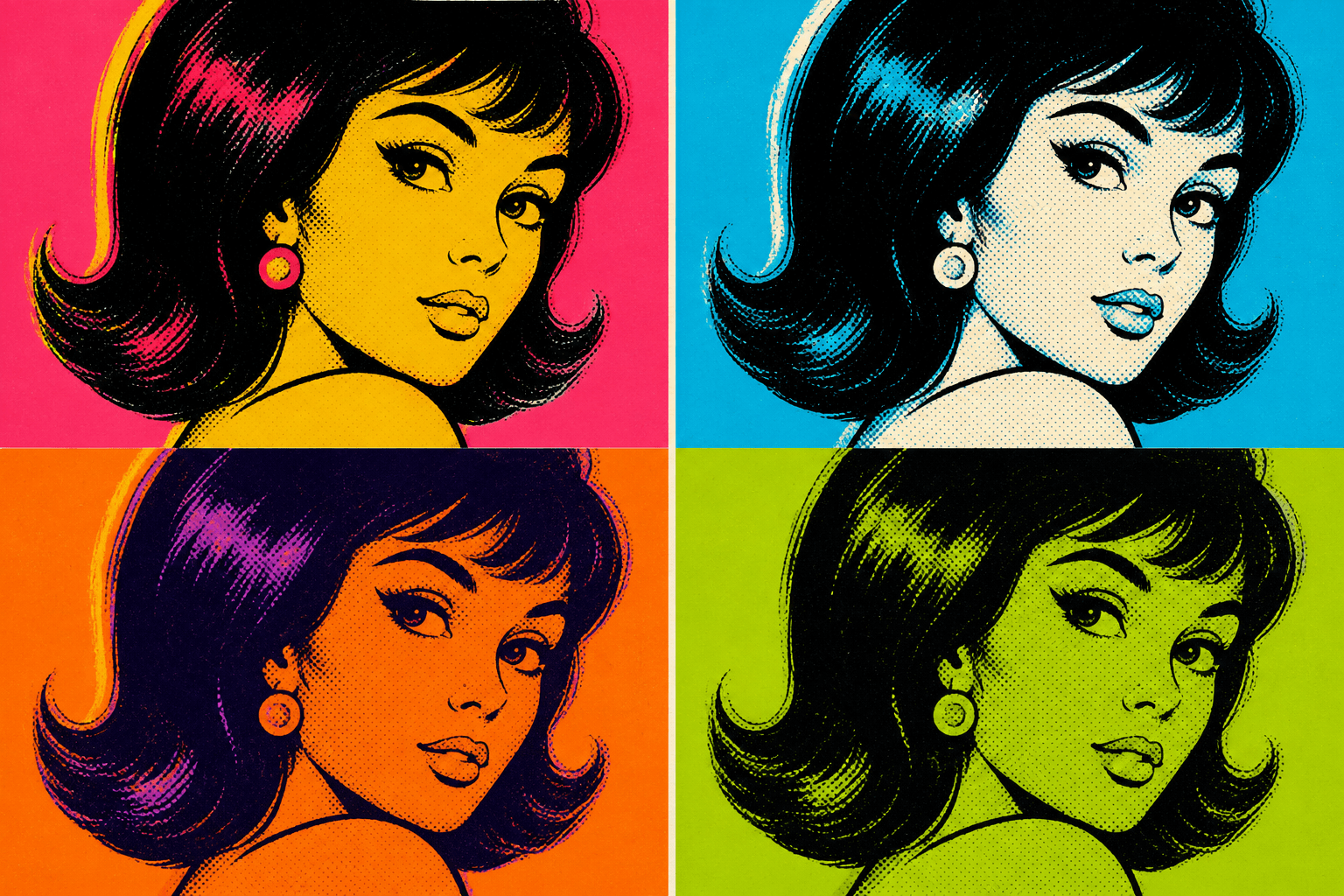
- Warhol grid portrait — your face repeated in a 2×2 (or larger) grid, each panel in a different loud color scheme. Best for statement posts and prints.
- Comic halftone portrait — one portrait with thick black outlines, Ben-Day dot shading, and flat color fills. The classic Lichtenstein-flavored look.
- WPAP geometric portrait — the face rebuilt from angular color facets, in the Wedha's Pop Art Portrait style. More modern and abstract than the other two.
If you would rather start from a preset than a blank prompt, SketchTo has dedicated tools for all three lanes: Pop Art Collage ships a Warhol Style preset, Comic Pop Art is built around the halftone look, and WPAP Pop Art generates the geometric style from nine color palettes. Each takes one photo, runs on 2 credits, and new accounts start with 4 free credits — so you can try your first lane without paying.
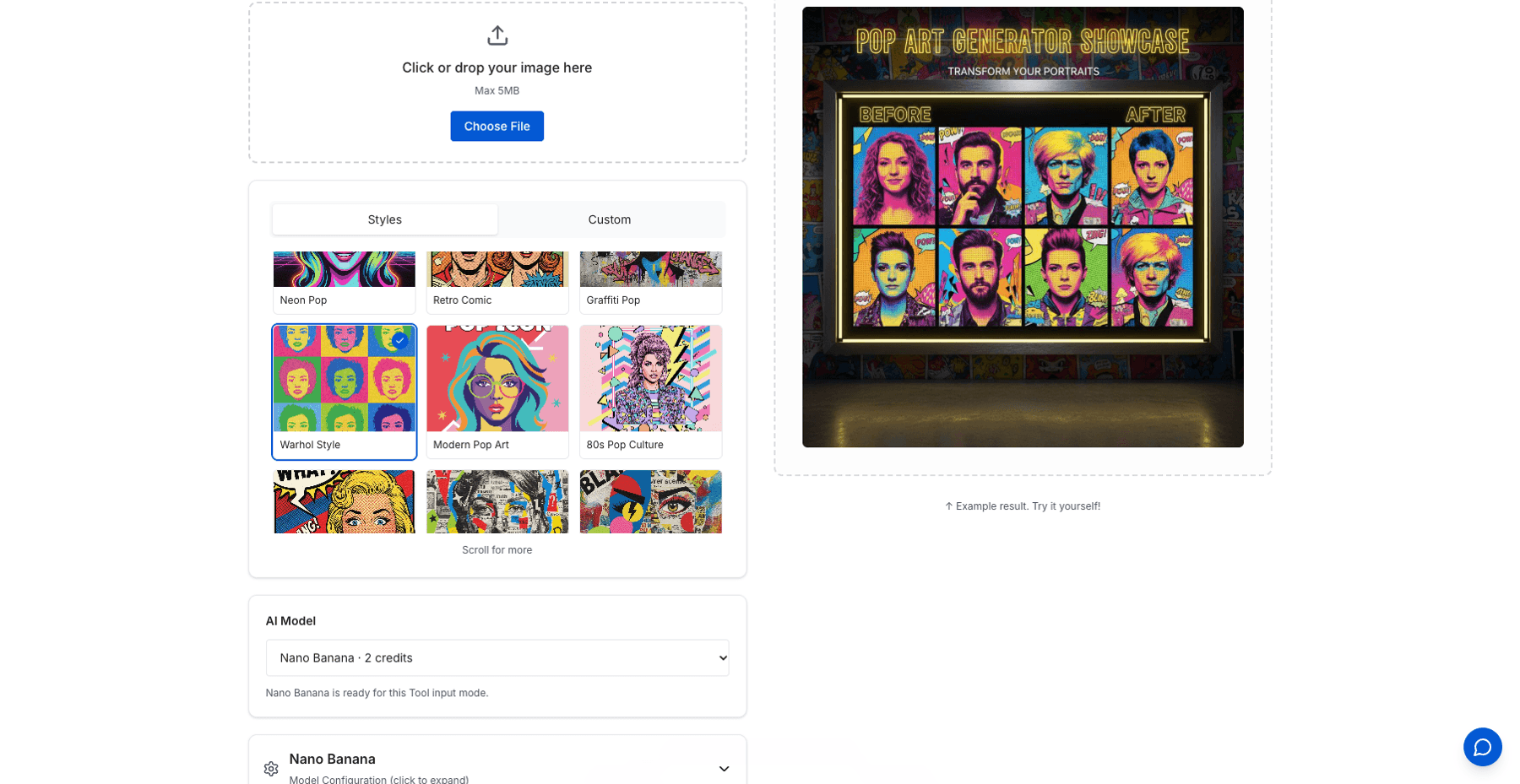
SketchTo's Pop Art Collage tool with a Warhol Style preset — screenshot: sketchto.com, October 2026.
Step 3: write the prompt with a four-part structure
This is the part most pop art generator pages skip, and it is the difference between a filter and a style transfer. A workable pop art prompt has four parts:
- Face lock — a clause that tells the model to keep the facial structure, face shape, and identity of the person in the photo. Without it, strong restyles tend to replace the face with a generic one.
- Structure vocabulary — the words that force real pop art construction: flat color blocks, bold black outlines, 2×2 grid of four panels, each panel a different color scheme, angular geometric facets.
- Texture vocabulary — halftone dot shading, Ben-Day dots, large visible halftone dots, silkscreen print texture.
- Color direction — a small, deliberate palette: four clashing flat color schemes — hot pink, mustard yellow, cyan, orange — instead of "colorful".
SketchTo's Comic Pop Art tool ships a default prompt built on the same skeleton — a bold comic book restyle with thick black outlines, halftone shading, Ben-Day dots, and flat bold color fills — and it includes an explicit face-lock clause ("Keep the same facial structure, face shape, and facial identity of the original person") right after the restyle instruction. Many prompt writers put the face-lock clause first instead, so aggressive restyle instructions cannot override it; the copyable prompts below do that.
Step 4: generate, judge, and fix one thing at a time
A generation costs 2 credits on the tools above, so treat the first result as a draft, judge it against the checklist at the end of this guide, and re-run with exactly one clause changed. Changing three things at once tells you nothing about which fix worked.
Copyable starting prompts
These are starting points to adapt, not magic formulas — swap the [bracketed] parts and change one clause at a time.
Warhol four-panel grid
Turn this photo into a 2x2 pop art grid of four portrait panels in the style
of 1960s silkscreen prints. Keep the same facial structure, face shape, and
facial identity as the original photo in every panel. Each panel uses a
different flat color scheme: [hot pink and mustard yellow / cyan and white /
orange and deep purple / lime green and black]. Flat color fills only, no
gradients, with subtle silkscreen print texture and slight print
misregistration. Square 1:1 format.
What to change first: if the face drifts, strengthen the face-lock clause and drop "slight print misregistration".
Comic halftone portrait
Restyle this photo into a bold comic book pop art portrait. Keep the same
facial structure, face shape, and facial identity of the original person.
Thick black outlines around all features, flat bold color fills, and halftone
shading with large visible Ben-Day dots. Background of [flat primary red with
a yellow burst]. No gradients, no painterly brushwork.
What to change first: if the dots are invisible or muddy, set their scale explicitly — "large visible Ben-Day dots" instead of just "halftone".
WPAP geometric portrait
Transform this photo into a WPAP pop art portrait. Keep the same facial
structure, face shape, and recognizable facial identity of the original
person. Rebuild the face from angular geometric facets with sharp edges
between color sections, using a [warm sunset: red, orange, magenta, deep
purple] palette with high contrast between facets. Flat colors only.
What to change first: if it reads as low-poly 3D rather than WPAP, add "flat 2D vector look, no 3D shading".
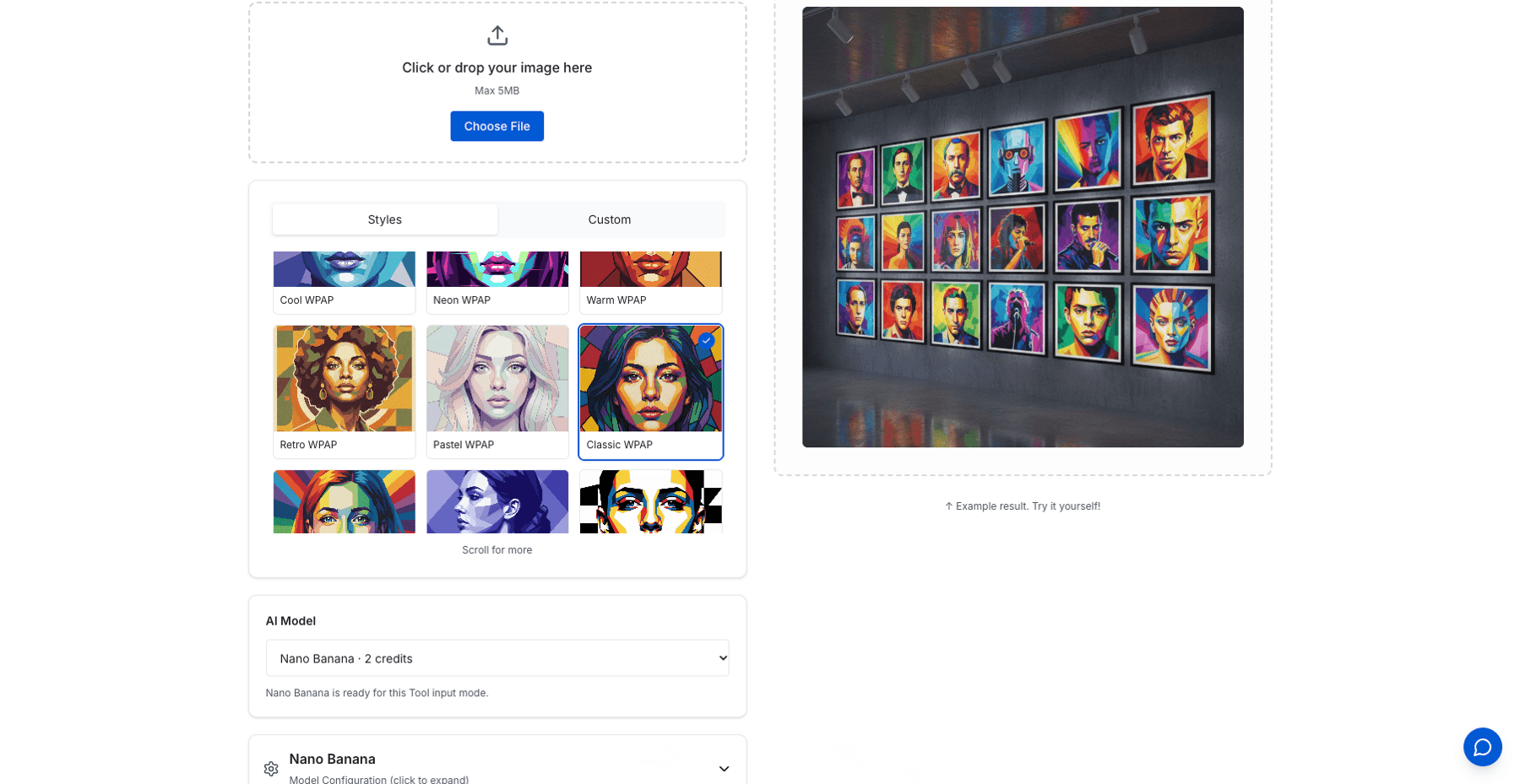
SketchTo's WPAP Pop Art tool offers nine color palettes — screenshot: sketchto.com, October 2026.
Why pop art generations fail (and the fix)
Most failed pop art edits fall into one of three buckets. Diagnose which one you have before you regenerate.
1. The face collapses
Symptom: the result looks great as an image, but it is no longer visibly you — generic features, changed face shape, wrong expression.
Why it happens: pop art restyles are aggressive. The model resolves the conflict between "make it flat and graphic" and "keep the person" by dropping the person.
Fix: strengthen the face-lock clause and put it first — "Keep the same facial structure, face shape, and facial identity of the original person" — and reduce competing instructions. If the grid is what excites you, generate one panel first, confirm the identity holds, then ask for the grid.
2. The dots take over (or disappear)
Symptom: either the halftone texture is so dense the portrait looks dirty, or it is missing entirely.
Why it happens: "halftone" alone leaves the dot scale undefined, so the model guesses — and it often guesses wrong in both directions.
Fix: specify scale in words: large visible halftone dots for a bold comic look, fine halftone shading for subtler tone work. Naming the dot type (Ben-Day dots) also helps, because it anchors the model in a specific printing tradition.
3. It has filter feel, not pop art structure
Symptom: the colors are loud, but the image is still basically a color-graded photo — smooth gradients, no dot texture, no grid, no hard edges.
Why it happens: the prompt used filter words (pop art effect, pop art filter, make it colorful) instead of structure words. The model applied a look, not a construction.
Fix: replace filter vocabulary with the three structural ingredients from the top of this guide: flat color blocking (say "flat color fills, no gradients"), print texture ("halftone dots", "silkscreen texture"), and repetition or geometry ("2×2 grid", "angular facets"). If a prompt does not contain at least two of the three, it is a filter prompt.
A 30-second quality check
Before you keep any result, run through five questions:
- Identity: is it still recognizably the person in the source photo?
- Flatness: are the color areas genuinely flat, or did gradients sneak back in?
- Texture: can you see a dot screen or print texture, or is the surface airbrushed smooth?
- Structure: is there a grid, hard edges, or facet geometry — the part a filter cannot do?
- Palette: is the color scheme small and deliberate, or every color at once?
Two or more weak answers means the result will read as "AI filter" to anyone who scrolls past. Fix the weakest one and regenerate.
The takeaway
Turning a photo into pop art is a prompt-structure problem more than a tool problem. Lock the face, name the structure (flat blocks, grids, facets), name the texture (halftone, silkscreen), and direct a small deliberate palette — then judge against the checklist and change one variable per retry. Do that, and the four-panel Warhol portrait you wanted stops being a lottery.
If you would rather see how a completely different restyle behaves first, the same photo-to-style workflow also drives SketchTo's Miyazaki-style anime sketch guide.
Transform Your Images with AI
Turn sketches into stunning images, remove backgrounds, swap faces, and more — all powered by AI.
Try Sketch To FreeShare
SketchTo Team
Tech writer covering AI tools, image processing, and creative workflows.
Related Articles
Harry Potter Anime AI: What the Malfoid Trend Is and How to Make Your Own Clips
The Harry Potter anime clips on your feed are AI fan works, not a real anime. What the Malfoid trend is, why it exploded in October 2026, the workflow and prompts behind it, and the IP rules worth knowing.
Qwen-Image-2.1 GGUF: Which Quant to Download and How to Run It in ComfyUI
All Qwen-Image-2.1 GGUF quants with real file sizes, which tier fits your VRAM, a working ComfyUI-GGUF setup, and the two errors everyone hits.
How to Make a Coloring Book: From Photos to a Print-Ready Book
Turn your photos or one theme into a complete printable coloring book: generate consistent AI coloring pages, assemble a margin-safe PDF, and compare printing vs KDP with real cost math.