

Qwen-Image-2.1 GGUF: Which Quant to Download and How to Run It in ComfyUI
Qwen-Image-2.1 GGUF: Which Quant to Download and How to Run It in ComfyUI
Qwen-Image-2.1 went open source on September 20, 2026, and within days the community had published GGUF quantized versions of it — compact, shrunken copies of the model that fit on modest GPUs. If you searched for "qwen image 2.1 gguf", you probably want one of two things: to know whether the new model is worth running locally, and to know exactly which GGUF file to grab for your graphics card. The short version: the model itself is genuinely capable — a 7B text-to-image and editing model with native transparent-image support — and GGUF is the right format if you run stable-diffusion.cpp, use older AMD hardware, or want finer control over how many gigabytes the model eats. Inside ComfyUI specifically, though, the official int8 weights are often the smoother choice, and there are two known failure modes to dodge when you do go the GGUF route.
This guide walks through all of it: what the model can do, the full quant ladder with real file sizes, which tier fits your VRAM, a step-by-step ComfyUI-GGUF setup, and the fixes for the errors everyone hits first.
Key takeaways
- Qwen-Image-2.1 unifies text-to-image generation and image editing in one 7B model, with native RGBA transparency, up to 10 reference images, and native 2K output.
- A GGUF file only contains the denoiser (the transformer). You also need the VAE and the Qwen3-VL 8B text encoder as separate companion files.
- Quant tiers span Q2_K (2.47 GB) to F16 (14.2 GB). Q4_K_M (~4.2 GB) is the community-recommended balance point.
- In ComfyUI, you must use the leejet fork of ComfyUI-GGUF — the stock loader throws "Unknown model architecture!" — and the text encoder must be a Qwen3-VL file, not the Qwen3.5 prompt-enhancer, or you get pure noise.
- If your GPU has 6–8 GB VRAM and about 32 GB system RAM, community reports say the official int8_convrot weights run fine without GGUF at all — and if you would rather skip local setup entirely, an online Qwen-powered editor works with zero downloads.
What Qwen-Image-2.1 actually brings
Qwen-Image-2.1 is Alibaba's latest open-weight image model, released September 20, 2026 with weights on Hugging Face and ModelScope. The visual generation core is a 7B-parameter, 32-layer single-stream DiT — deliberately small by current standards — paired with a Qwen3-VL 8B text encoder and a 64-channel RGBA VAE. One model covers text-to-image, image editing, and transparent-image work:
- Native transparency: it generates regular or transparent (RGBA) images, edits transparent layers, and can extract subjects from photos.
- Multi-reference editing: up to 10 reference images, with identity preservation tuned for people and products.
- Precise local edits: you mark regions with circles, painted annotations, or separate masks rather than hoping the prompt lands in the right spot.
- Native 2K resolution, with a recommended aspect-ratio table from 1:1 (2048×2048) to 16:9 (2752×1536), at a default of 40 inference steps.
We compared what this release means in depth in our Qwen-Image-2.1 overview; the official blog post covers the benchmark comparisons. This article focuses on the part searchers keep asking about: running the GGUF version locally.
What "GGUF" means for this model
GGUF is the single-file model format popularized by llama.cpp. For image models, a GGUF file contains a quantized version of the denoiser — the transformer that does the actual generation work — but not the whole pipeline. To run Qwen-Image-2.1 from GGUF you need three files:
| Component | File | Role |
|---|---|---|
| Denoiser (GGUF) | e.g. qwen-image-2.1-Q4_K_M.gguf |
The quantized transformer — this is what you're downloading |
| Text encoder | qwen3vl_8b_bf16.safetensors or the int8 version |
Turns your prompt into conditioning; Qwen3-VL 8B |
| VAE | qwen_image_2.1_vae_bf16.safetensors |
Decodes the result into pixels; ~676 MB |
Unsloth's Qwen-Image-2.1-GGUF repo is the most-downloaded neutral quantization, and roughly 65 matching GGUF repositories appeared on Hugging Face within about nine days of release (counts as of September 29, 2026). The same GGUF files also run outside ComfyUI — stable-diffusion.cpp and Unsloth Desktop load them directly, which matters if you're on AMD or prefer lightweight tooling.
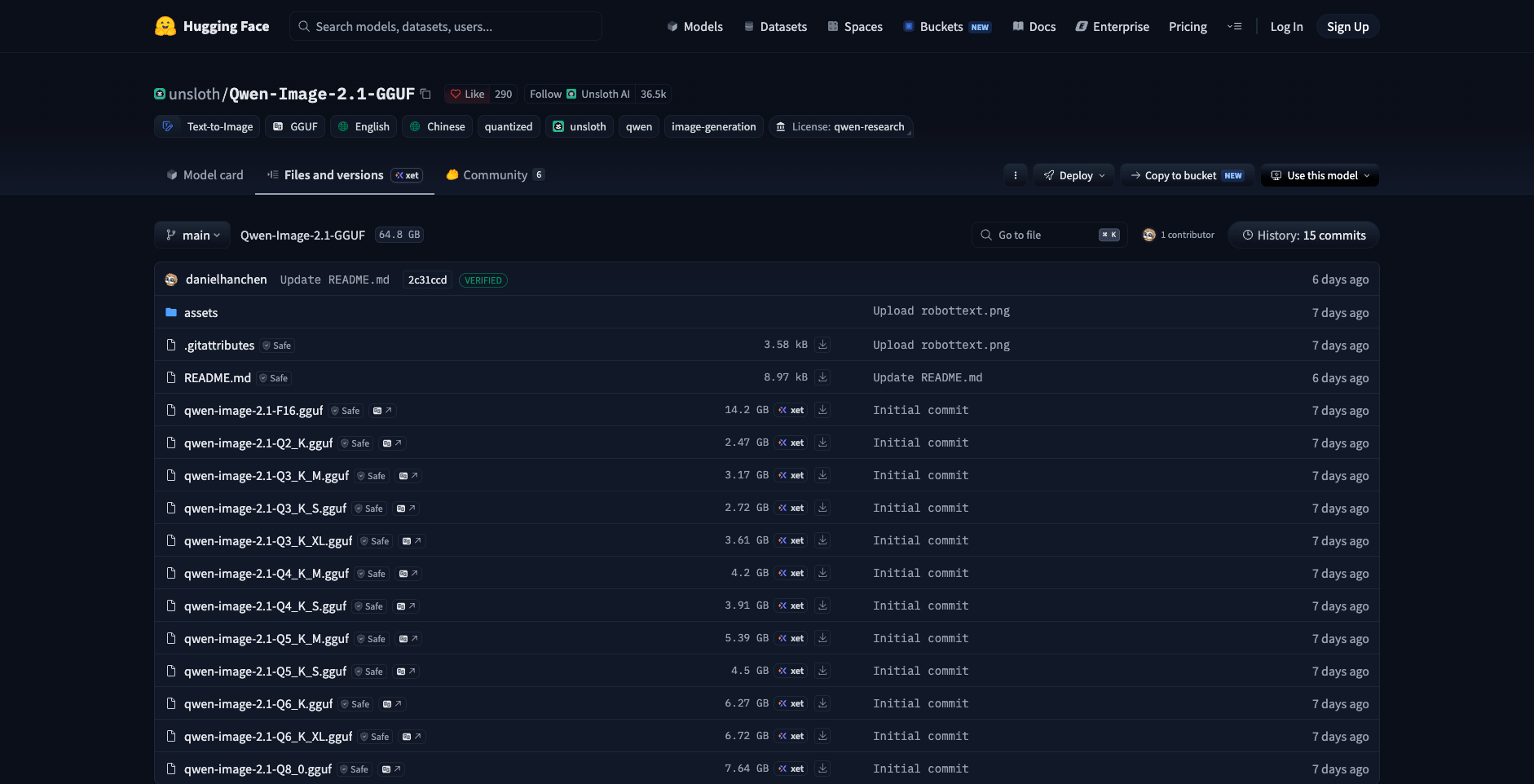
The unsloth repository's file tree lists every quant tier with its exact download size. (Screenshot: huggingface.co/unsloth/Qwen-Image-2.1-GGUF, captured September 29, 2026)
The unsloth repository's file tree lists every quant tier with its exact download size. (Screenshot: huggingface.co/unsloth/Qwen-Image-2.1-GGUF, captured September 29, 2026)
The quant ladder: every tier and its real size
Here is the full tier list from the unsloth repo, sorted by size:
| Quant | File size | Who it's for |
|---|---|---|
| Q2_K | 2.47 GB | Emergency territory; expect visible quality loss |
| Q3_K_S | 2.72 GB | Very tight VRAM; below the quality floor for most work |
| Q3_K_M | 3.17 GB | Tight VRAM |
| Q3_K_XL | 3.61 GB | Low end, with extra headroom on the sensitive layers |
| Q4_K_S | 3.91 GB | Low VRAM, quality-conscious |
| Q4_K_M | 4.2 GB | The recommended balance point for most GPUs |
| Q5_K_S | 4.5 GB | 6–8 GB cards that want more fidelity |
| Q5_K_M | 5.39 GB | 8 GB cards with room to spare |
| Q6_K | 6.27 GB | 8–12 GB cards; visually very close to full precision |
| Q6_K_XL | 6.72 GB | Same, with upcast sensitive layers |
| Q8_0 | 7.64 GB | 12 GB+ cards; near-lossless |
| F16 | 14.2 GB | Full precision; only makes sense on 16 GB+ cards |
Two practical notes on reading that table. First, the file size is a floor, not the total VRAM bill — activations and attention add overhead during sampling, so leave headroom above the file size. Second, the naming encodes quality: K-quants keep "important" tensors at higher precision, and the XL/S/M variants control how aggressively that upcasting happens. The repo maintainers recommend Q4_K_M as the best size-to-quality balance, and community testing has generally agreed; below Q3, degraded text rendering and texture artifacts start to show.
A reasonable planning heuristic, assembled from the repo documentation and community reports rather than our own benchmarks: a Q4_K_M denoiser plus a CPU-offloaded text encoder is comfortable on cards from roughly 6 GB VRAM up, assuming the text encoder lives in system RAM (more on that below). Treat the bottom two rungs as experiments, not daily drivers.
Before you download: GGUF vs native int8_convrot in ComfyUI
Honesty first, because this saves downloads: inside ComfyUI, GGUF is not automatically the best low-VRAM option. ComfyUI's official repackaged weights (Comfy-Org/Qwen-Image-2.1) include an int8_convrot diffusion model alongside the bf16 original, and ComfyUI's dynamic VRAM management — the system that streams weights and lets huge models run on small cards — was built around bf16/fp8/int8 weights. Community threads and ComfyUI maintainers note that GGUF files fall back to an older, slower memory path in ComfyUI. Users in that thread report the int8_convrot weights running fine on 6–8 GB cards with about 32 GB of system RAM.
So who is GGUF actually for?
- stable-diffusion.cpp / koboldcpp / Unsloth Desktop users — these load GGUF natively and skip ComfyUI's memory manager entirely.
- Older AMD cards (pre-RDNA3) and other edge hardware, where GGUF's CPU+GPU split is often the path of least resistance.
- Anyone who wants a specific size rung — GGUF offers 5-bit and 6-bit tiers that don't exist in the official int8/fp8 lineup.
If you're a ComfyUI user with a modern NVIDIA card and enough system RAM, downloading the official int8_convrot weights first is the documented, lower-friction route. If you still want GGUF — for the finer size control or a non-ComfyUI runtime — here's the setup that works.
ComfyUI-GGUF setup, step by step
This workflow is documentation-based: it follows the setup documented in the community-maintained GGUF repo READMEs and the leejet fork's changes, cross-checked against community troubleshooting threads — we have not run these steps ourselves.
1. Update ComfyUI first. The GGUF loader relies on recent ComfyUI custom-ops support for UNET-only loads. Run your usual update (e.g. update.bat on Windows portable installs) before anything else.
2. Install the leejet fork of ComfyUI-GGUF — not the original. The stock city96/ComfyUI-GGUF node pack does not recognize Qwen-Image-2.1's architecture and throws "Unknown model architecture!". The leejet fork adds Qwen-Image 2.1 support and fixes Qwen3-VL weight detection:
cd ComfyUI/custom_nodes
git clone https://github.com/leejet/ComfyUI-GGUF
pip install -r ComfyUI-GGUF/requirements.txt
If you already had the city96 version installed, remove it or update to the fork before debugging anything else.
3. Download the three files and put them in the right folders:
ComfyUI/
└── models/
    ├── diffusion_models/
    │   └── qwen-image-2.1-Q4_K_M.gguf      # pick your quant tier
    ├── text_encoders/
    │   └── qwen3vl_8b_int8_convrot.safetensors   # or the bf16 version
    └── vae/
        └── qwen_image_2.1_vae_bf16.safetensors
The text encoder and VAE come from the official Comfy-Org repackaged weights; the denoiser comes from your chosen GGUF repo. Note the text encoder is a Qwen3-VL 8B file — not the qwen3.5_9b prompt-enhancer models that sit in the same Comfy-Org repo. That mix-up is failure mode #1 below.
4. Load an official workflow template and swap the loader node. Comfy-Org publishes text-to-image and image-edit templates. Load one, then replace the stock UNETLoader ("Load Diffusion Model") node with Unet Loader (GGUF) and point it at your .gguf file.
5. Wire the text encoder and VAE. In the template's CLIPLoader, select your qwen3vl_8b file and set the type to qwen_image. The VAELoader stays pointed at qwen_image_2.1_vae_bf16.safetensors.
6. Split memory the way the setup docs recommend. Keep the GGUF denoiser on the GPU — sampling speed depends on it — and let the text encoder live in (or offload to) system RAM. Text encoding runs once per prompt, so this saves roughly 9–17 GB of VRAM with little speed cost: the community-recommended pairing is the ~4.6 GB Q4_K_M denoiser in VRAM plus the ~9.35 GB int8 text encoder in RAM. If you still hit out-of-memory, start ComfyUI with the --lowvram flag.
The two failure modes everyone hits
Almost every "Qwen GGUF doesn't work" report traces to one of these:
- Pure random noise output. Your text encoder is wrong. GGUF workflows need the Qwen3-VL 8B encoder; loading the Qwen3.5-9B prompt-enhancer file instead produces noise. Swap the CLIPLoader to a
qwen3vl_8bfile. - "Unknown model architecture!" on load. You're on the stock city96 loader. Install/update to the leejet fork (step 2 above), and make sure ComfyUI itself is current.
Both fixes take less time than re-downloading models, so check them before blaming your GPU.
Running GGUF outside ComfyUI
If ComfyUI isn't part of your setup, stable-diffusion.cpp loads these GGUF files directly. The unsloth repo documents a one-line example:
sd-cli --diffusion-model qwen-image-2.1-Q4_K_M.gguf \
  --vae qwen_image_2.1_vae_bf16.safetensors \
  --llm Qwen3-VL-8B-Instruct-UD-Q4_K_XL.gguf \
  -p "your prompt here" \
  --steps 20 --cfg-scale 6.0 --sampling-method euler -W 1024 -H 1024
This is also where GGUF shines for older AMD hardware: the ROCm/PyTorch route is documented by Qwen for Radeon GPUs, and llama.cpp-style tooling tends to be the most forgiving path on non-CUDA systems. Unsloth Desktop wraps the same models in a GUI if you'd rather not touch a terminal.
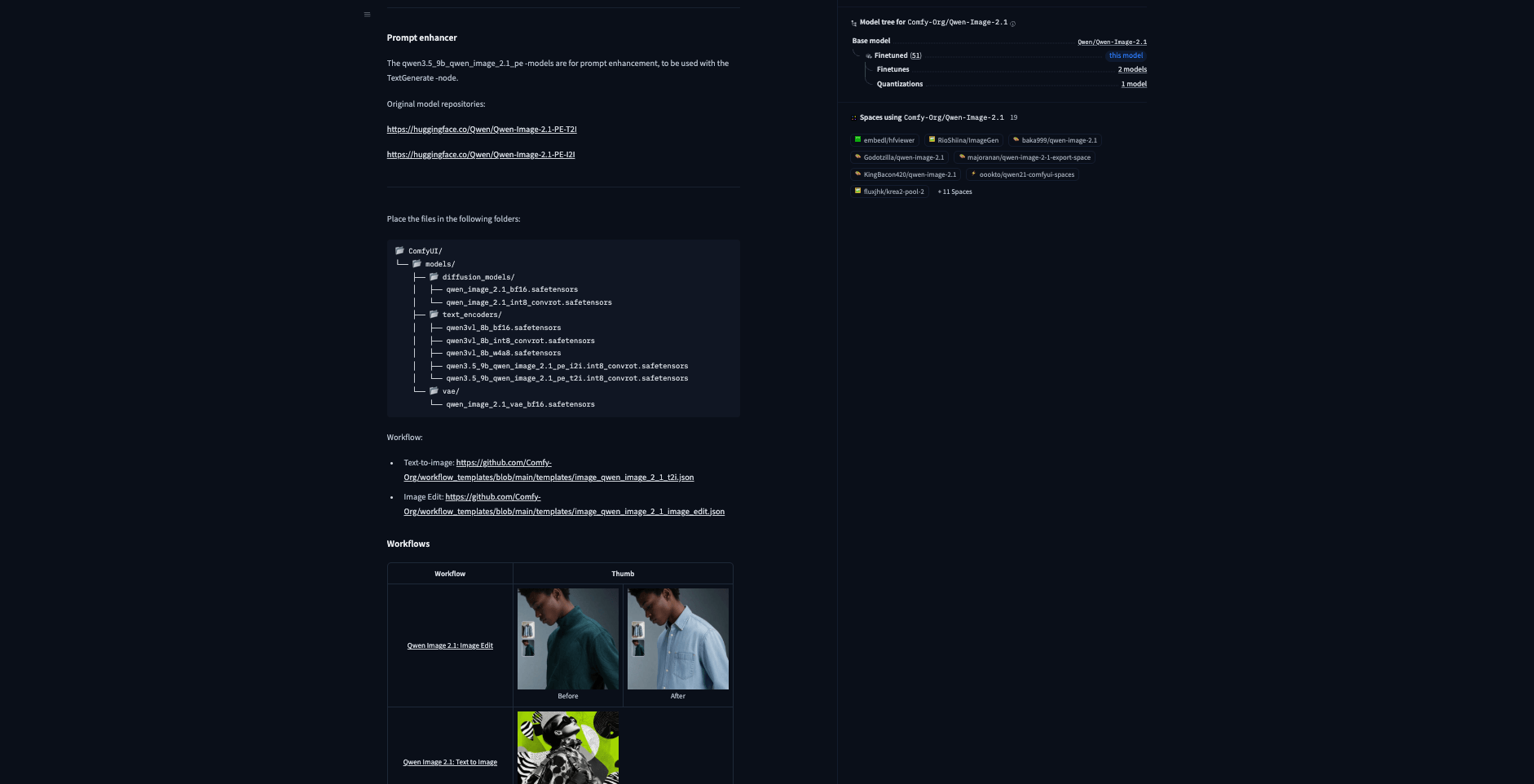
Comfy-Org's official model card documents the exact folder placement for the companion weights. (Screenshot: huggingface.co/Comfy-Org/Qwen-Image-2.1, captured September 29, 2026)
Comfy-Org's official model card documents the exact folder placement for the companion weights. (Screenshot: huggingface.co/Comfy-Org/Qwen-Image-2.1, captured September 29, 2026)
Prefer to skip the local setup?
Everything above is worth it if you want free, unlimited, offline generation and don't mind managing model files. If you mainly need editing results — background swaps, object changes, style transfer — you can also use a Qwen-powered image editor online without downloading anything: SketchTo runs Qwen Image Edit in the browser, at 3 credits per edit with free starter credits when you sign up. It's a different Qwen model lineage (the 20B Qwen Image Edit, not this new 7B release), but for quick edits it skips the entire quant-fork-workflow dance.
The bottom line
Three decisions cover the whole topic. First, pick your quant by VRAM: Q4_K_M if you're unsure, Q6_K/Q8_0 with headroom, and don't go below Q3 for real work. Second, if you run it in ComfyUI, the leejet fork plus the Qwen3-VL text encoder are the two gotchas — and the native int8_convrot weights are worth trying before any GGUF download. Third, match the runtime to your hardware: ComfyUI for modern NVIDIA rigs, sd.cpp or the forked loader for everything else — or skip all of it and edit images online.
Transform Your Images with AI
Turn sketches into stunning images, remove backgrounds, swap faces, and more — all powered by AI.
Try Sketch To FreeShare
SketchTo Team
Tech writer covering AI tools, image processing, and creative workflows.
Related Articles
How to Make Your Own Funko Pop: 3 Real Routes and What They Cost
Official Funko customizer, handmade makers, or DIY — see real prices and lead times for a personalized Funko Pop, then preview your design free with AI before you pay.

How to Restore Old Photos With AI: Tested Prompts, Real Credit Costs
We restored a damaged old photo on SketchTo with three copy-paste AI prompts - repair, face-safe sharpening, optional colorization - and report real credit costs, before/after results, and honest limits.
How to Turn a Photo into a Perler Bead Pattern (Free Beginner Tutorial)
A tested beginner walkthrough: turn a photo into a printable perler bead pattern with a free online tool, read and print the grid, match bead sizes and color codes, and fuse both sides following official ironing methods.