
Promptable Background Removal: How Text-Prompted Cutouts and Auto Inpaint Masks Work
Two fresh releases landed the same day this week, and both point at the same task: removing a background on command instead of trusting a one-click button. Feyn introduced MultiMatte, a background-removal model you aim with words — you name the object to keep, it cuts everything else. Hugging Face published Workflow1111, a canvas that rebuilds AUTOMATIC1111's classic pipelines, including one that generates inpaint masks from a detector so you no longer paint them by hand.
Promptable background removal means you steer the cutout with a text prompt — "keep the dog," "keep only the sneaker" — rather than accepting whatever an automatic segmenter decided was the subject. It matters because auto-removers guess; prompts remove the guess. This article explains what actually changed under the hood (binary masks vs. alpha mattes), then walks through three working routes today: a prompt-first editor in the browser, a promptable matting model in a few lines of Python, and a detector-to-mask pipeline for inpainting.
From one-click to promptable
The background removers most people know — Adobe Firefly's, and similar tools across photo editors — follow a one-click pattern: upload, click, get a cutout of whatever the model considers the salient subject. That's convenient when the subject is obvious, and useless when it isn't. If your photo has a dog on a sofa and you want the sofa, a one-click remover keeps the dog.
Promptable models flip the direction. Instead of predicting "the subject," they match your words against what's in the frame. The technology behind this shift is Meta's SAM 3 (2025), described by Feyn as a concept-promptable detector: give it a phrase and it returns masks for every matching object. The Feyn team reports that concept names help even without any fine-tuning — on their DIS-VD benchmark, naming the real object added 0.150 S-measure to stock SAM 3, a substantial jump for zero training.
Naming what to keep is also the core trick to transfer into everyday tools: a prompt like "keep the main subject completely unchanged" does measurably different work than no instruction at all.
Binary masks vs. alpha mattes: why hair breaks your cutout
There's a second, quieter shift in MultiMatte worth understanding, because it explains why your cutouts have historically looked chopped.
Segmentation models like SAM 3 return binary masks: every pixel is classified as inside the object (1) or outside (0). That works for hard edges — a car, a mug. It fails on fuzzy boundaries. Hair, fur, smoke, a blurred screen, a translucent veil: these don't have an inside and an outside, they have a gradual falloff of visibility.
An alpha matte replaces the boolean with a continuous opacity value per pixel. A wisp of hair at the edge might get 40% opacity, so the cutout composites into a new background the way the original scene actually looked. The tradeoff is that matting is a harder prediction problem.
MultiMatte is Feyn's attempt to carry SAM 3's prompt-following ability over to alpha matting. Using LoRA fine-tuning, they updated only 19.49M of the model's 860M parameters — 2.27% of the weights — while keeping the text alignment intact. The reported results on DIS-VD, a high-detail segmentation benchmark: 0.667 S-measure for SAM 3, 0.901 for MultiMatte. The team reports improvements on all twelve benchmark splits they list, with the largest gains exactly where binary masks struggle: high-resolution, fine-structure images.
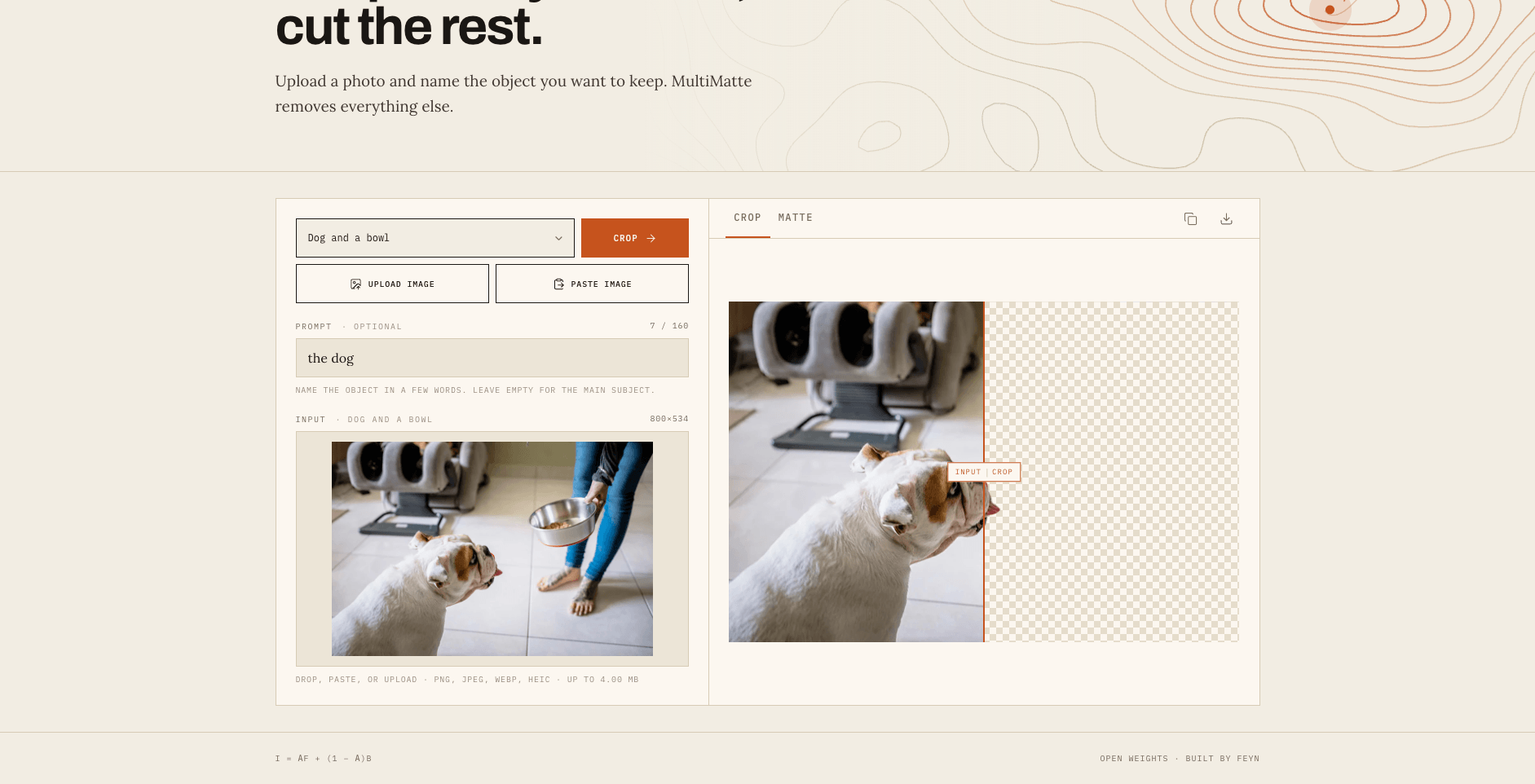
Feyn's MultiMatte demo: the same image, aimed at different targets with different prompts. Source: usefeyn.com
Feyn's MultiMatte demo: the same image, aimed at different targets with different prompts ("the dog", "the dog bowl", "the jeans"). Source: usefeyn.com.
Three working routes today
| Route | Setup | Control | Best for |
|---|---|---|---|
| Prompt-first editor (browser) | None — sign in and upload | Editable prompt + curated default | Quick cutouts, product photos, one-off tasks |
| Promptable matting model (code) | pip install nobg + Python |
Full: concept prompt, raw matte output | Batch processing, apps, research |
| Detector-to-mask pipeline | Duplicate a HF Space | Structural: detect → mask → inpaint | Removing or regenerating whole objects |
Route 1: a prompt-first editor in the browser
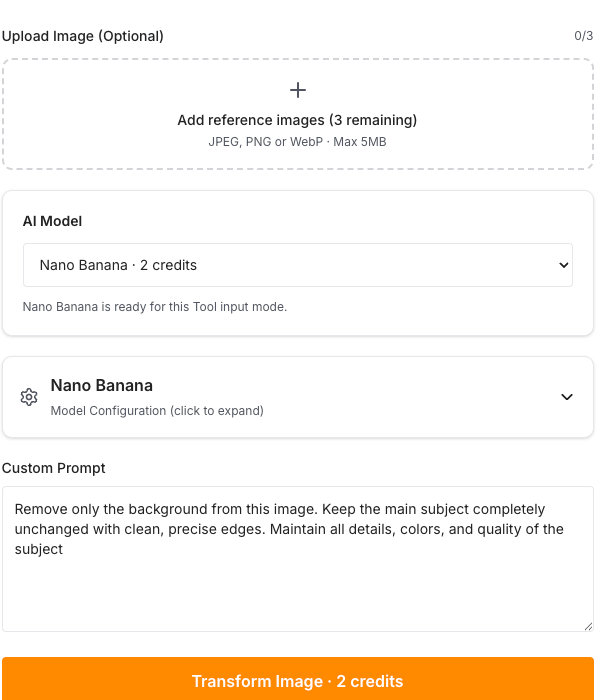
If you don't want to install anything, the fastest way to try promptable removal is a tool that exposes the prompt directly. SketchTo's Background Remover works this way: you upload an image, and the tool runs an image-editing model (nano-banana, 2 credits per generation) with an editable prompt. The default prompt is worth reading because it shows the pattern:
Remove only the background from this image. Keep the main subject completely unchanged with clean, precise edges. Maintain all details, colors, and quality of the subject.
Three instructions do distinct jobs: scope ("only the background"), protection ("keep the main subject unchanged"), and edge quality ("clean, precise edges"). You can edit any of them — swap "main subject" for "the sofa" if that's what you want to keep.
The documented flow: sign in, upload your image, adjust the prompt if the default doesn't match your target, generate, then preview and download. Generation costs 2 credits and new accounts start with 4 free credits, so you can test the prompt-first difference before paying. If your task extends past cutouts, the same prompt-first pattern covers related jobs — Remove Object erases an object and reconstructs what was behind it, and AI Background Changer swaps the removed background for a new one.
Route 2: a promptable matting model in code
When you need matting quality or batch throughput, MultiMatte itself is runnable in a few lines. The Feyn team ships it through the nobg library, with the fine-tuned adapter already merged into the released weights:
from nobg import AutoModel, AutoProcessor

model = AutoModel.from_pretrained("feyninc/multimatte")
processor = AutoProcessor.from_pretrained("feyninc/multimatte")

# Generic default prompt — no concept named.
cutout = model.predict(processor, "photo.jpg")
cutout.save("output.png")

# Name the concept to keep.
cutout = model.predict(processor, "photo.jpg", "the dog")
predict returns an RGBA cutout; pass return_type="tensor" when you want the raw matte itself, for example to composite onto a custom background at full control. The concept argument is optional, but per the Feyn team's own numbers it still adds value on top of the fine-tuned model (+0.036 S-measure on DIS-VD) — naming the target helps even when the model is already promptable.
Choose this route when the ordinary removers keep eating fine detail — hair, glass, fur — or when you're processing many images with the same "keep X" rule.
Route 3: detector-to-mask pipelines for inpainting
Background removal and inpainting share a dependency: a mask that says where to work. AUTOMATIC1111, the classic Stable Diffusion web UI, has always required painting that mask by hand.
Workflow1111 — Hugging Face's Gradio Workflow rebuild of A1111 — generates it instead. The detection-to-inpaint-mask pipeline runs a DETR object detector over the image; in the post's example, it finds six objects in a street photo (three people, a dog, a bicycle, a car). The workflow then splits in two branches: one draws the detected boxes on the original, and the other converts them into a mask you can feed into an inpainting pipeline downstream. Notably, only the detection call leaves the machine — the box drawing and mask creation run locally with Pillow and NumPy.
The same canvas handles background removal through a different door: BRIA RMBG-2.0 runs as a Space node, and every output node doubles as a REST endpoint (nine of them), also exposed as MCP tools — so a detection-to-mask step can be called from an agent or script without opening the UI.
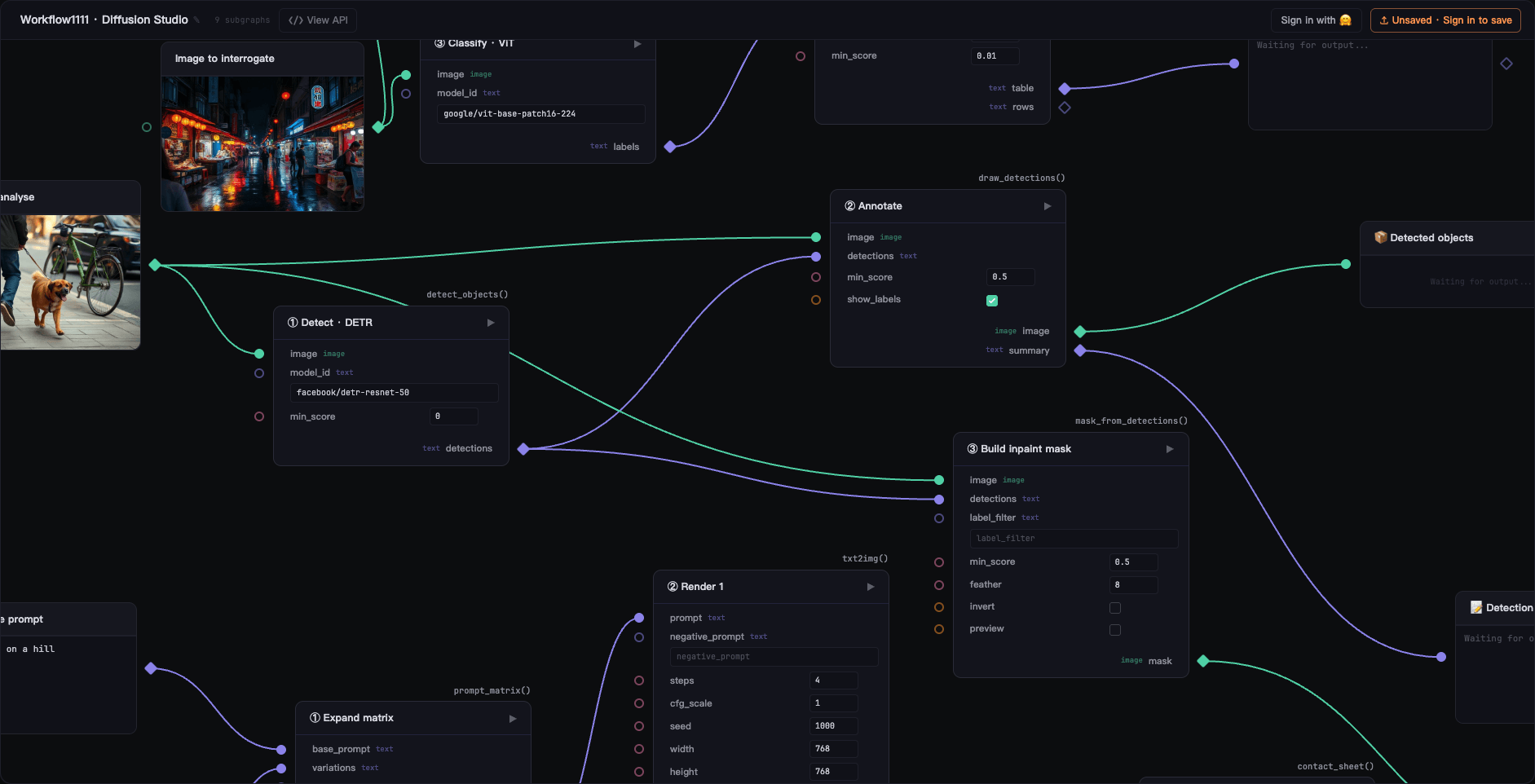
Workflow1111's canvas on Hugging Face: eleven AUTOMATIC1111-style pipelines rebuilt as 73 Gradio Workflow nodes. Source: huggingface.co
Workflow1111's canvas on Hugging Face: eleven AUTOMATIC1111-style pipelines rebuilt as 73 Gradio Workflow nodes, including detection-to-inpaint-mask and background removal. Source: huggingface.co.
How auto inpaint masks change inpainting
Hand-painted masks have two failure modes: they're slow, and they're irreproducible — paint the same region twice and you get two different masks. A detector-generated mask fixes both: click an object class, get a pixel-exact box or mask every time, then let inpainting regenerate what's inside (or rebuild what should be behind a removed object).
The honest limitation: detection-driven masks only know about distinct, nameable objects. A DETR-class detector will find the dog and the bicycle; it won't isolate a specific strand of hair or a shadow. For fuzzy or partial targets, you're back in matting territory (Route 2) or manual painting. The practical sequence many pipelines now follow: detect and mask whole objects automatically, fall back to a matte or a manual mask for everything the detector can't name.
Prompt patterns that transfer
Across all three routes, the effective prompts share the same anatomy. These patterns come straight from how the tools document their own default prompts, so they're safe starting points rather than folklore:
- Name what to keep, not what to remove. "Keep the sofa" outperforms "don't remove the sofa." Positive targets give the model something to match.
- Protect the subject explicitly. "Keep the main subject completely unchanged — details, colors, quality" guards against models that quietly regenerate what they keep.
- Ask for edge behavior. "Clean, precise edges" or "natural lighting" sets expectations for the boundary zone where cutouts fail.
- For removal-and-reconstruct jobs, request seamlessness. SketchTo's Remove Object tool documents the pattern: "removal should look natural with seamless background reconstruction."
Which route should you use?
- One-off image, no patience for setup → a prompt-first editor (Route 1). Read the default prompt, edit the target noun, generate.
- Fine detail keeps getting destroyed → a matting model like MultiMatte (Route 2). Alpha mattes exist precisely for hair-and-fuzz problems.
- You need to remove or regenerate whole objects in an existing image → a detector-to-mask pipeline (Route 3). Automatic masks, reproducible results, scriptable endpoints.
One caveat across all of them: everything above is documented behavior from the sources and live tool pages, not a benchmark we ran — reported numbers belong to their authors, and individual outputs vary by image. Whichever route you pick, zoom into the edges before you ship the cutout anywhere.
Promptable background removal is the direction the whole category is moving: less trusting the model's guess, more telling it what you want. The one-click button isn't wrong — it's just no longer the only option. Now you can simply say what to keep.
Transform Your Images with AI
Turn sketches into stunning images, remove backgrounds, swap faces, and more — all powered by AI.
Try Sketch To FreeShare
SketchTo Team
Tech writer covering AI tools, image processing, and creative workflows.
Related Articles
How to Turn a Photo Into Pop Art (Warhol-Style Prompts and Fixes)
Learn how to turn a photo into pop art with copyable Warhol, comic halftone, and WPAP prompts — plus fixes for face collapse, dense dots, and flat filter results.

Harry Potter Anime AI: What the Malfoid Trend Is and How to Make Your Own Clips
The Harry Potter anime clips on your feed are AI fan works, not a real anime. What the Malfoid trend is, why it exploded in October 2026, the workflow and prompts behind it, and the IP rules worth knowing.

Qwen-Image-2.1 GGUF: Which Quant to Download and How to Run It in ComfyUI
All Qwen-Image-2.1 GGUF quants with real file sizes, which tier fits your VRAM, a working ComfyUI-GGUF setup, and the two errors everyone hits.